Workspace Tabs
Besides the Diagram, every workspace has tabs that help you understand, run and operate your infrastructure.
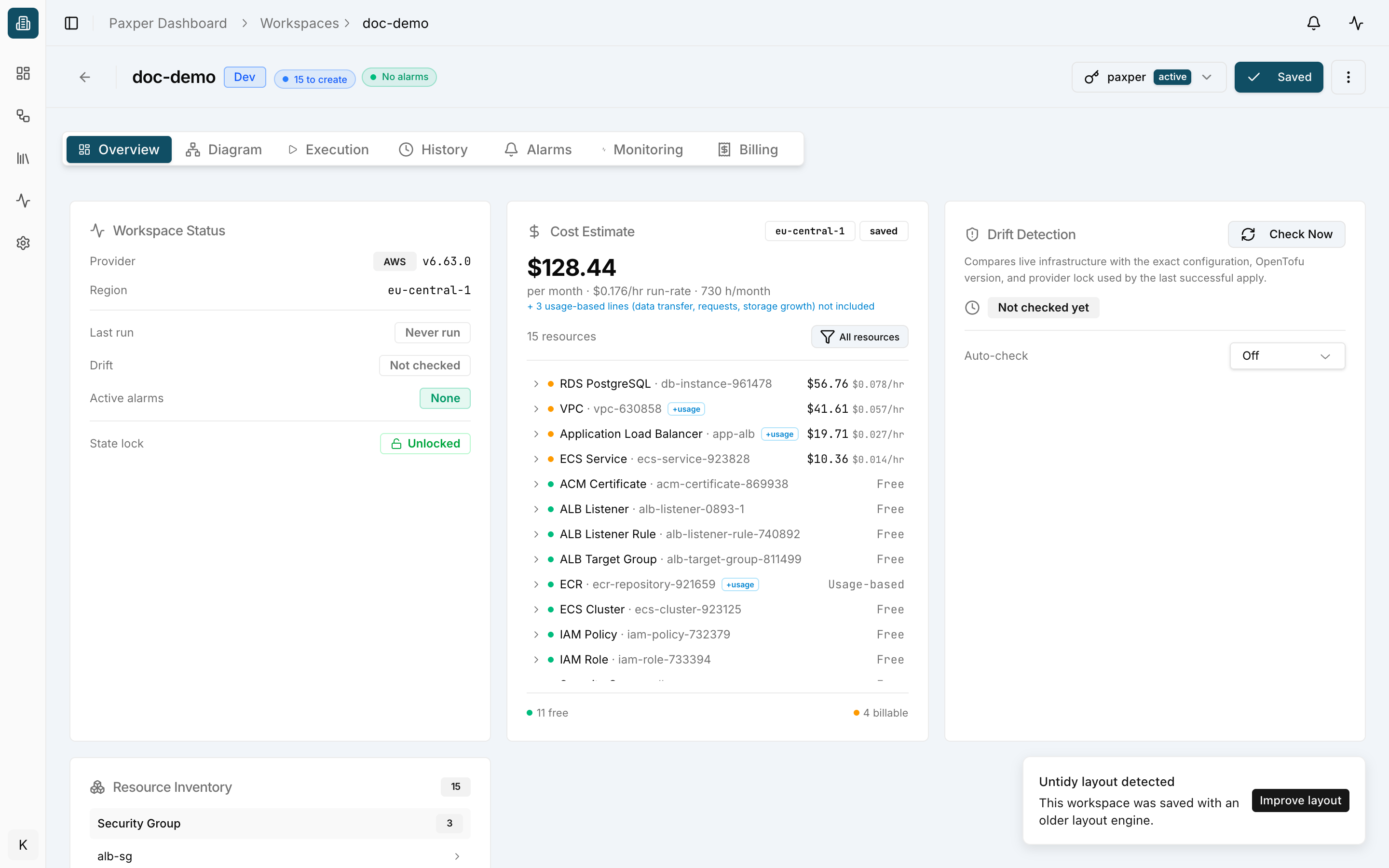
Overview
A summary of the workspace:
- Workspace Status – provider and version, region, last run, drift status, active alarms and state lock (Unlocked or Locked). See Check the state lock.
- Cost Estimate – estimated monthly cost of all resources on the canvas, with a per-resource breakdown (free and billable).
- Drift Detection (Beta) – compares your live infrastructure with the last successful apply. Click Check Now, or turn on Auto-check. Drift detection is in beta, so results may be incomplete.
- Resource Inventory – resources on the canvas, grouped by type.
- Pending Approvals – jobs waiting for approval.
Execution
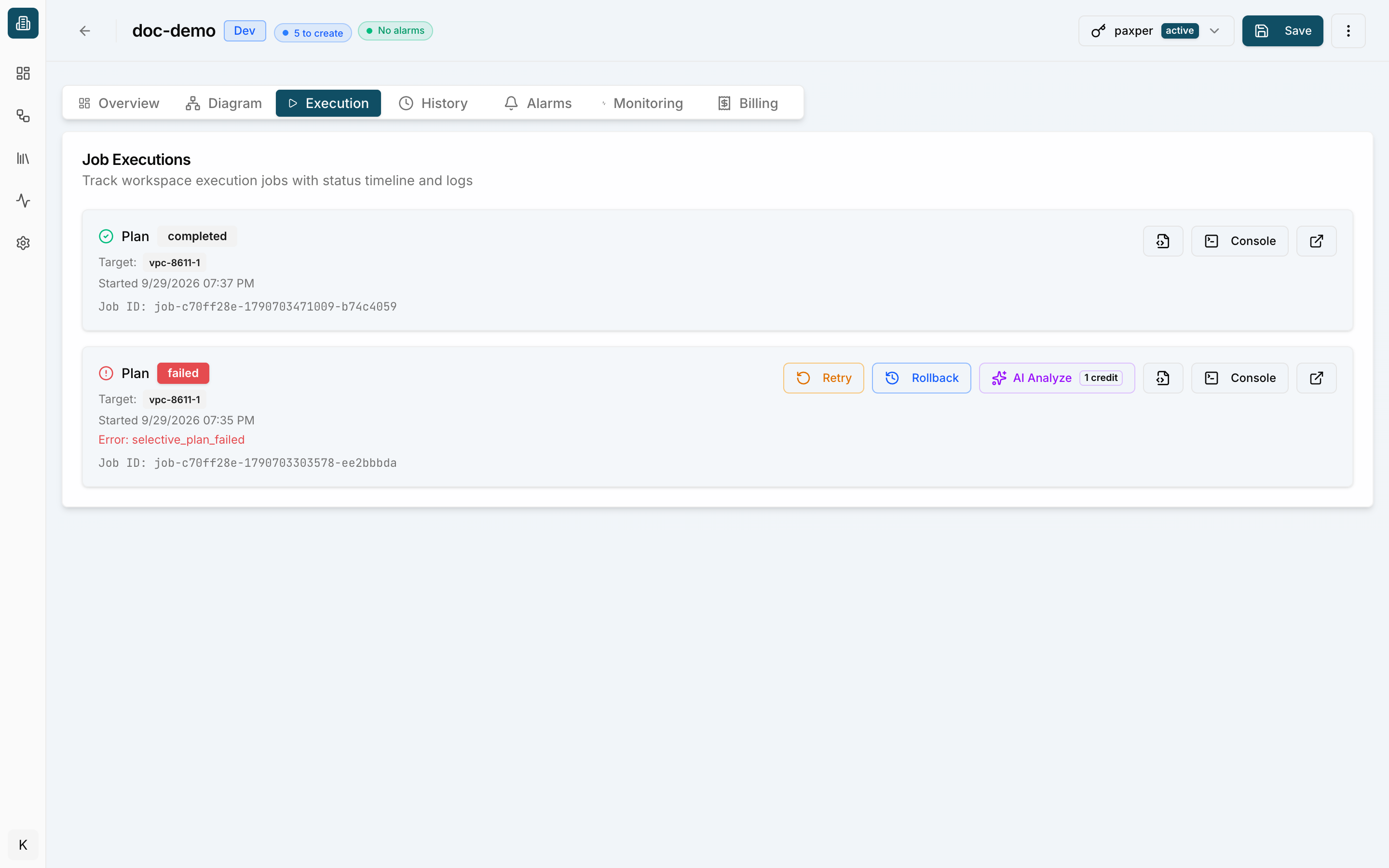
Every plan, apply and destroy job for the workspace, with status, logs and actions. See Running a Plan.
History
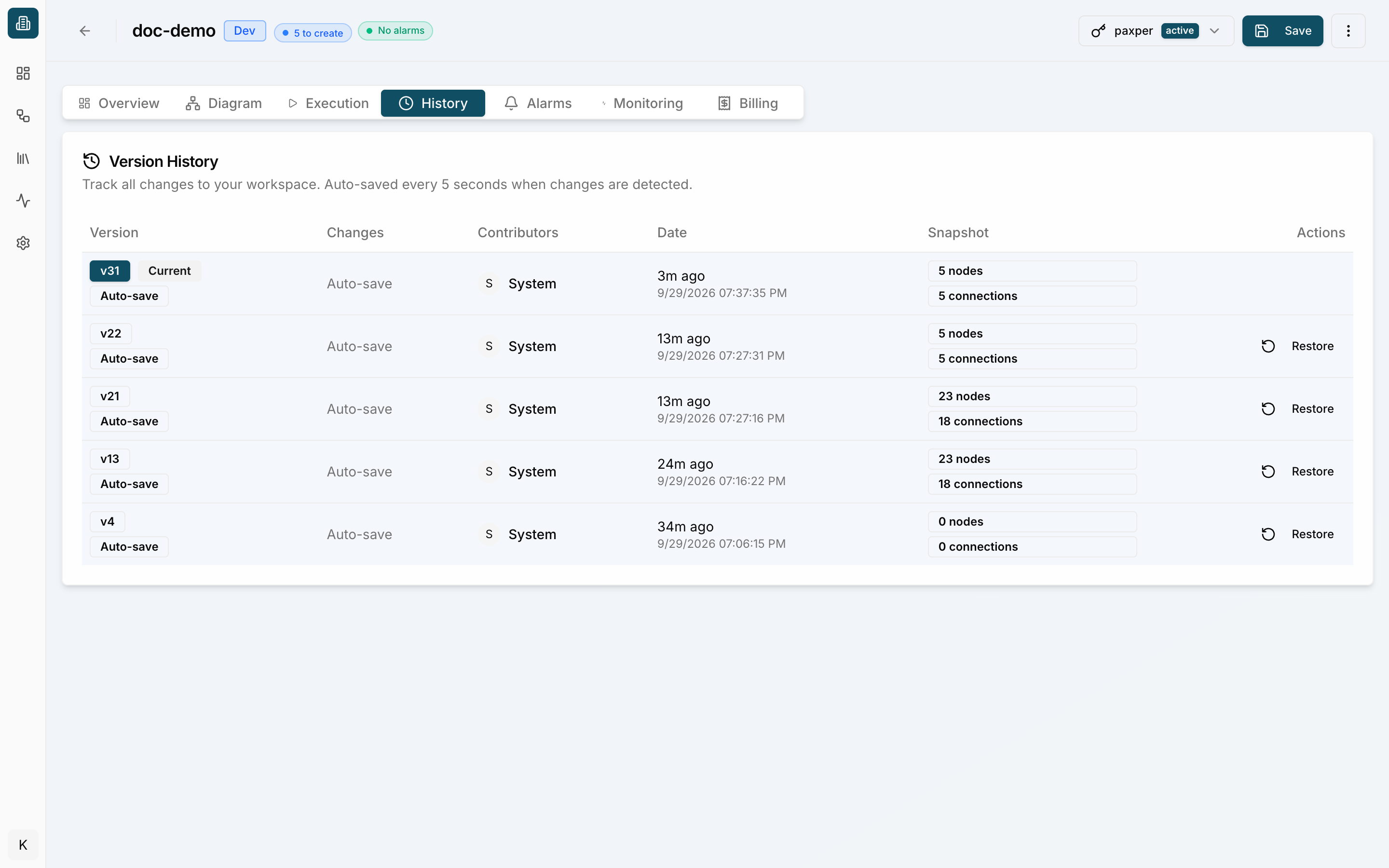
Version History tracks every change to your workspace. Paxper auto-saves every 5 seconds when changes are detected. Each version shows its changes, contributors, date and a snapshot (number of nodes and connections).
Click Restore to bring back an earlier version of the diagram. The restore is saved as a new version (Restored to version X from …), so you can undo it by restoring again.
Restore changes only your canvas. It doesn’t run a job or change anything in your cloud account. To make the cloud match the restored diagram, run a plan and apply afterwards.
Paxper refuses a restore that would remove resources that are deployed in your cloud account (Cannot restore — applied resources would be lost). Destroy those resources first, or choose a version that still contains them.
To undo a failed deployment instead, use Rollback on the failed job. See History Restore or Rollback?
Alarms
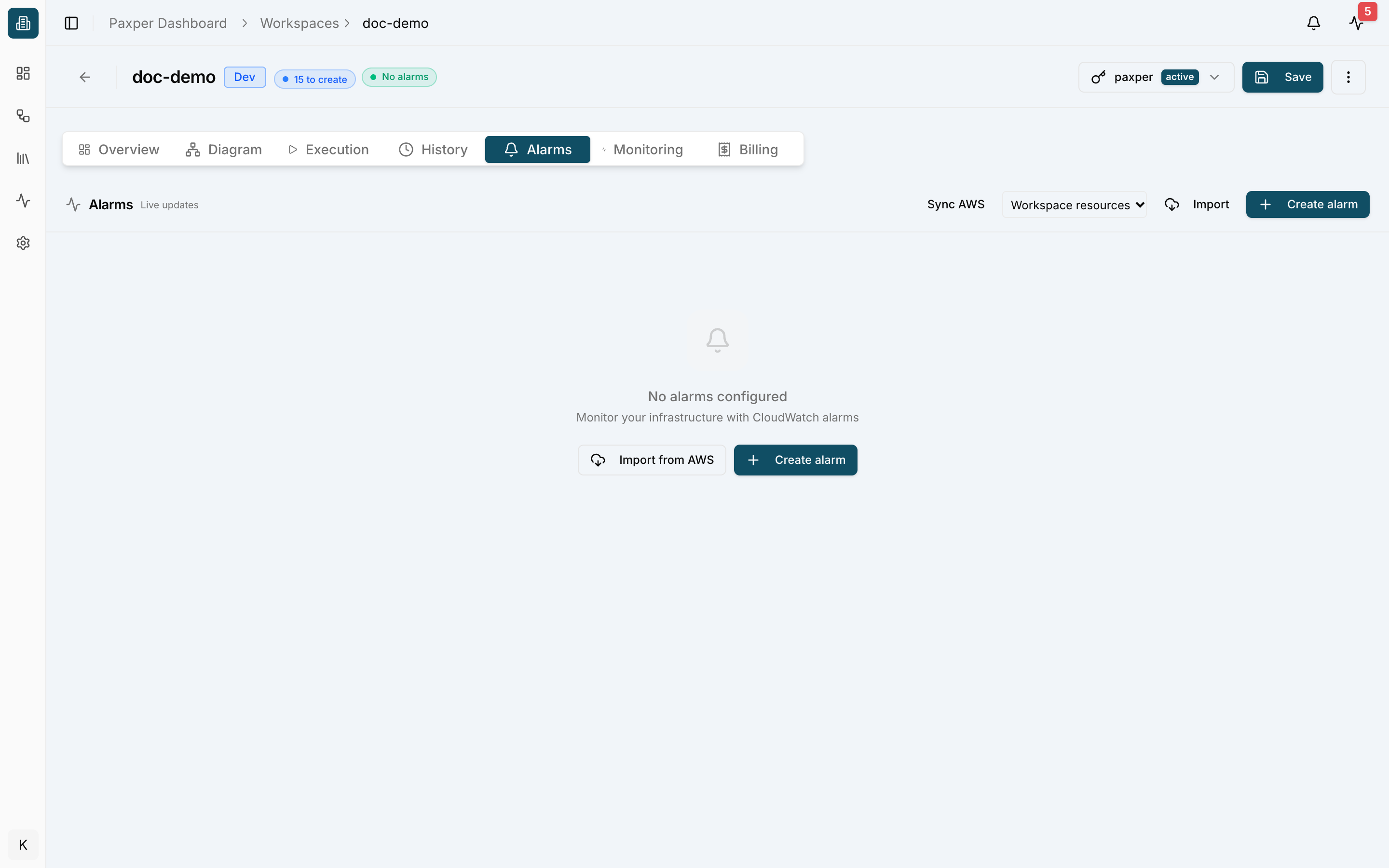
Create and manage alarms for your workspace resources. Use Create alarm to add one, Import to bring in existing alarms, and Sync AWS to refresh them. The workspace header shows the alarm status (for example No alarms).
Monitoring
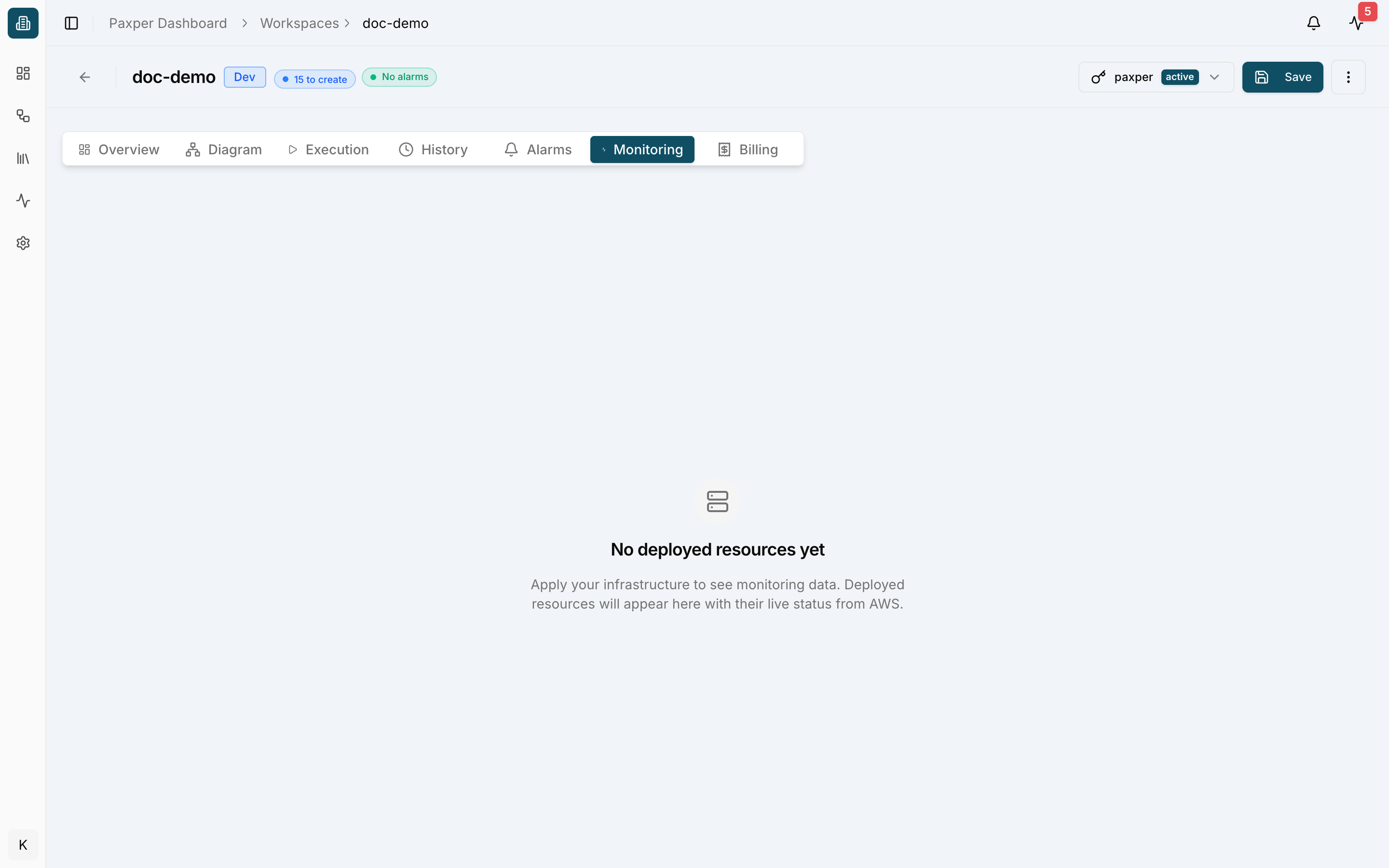
Live metrics of deployed resources. Monitoring data appears once resources have been applied to your cloud account.
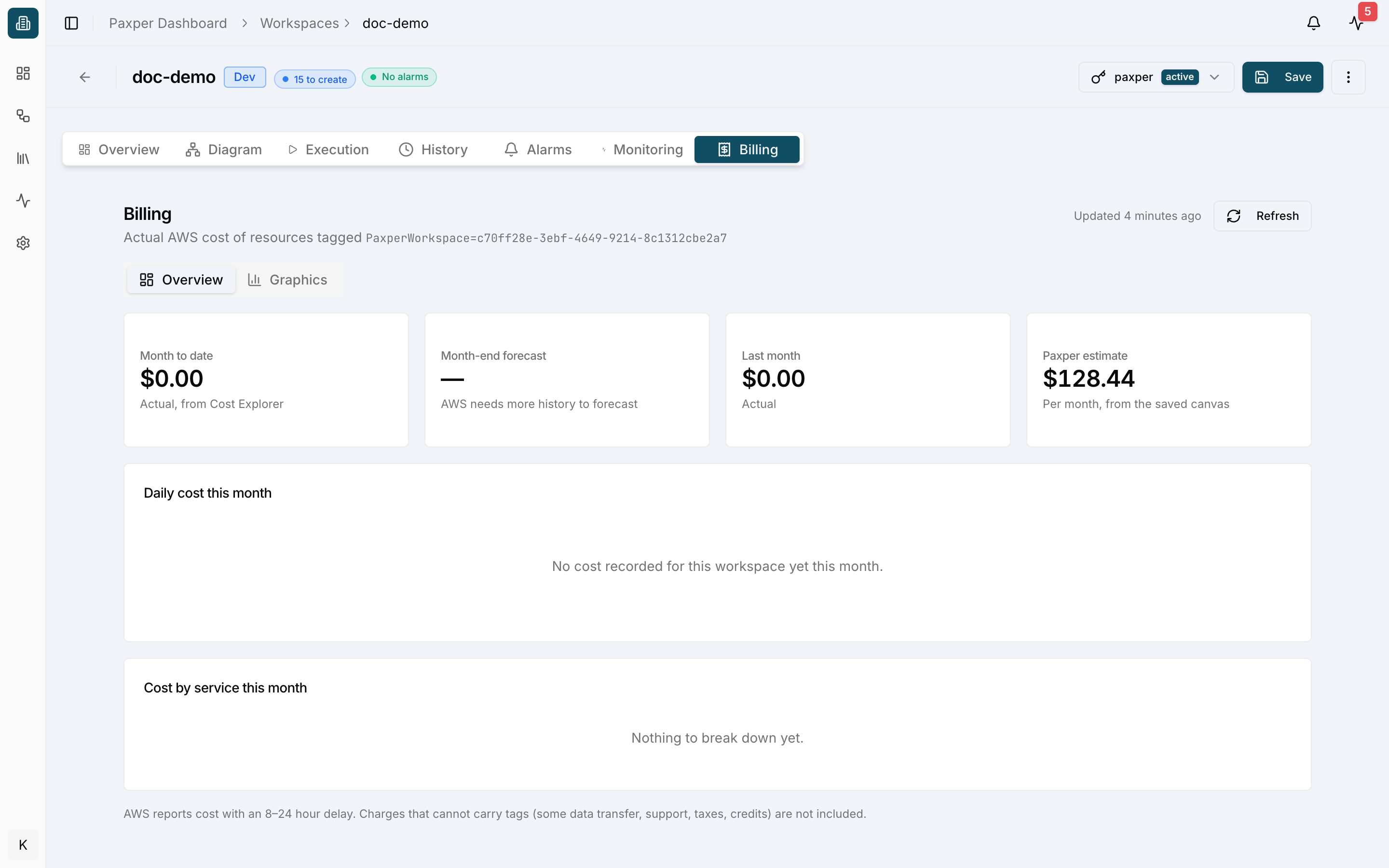
Billing
The actual AWS cost of the resources in this workspace (resources tagged with the workspace ID), next to Paxper’s estimate:
- Month to date and Last month – actual cost from AWS Cost Explorer.
- Month-end forecast – AWS’s forecast, once enough history is available.
- Paxper estimate – the estimated monthly cost of your saved canvas.
- Daily cost this month and Cost by service this month charts. Switch to Graphics for more charts.
AWS reports cost with an 8–24 hour delay. Some charges that cannot carry tags (data transfer, support, taxes, credits) are not included.