Running a Plan
A plan shows what Paxper would create, change or destroy in your cloud account, without making any changes. Always run a plan before an apply.
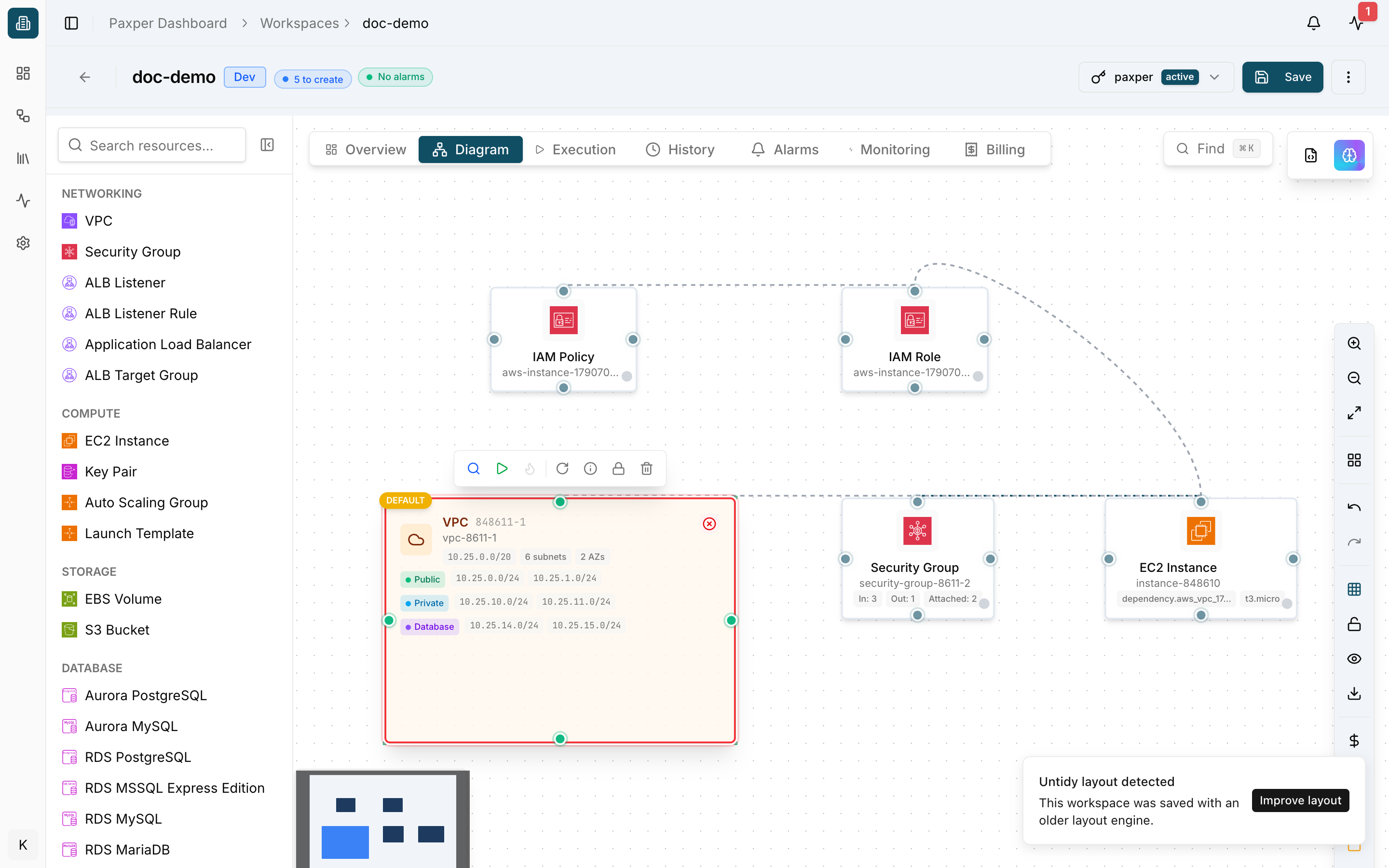
Start a plan
- Open the Diagram tab.
- Hover over the resource you want to plan.
- Click the Plan resource icon (magnifying glass) in the resource toolbar. You can also right-click the resource and choose Plan Changes (
Cmd/Ctrl + Option + P).
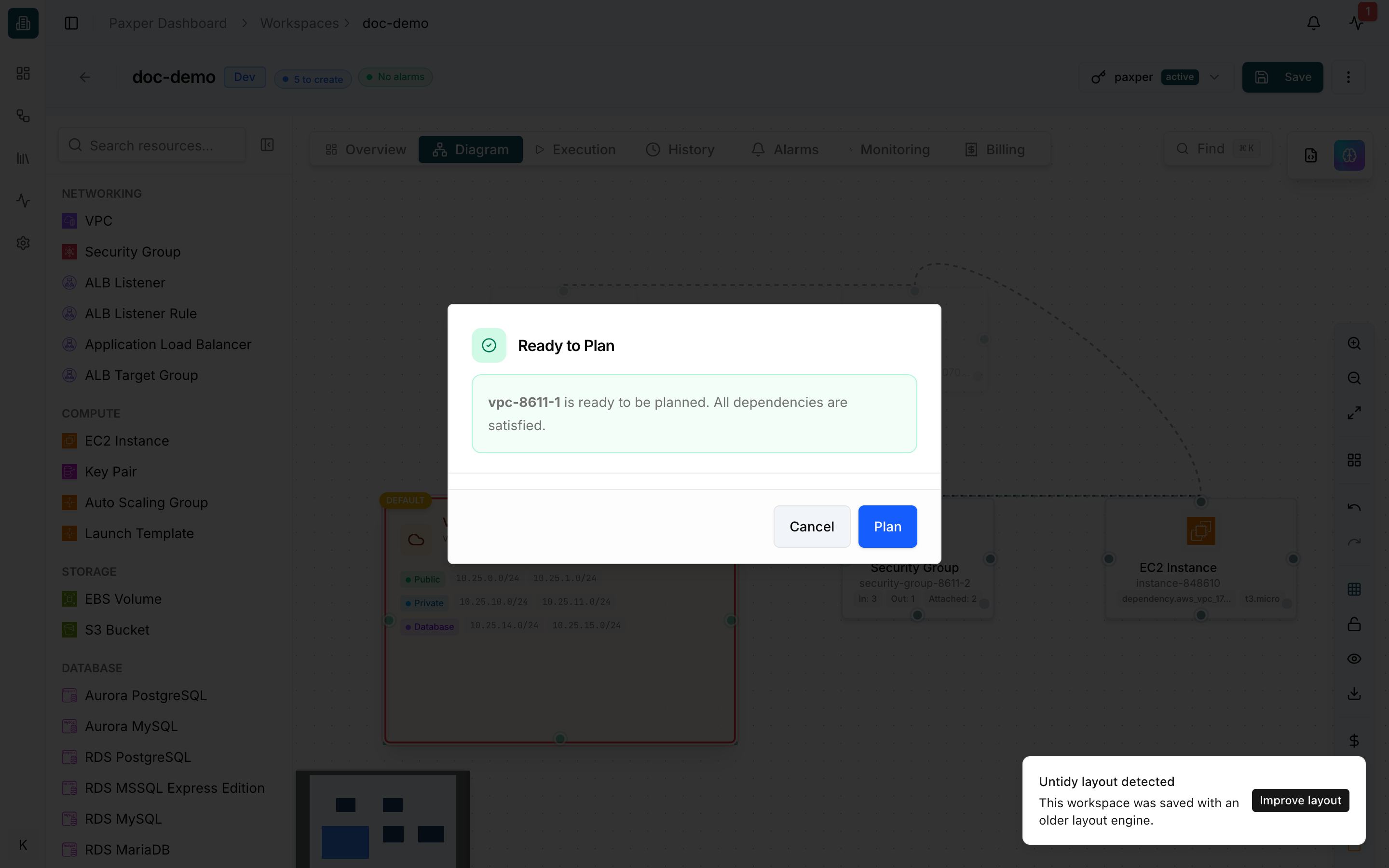
If everything the resource needs is ready, Paxper shows Ready to Plan. Click Plan.
Dependencies
If the resource depends on other resources that haven’t been applied yet (they are still Draft), Paxper lists them in Dependencies Required. Only the selected resource will be planned. Apply the dependencies first, or click Plan Anyway.
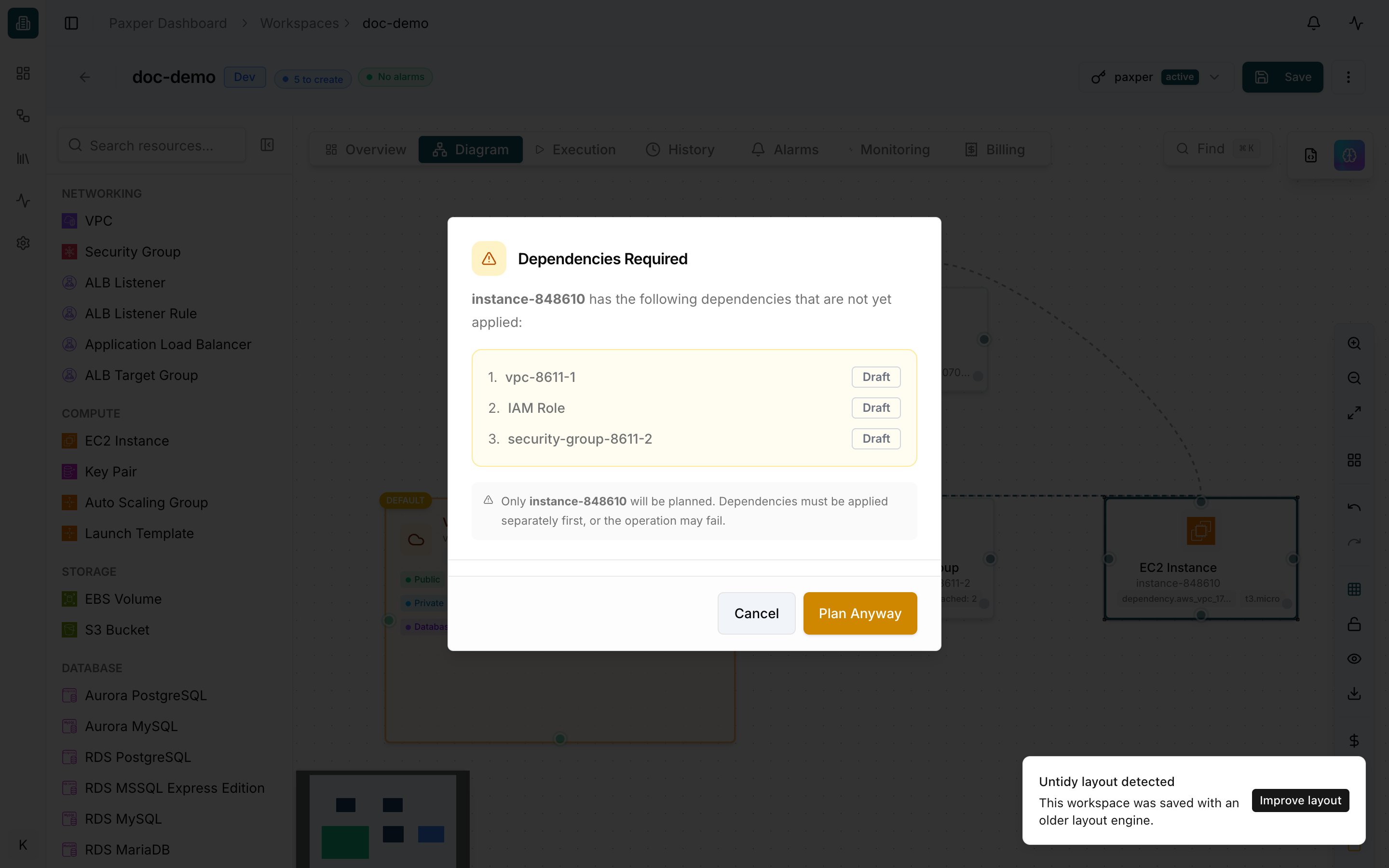
Start with resources that have no dependencies, such as the VPC, and work your way up.
If a required field is empty, Paxper shows Required Fields Missing and lists the fields to fix before you can plan.
Follow the job
Paxper switches to the Execution tab, where each job appears as a card with its type (Plan, Apply, Destroy), status, target resource, start time and job ID.
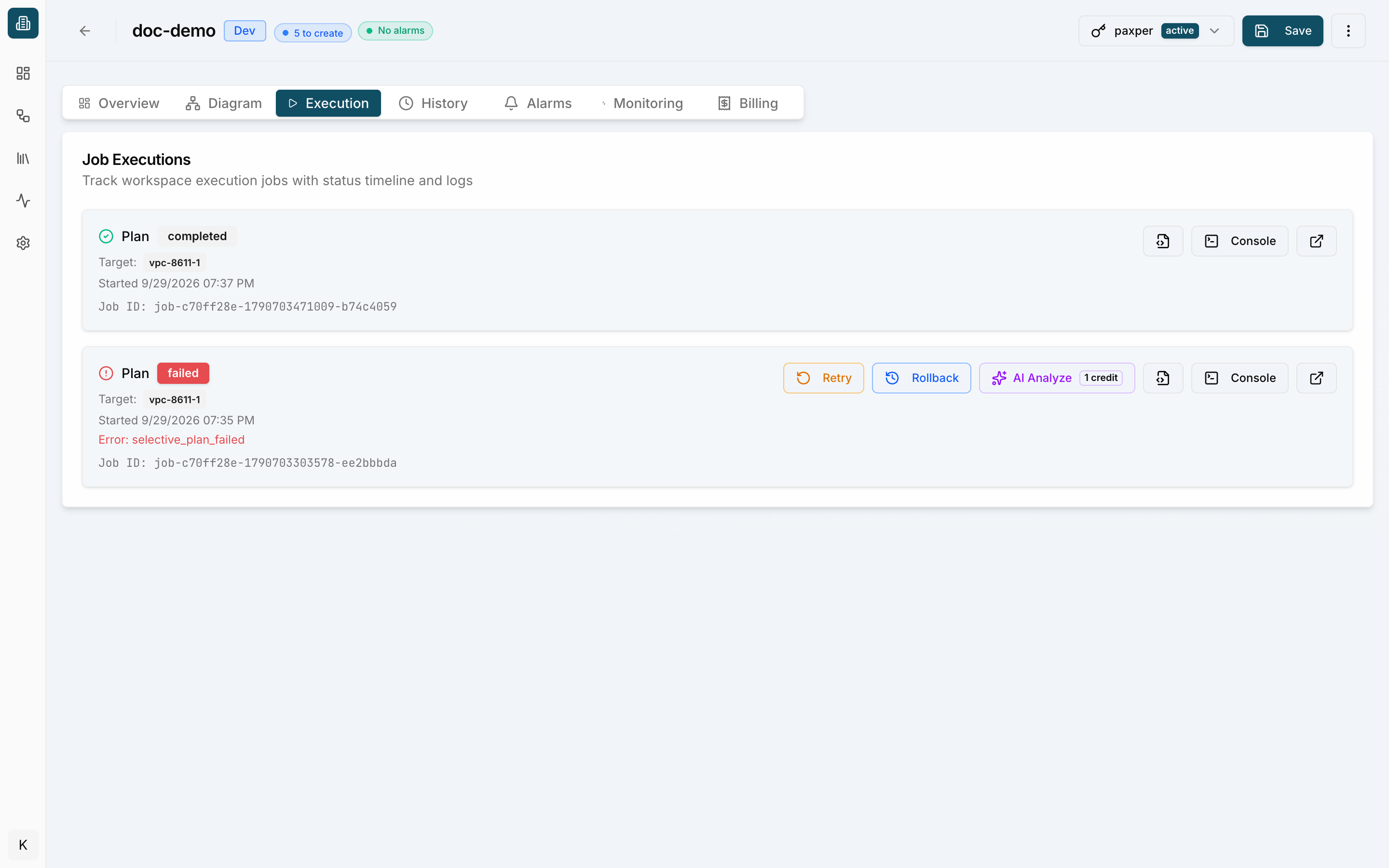
If another operation is already running in the workspace, the new job is queued and starts by itself when the workspace is free. See Why is my job waiting?
Click Console to see the job’s live log. The top of the console shows the job stages: Bootstrap → HCL Generation → Upload → Init → Plan → Complete. You can filter the log by level (ALL, INFO, WARN, ERROR). A successful plan ends with planning -> success and lists the resources and outputs that would be created.
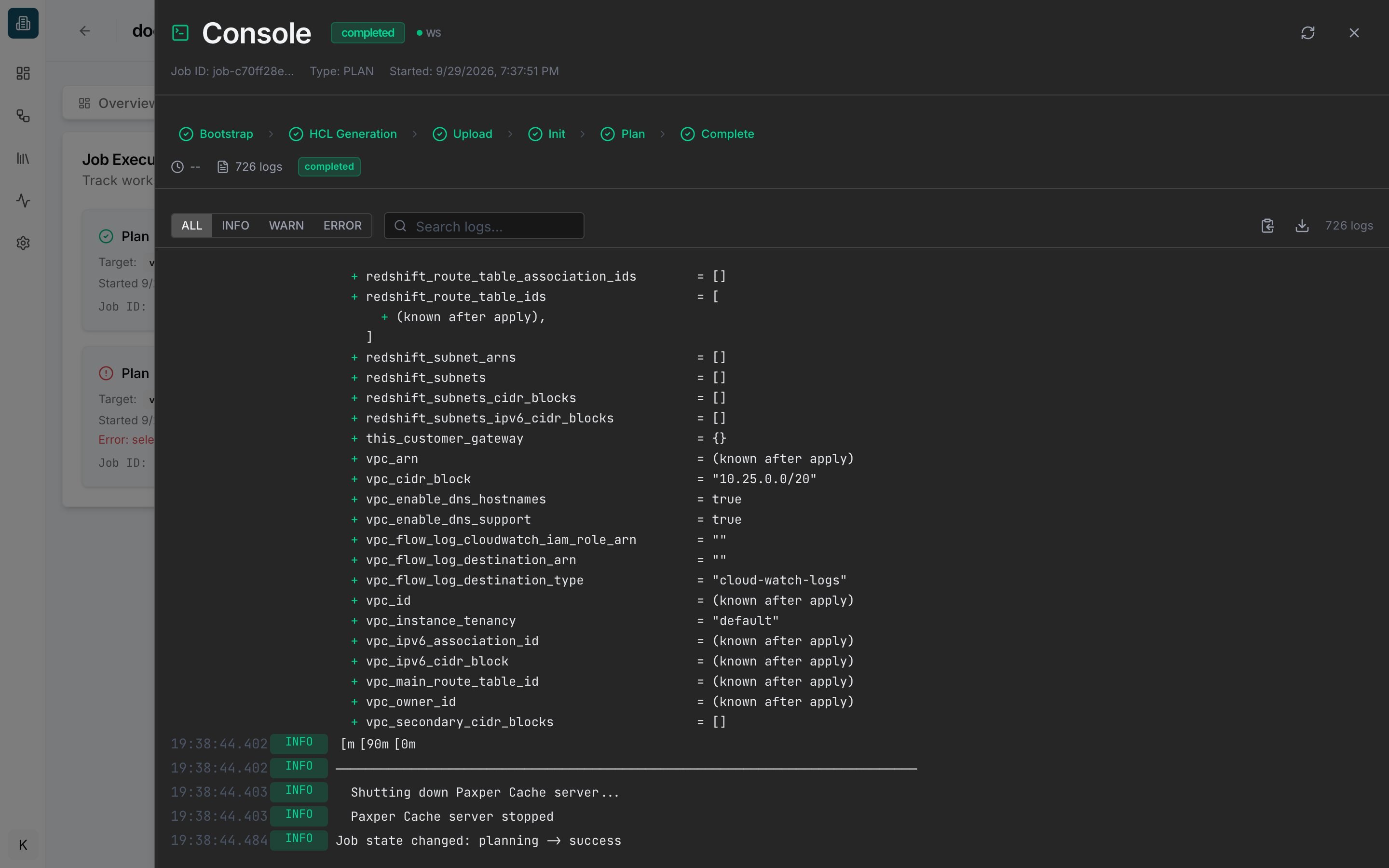
When a plan fails
A failed job is marked failed and shows the error. The job card offers:
- Retry – create a new job with the same inputs and queue it. Use it for temporary problems; if the error is in your configuration, fix that first. A job can be retried up to 5 times.
- Rollback – shown only when there was an earlier successful deployment. It creates a new job that re-applies the configuration of that deployment.
- AI Analyze – let AI explain the error and suggest a fix (uses 1 AI credit).
- Console – open the full log. Filter by ERROR to jump to the problems.
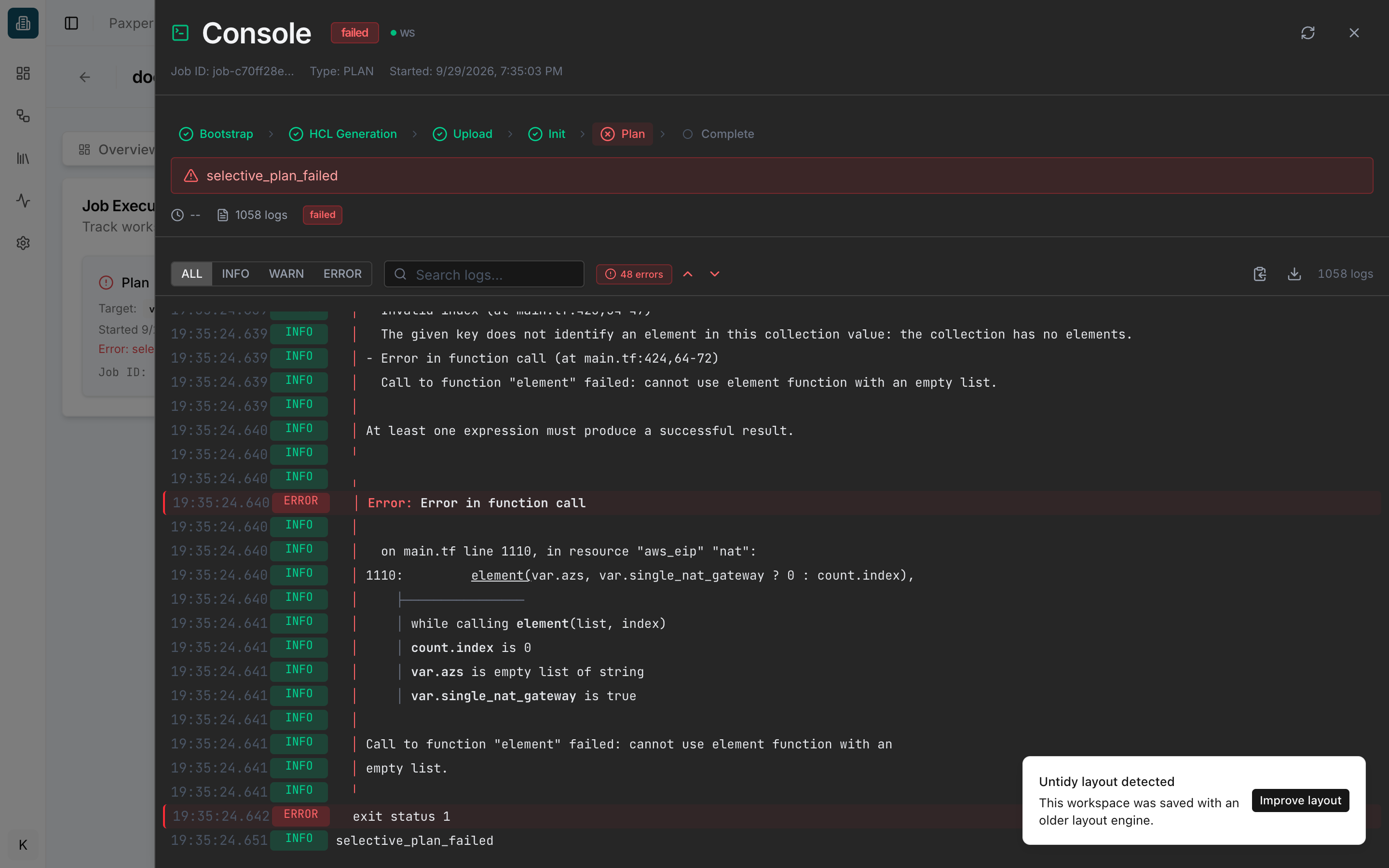
For help choosing between these, see When should I retry?
After the plan
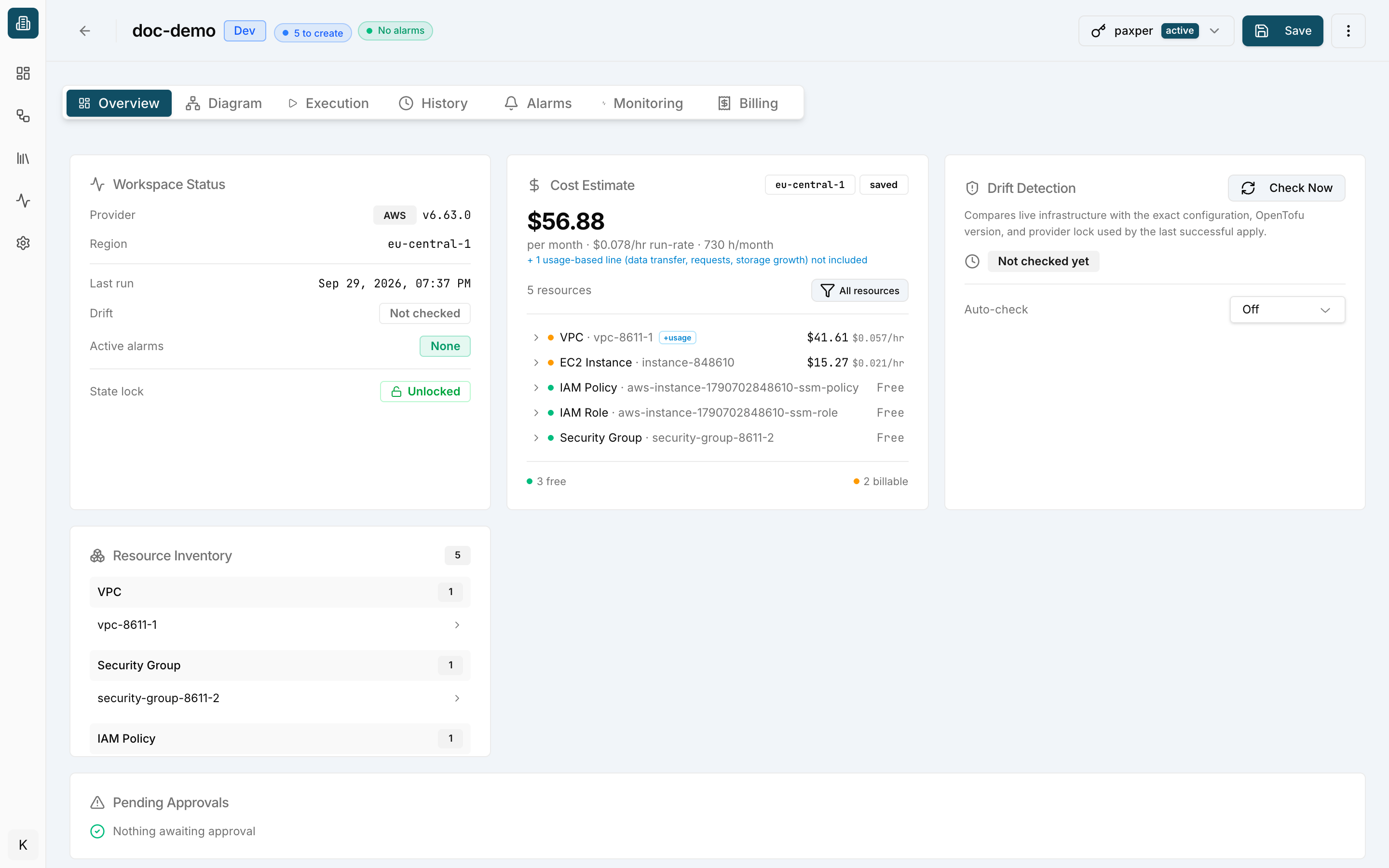
The Overview tab now shows the time of the last run and the estimated monthly cost of your resources.