Getting Started
Paxper lets you design, plan and deploy cloud infrastructure visually. You draw your architecture on a canvas, Paxper turns it into infrastructure code, and runs plans and applies against your cloud account for you.
Create an account
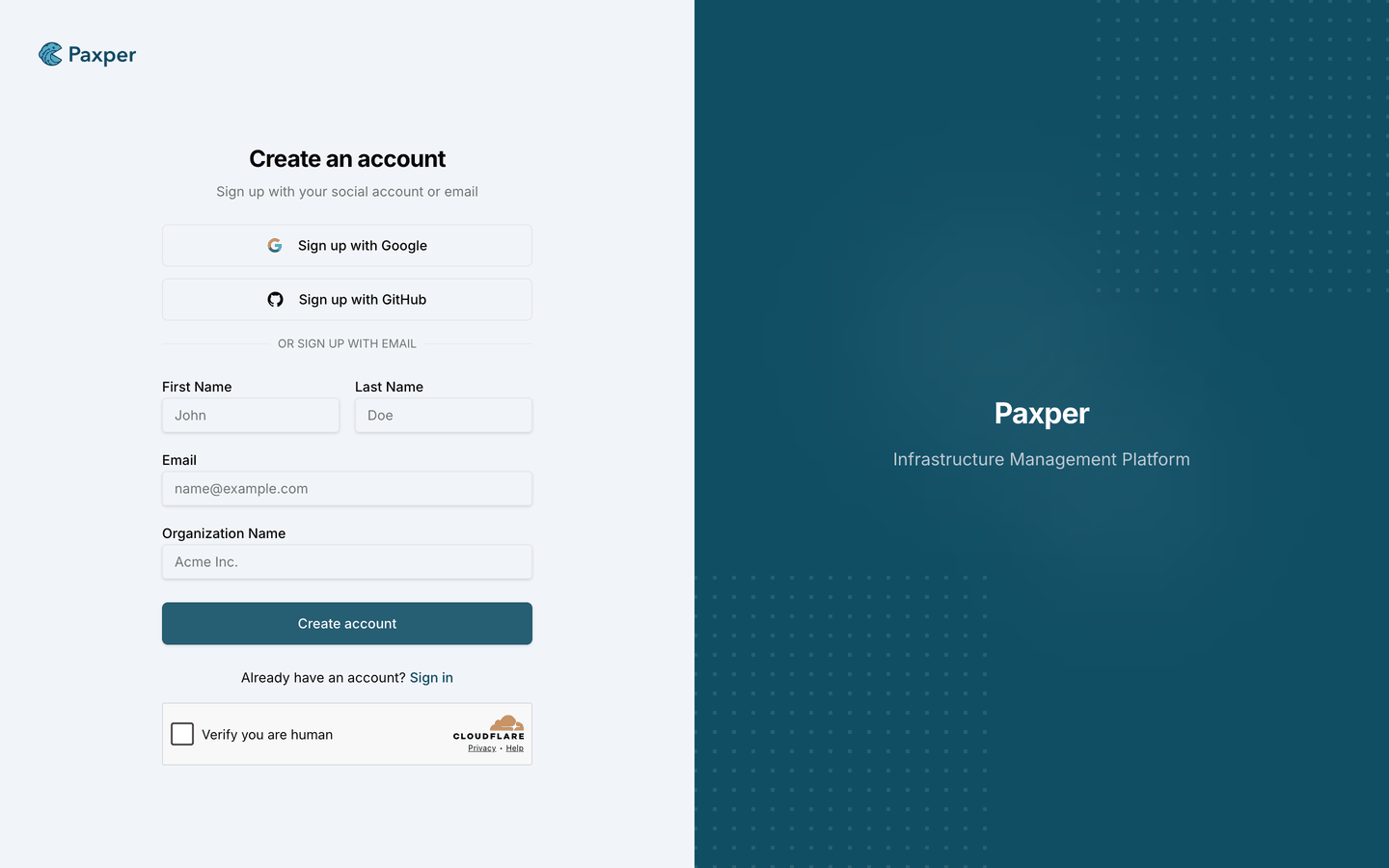
If you don’t have a Paxper account yet, click Sign up on the sign-in page.
- Sign up with Google or GitHub, or
- Sign up with email: enter your First Name, Last Name, Email and Organization Name, complete the Verify you are human check, and click Create account.
Signing up creates a new organization with you as its owner. To join an organization that already exists, ask one of its admins to invite you instead (see Roles and Access).
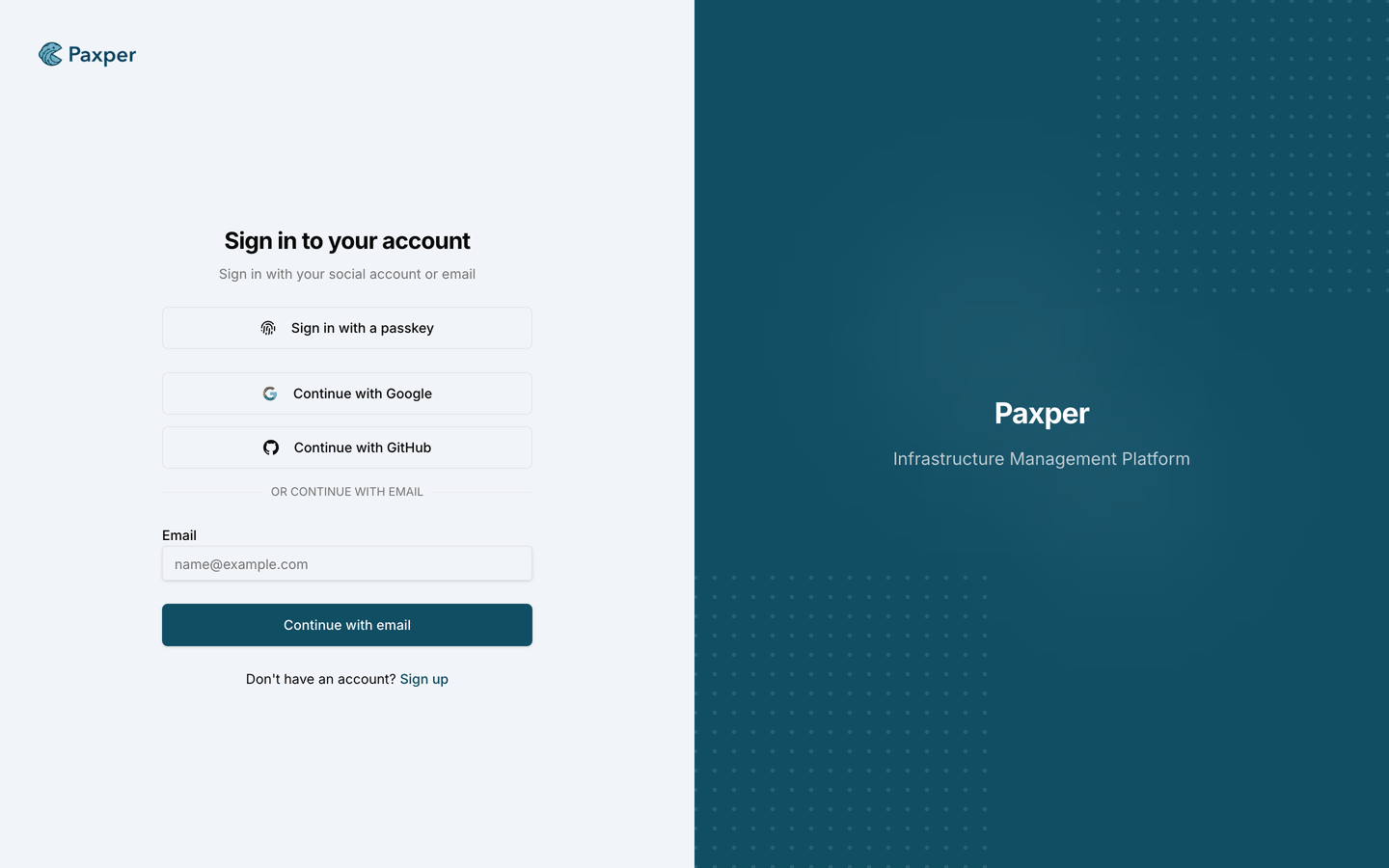
Already have an account? Click Sign in.
Sign in
Open your Paxper URL and sign in. You can sign in with an email code, Google, or GitHub (depending on what your organization has enabled). If two-factor authentication is turned on for your account, you will also be asked for a code from your authenticator app or a passkey.
The Dashboard
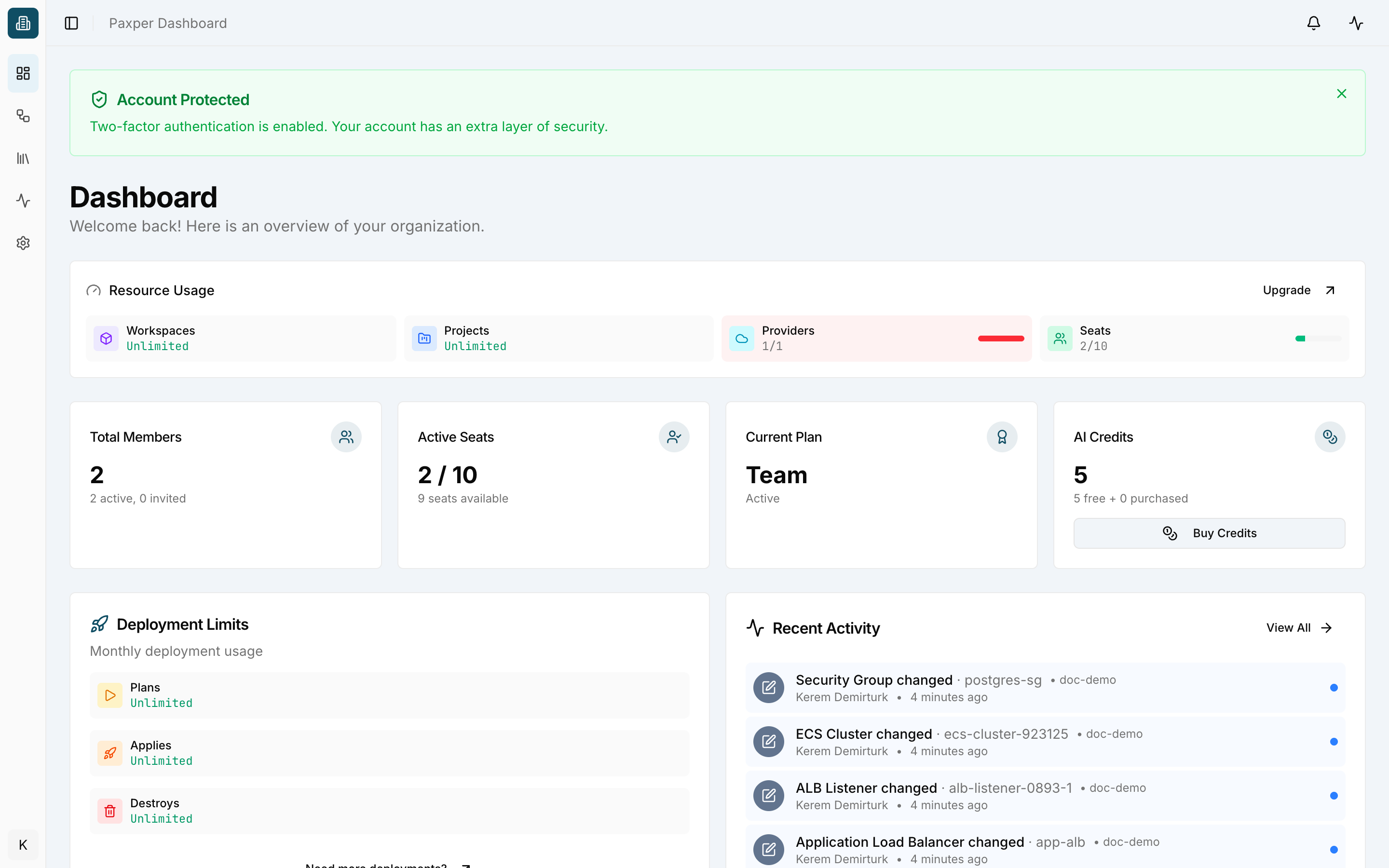
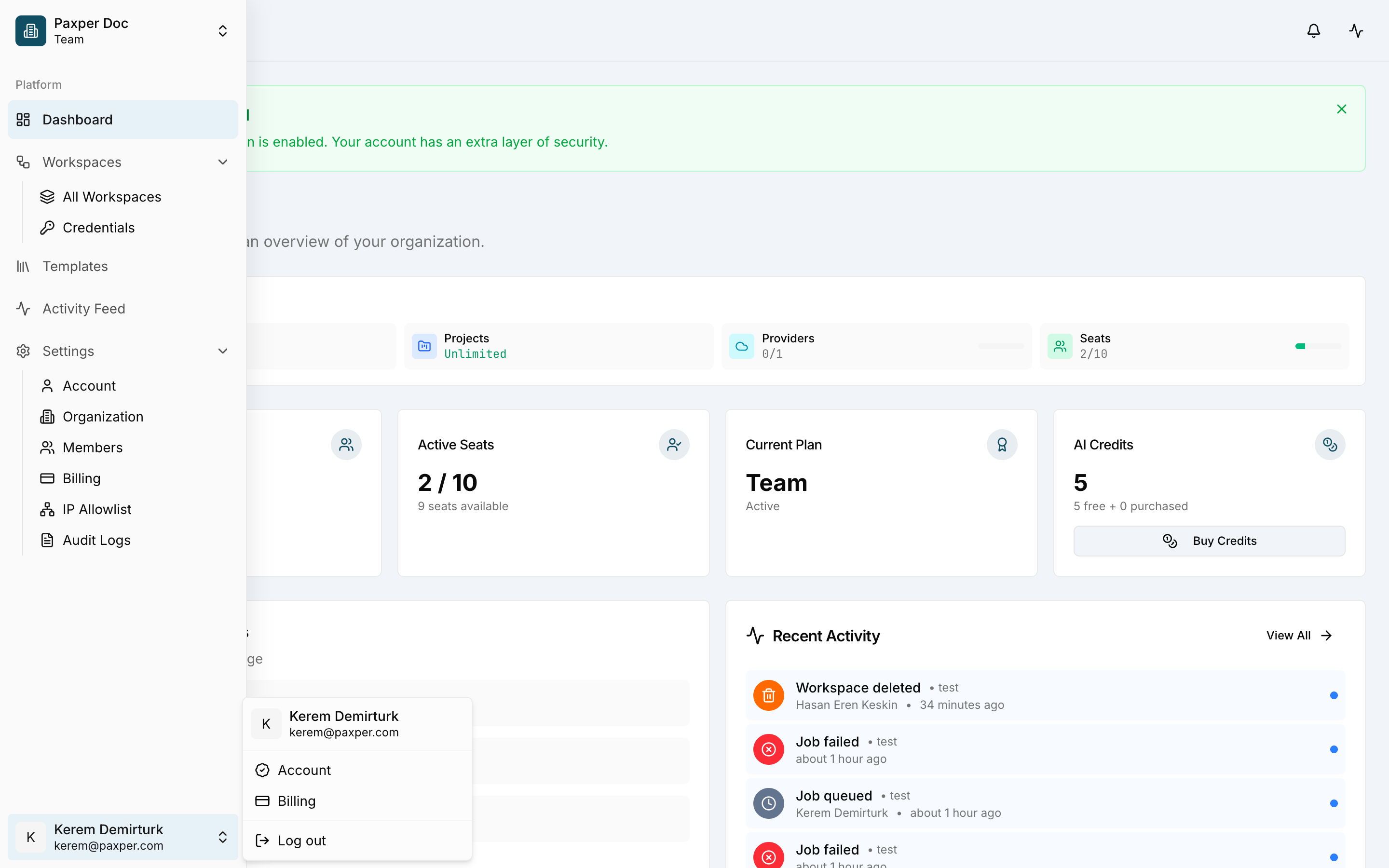
After signing in you land on the Dashboard, an overview of your organization:
- Resource Usage – how many workspaces, projects, cloud providers and seats you are using against your plan limits.
- Total Members / Active Seats – members in your organization and how many seats are in use.
- Current Plan – your subscription plan and its status.
- AI Credits – credits available for AI features such as Paxy and AI Analyze. Click Buy Credits to top up (see AI Credits).
- Deployment Limits – monthly usage for plans, applies and destroys.
- Recent Activity – the latest events in your organization. Click View All to open the Activity Feed.
Navigating Paxper
The left sidebar gives you access to every area of Paxper. Click the sidebar toggle (top-left) to expand it and see the labels.
| Menu item | What it is for |
|---|---|
| Organization switcher (top) | Shows the organization you are working in. |
| Dashboard | Organization overview. |
| Workspaces → All Workspaces | Create and open workspaces. |
| Workspaces → Credentials | Manage cloud provider credentials. |
| Templates | Ready-to-use infrastructure blueprints. |
| Activity Feed | Every event across your organization. |
| Settings | Account, security, organization, members, connected apps, billing and audit logs. |
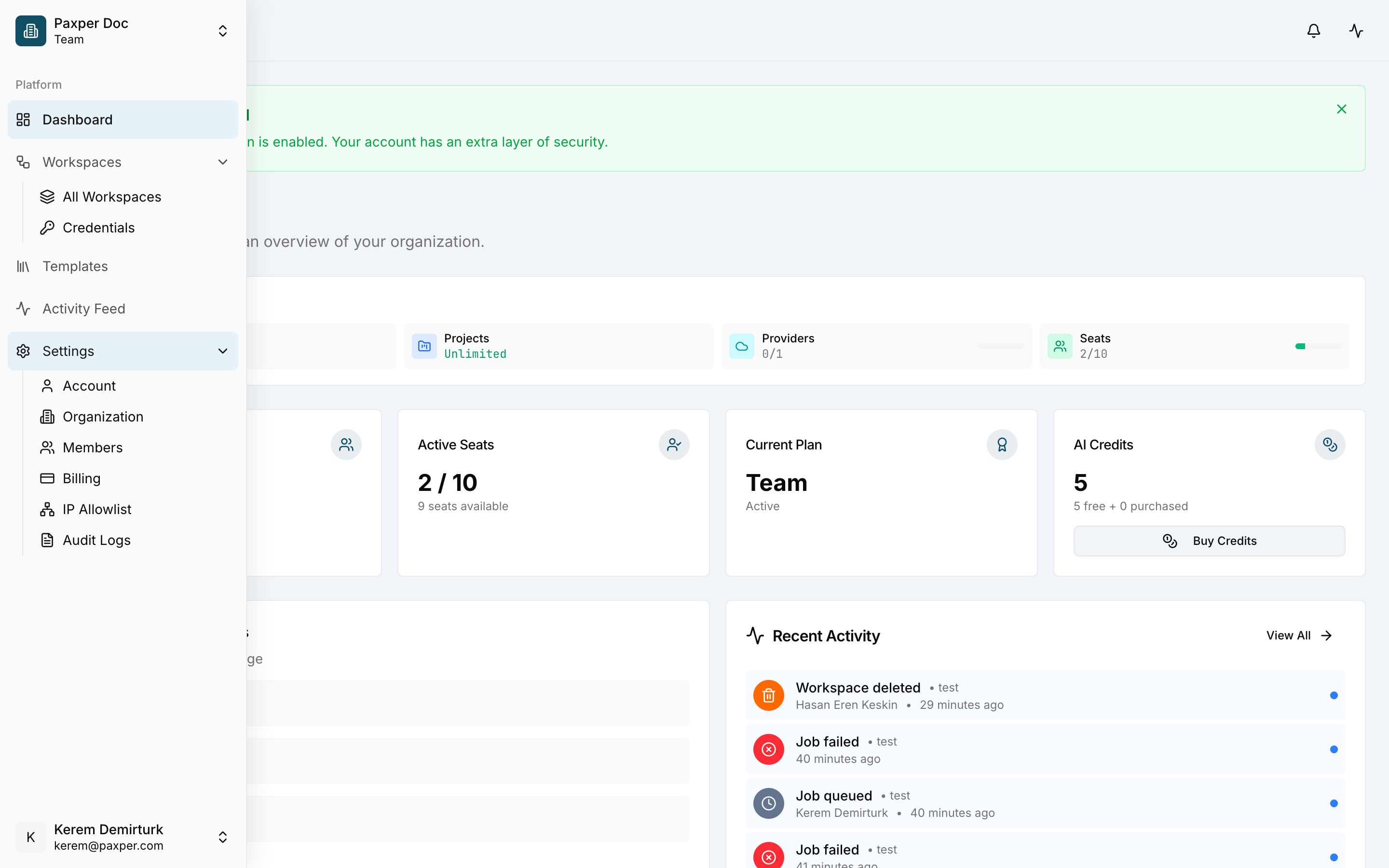
The bell icon in the top bar opens Notifications, and the pulse icon next to it opens the Activity panel.
Your user menu
Click your name at the bottom of the sidebar to open the user menu. From here you can go to Account, Billing, or Log out.
Ready to build something? Follow Build Your First Infrastructure.