Troubleshooting and Recovery
This page answers the questions that come up when something doesn’t go as expected: a job that doesn’t start, a credential that doesn’t work, a failed apply. Each section tells you what you see, why it happens and what to do.
Why is my job waiting?
A workspace runs one operation at a time. Plans, applies, destroys, retries and rollbacks all take the workspace’s state lock while they run, so two operations never change the same infrastructure at once. When a job doesn’t start right away, there are three possible reasons.
| What you see | Why | What to do |
|---|---|---|
| The job card shows queued | Another operation is running in the workspace. | Nothing. The job starts automatically as soon as the current operation finishes. |
| awaiting_approval and the banner A job is waiting for your approval | Auto-approve is off, or an Approval Policy rule applies. | Review the plan in the Console, then approve or decline it. See Approvals. |
| A message such as Workspace is busy or Apply awaiting approval when you start a new job | The workspace is locked by another operation, or a job is waiting for approval. | Wait for the running operation, or approve or decline the pending job first. |
While a job is waiting for approval, you can’t start a new plan, apply or destroy in the workspace. Approve or decline the pending job first.
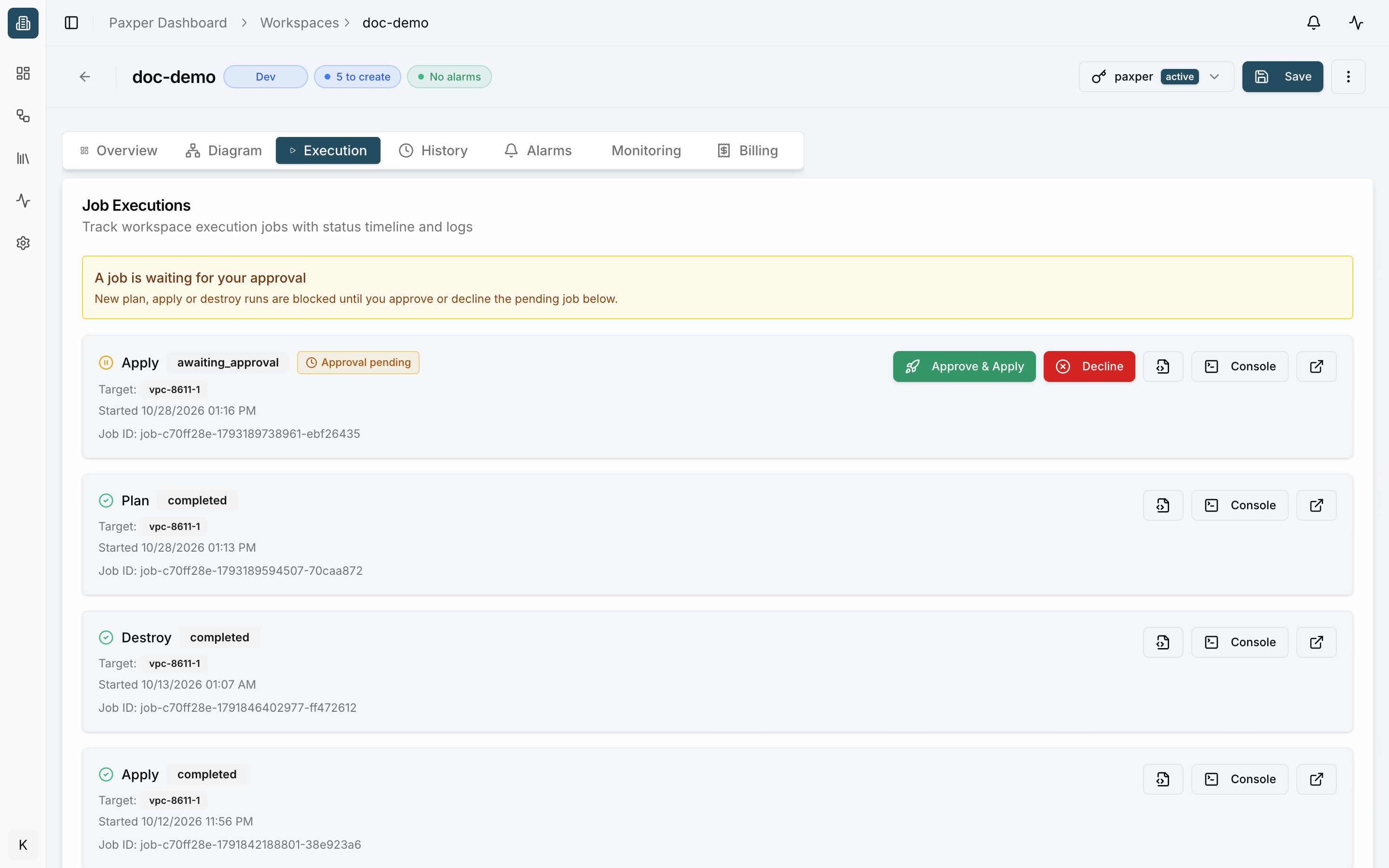
If nobody approves
Each Approval Policy rule has a Timeout. If the job isn’t approved in time, it is marked timeout with the message Approval request timed out. Nothing is changed in your cloud account, the workspace is unlocked, and the next queued job can start. If the rule has an escalation, the request first goes to the escalation approvers. You can start a timed-out job again with Retry.
Check the state lock
The Workspace Status card on the Overview tab shows the lock:
- Unlocked: no operation is running.
- Locked: hover over it to see which operation and job hold the lock and since when.
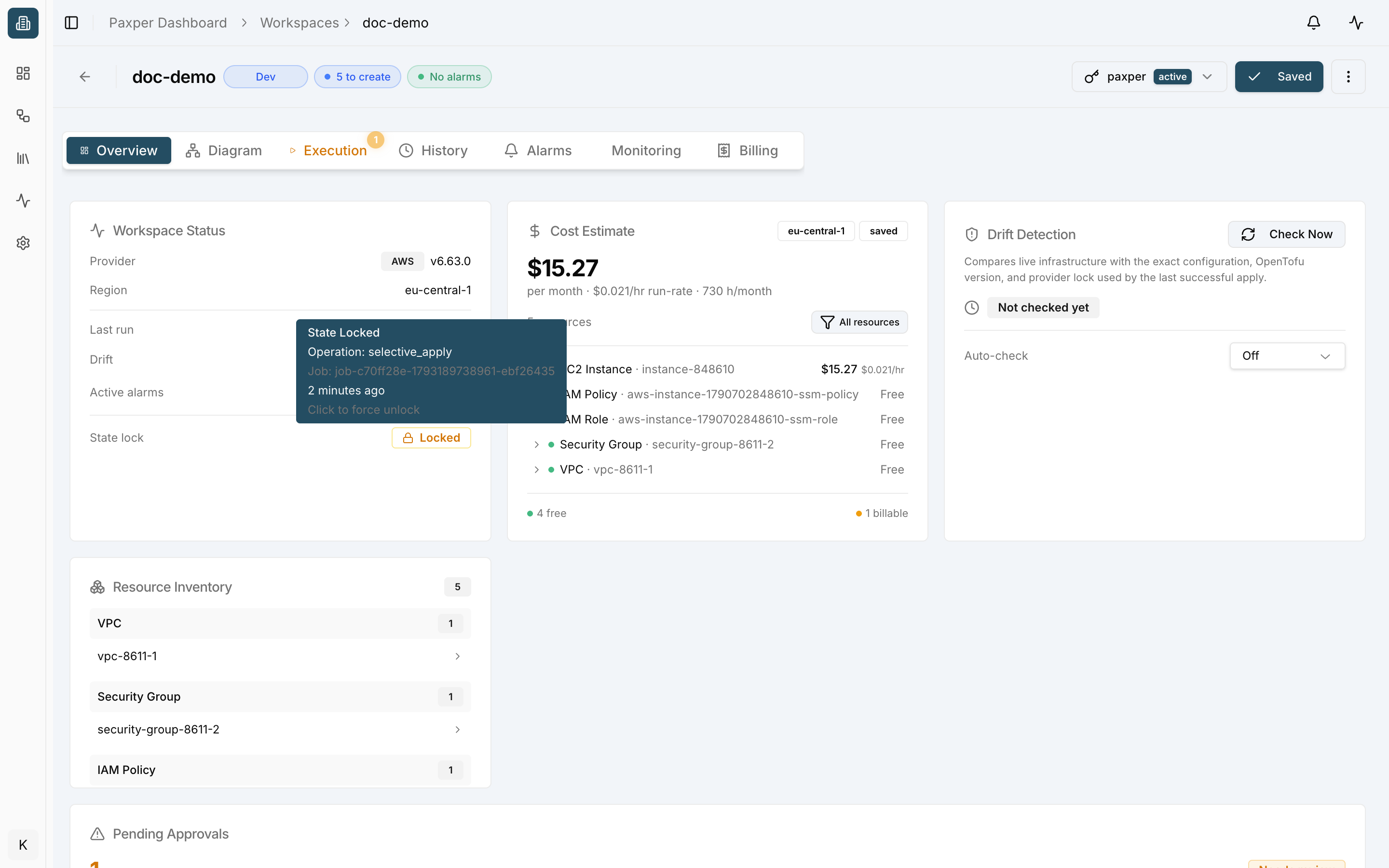
A lock is released automatically when its job finishes, fails, is cancelled or declined, or when an approval times out. If a lock is ever left behind, for example after an interruption, it expires on its own (locks last at most 30 minutes) and Paxper clears it within a few minutes after that.
Owners and admins can release a lock by hand: click the Locked badge and confirm Force Unlock in the Force Unlock Workspace window. Every force unlock is recorded in the audit log.
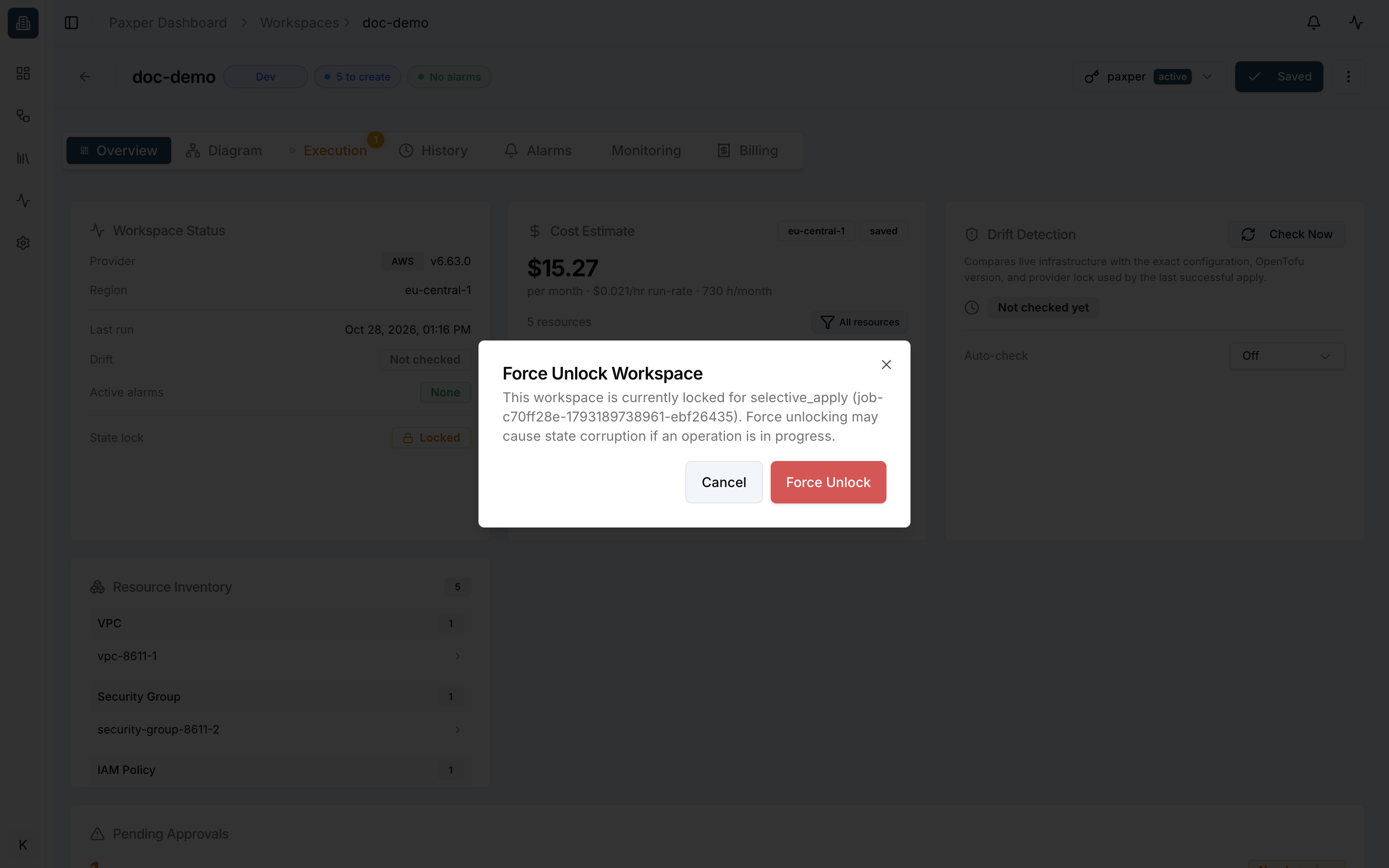
Only force unlock when you are sure no operation is still running. Unlocking during a running apply or destroy may corrupt the workspace state.
Why doesn’t my credential work?
Paxper checks a credential when you save it. A credential that fails the check gets the status Invalid, and the reason appears with it in Workspaces → Credentials. A workspace whose credential is not active can’t run plans or applies: you will see The linked AWS credential is not active.
| Message | What it means | Fix |
|---|---|---|
| Invalid Access Key ID — check your credentials | The access key ID doesn’t exist or was deleted. | Copy the access key ID again from AWS IAM, or create a new key. |
| Invalid Secret Access Key — check your credentials | The secret doesn’t belong to the access key. | Paste the secret again. If you no longer have it, create a new access key. |
| AWS credentials have expired | The keys or session are no longer valid. | Create new keys, or edit the credential and save it again. |
| Invalid Role ARN format — expected arn:aws:iam::account:role/name | The role ARN is mistyped. | Copy the ARN from the role’s page in AWS IAM. |
| Account ID does not match the IAM Role ARN | The account ID in the form is not the account in the role ARN. | Use the 12-digit account ID that appears in the ARN. |
| IAM trust policy must require the exact Paxper External ID | The role trusts Paxper without checking the External ID. Paxper refuses such roles for your safety. | Add the External ID shown in the form as a condition in the role’s trust policy. |
| Access denied — verify the Paxper connector role … | AWS refused to let Paxper assume the role. | Check that the role’s trust policy trusts Paxper with the correct External ID, and that the role still exists. |
If you can’t select a credential at all, it may be restricted to selected people. Ask an owner, an admin or the person who added it to give you access under Manage access (see Roles and Access).
A dependency is missing. What should I do?
When you plan or apply a resource that depends on resources that are still Draft, Paxper lists them in Dependencies Required.
- Recommended: apply the listed dependencies first, then the resource. Start with resources that depend on nothing, such as the VPC, and work your way up.
- Plan Anyway / Apply Anyway: only the selected resource is planned or applied. A plan is safe to run this way. An apply usually fails if the resources it needs don’t exist in your cloud account yet.
If Paxper shows Required Fields Missing instead, fill in the listed fields in the resource’s Properties panel and try again.
When should I retry?
When a job fails, its card offers Retry, Rollback and AI Analyze. Open the Console and filter by ERROR first, then choose:
| Situation | Best action |
|---|---|
| A temporary problem: a network error, an AWS rate limit, a service that was briefly unavailable, an approval that timed out | Retry |
| The error points to your configuration (a wrong value, a name that is already taken, a missing permission) | Fix the configuration or the credential, then run a new plan or apply. A retry would fail the same way. |
| You don’t understand the error | AI Analyze (uses 1 AI credit) |
| The failed apply left your infrastructure in a bad state and you want the last working version back | Rollback |
What Retry does: it creates a new job of the same type with the same inputs and the same target resources, and queues it. The failed job stays in the history. The new job plans again from scratch, so a retried apply needs approval again if the workspace requires it.
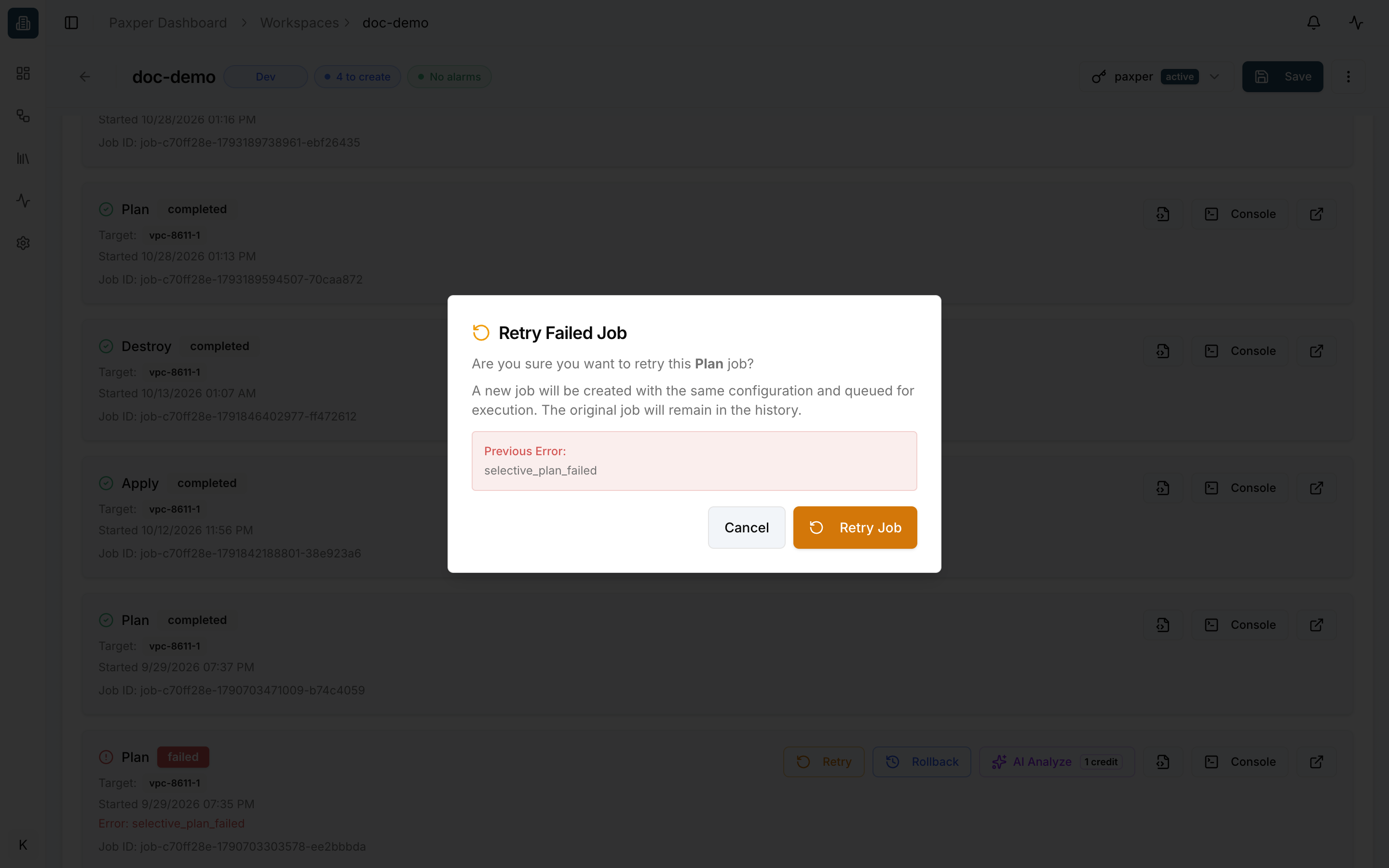
- Retry is available for jobs that failed, were cancelled, declined or timed out.
- A job can be retried at most 5 times. After that you see Maximum retry attempts (5) exceeded. Fix the cause and start a new job.
- A retried apply counts toward your plan’s apply limit, like any other apply.
History Restore or Rollback?
Paxper has two ways to “go back”, and they do very different things.
| History Restore | Rollback | |
|---|---|---|
| Where | History tab → Restore | Execution tab, on a failed job → Rollback |
| What it changes | Only the diagram on your canvas | Your cloud resources |
| How | Replaces the canvas with an earlier saved version | Creates a new rollback job that re-applies the configuration of your last successful deployment |
| Runs a job? | No. Nothing happens in your cloud account. | Yes. The job is queued, takes the state lock and may need approval. |
| When to use | You want an earlier design back, for example after deleting nodes by mistake. | An apply failed and you want your infrastructure back to how it was after the last successful deployment. |
History Restore
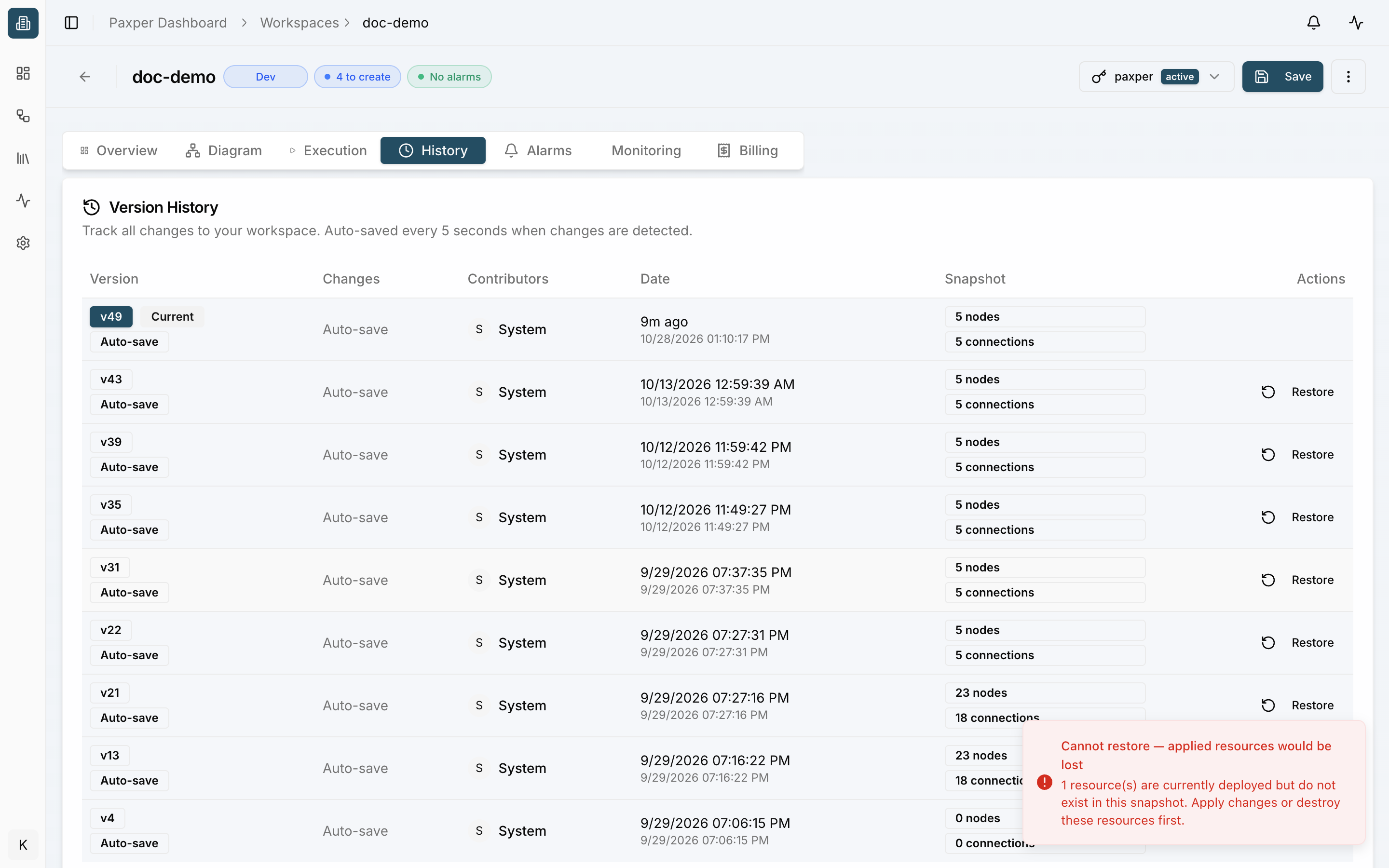
Restoring adds a new entry to the history (Restored to version X from …), so you can always go back again. Your cloud resources are not touched. To make the cloud match the restored diagram, run a plan and apply afterwards.
Paxper refuses a restore that would remove deployed resources from your diagram. You see Cannot restore — applied resources would be lost. Otherwise those resources would keep running in your cloud account without Paxper managing them. Destroy them first, or pick a version that still contains them.
Rollback
Rollback appears on a failed job when there was an earlier successful deployment. Paxper asks you to confirm Rollback to Last Successful Deployment, then creates and queues a rollback job (Rollback job created and queued). Like any job, it may wait for approval before it applies. See Applying and Destroying.
My live infrastructure doesn’t match the diagram
Someone may have changed resources directly in the AWS console. This is called drift. Use Drift detection (Beta) on the Overview tab or in the workspace menu to compare your live infrastructure with your last successful apply. See The Workspace Menu.