Templates
Templates are ready-to-use infrastructure blueprints. Instead of drawing everything from scratch, you can apply a template to a workspace and then adjust it.
Browse the Templates Library
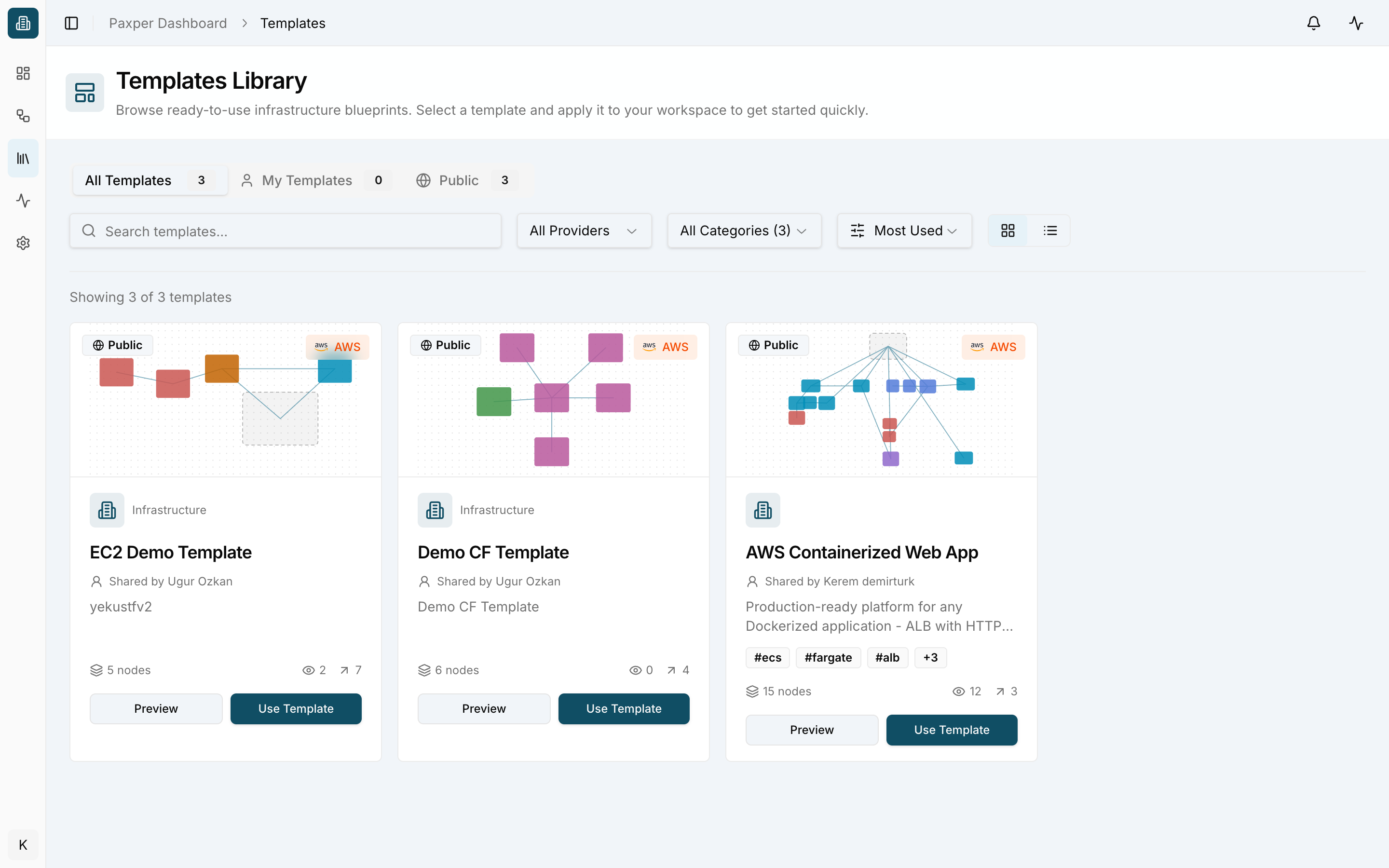
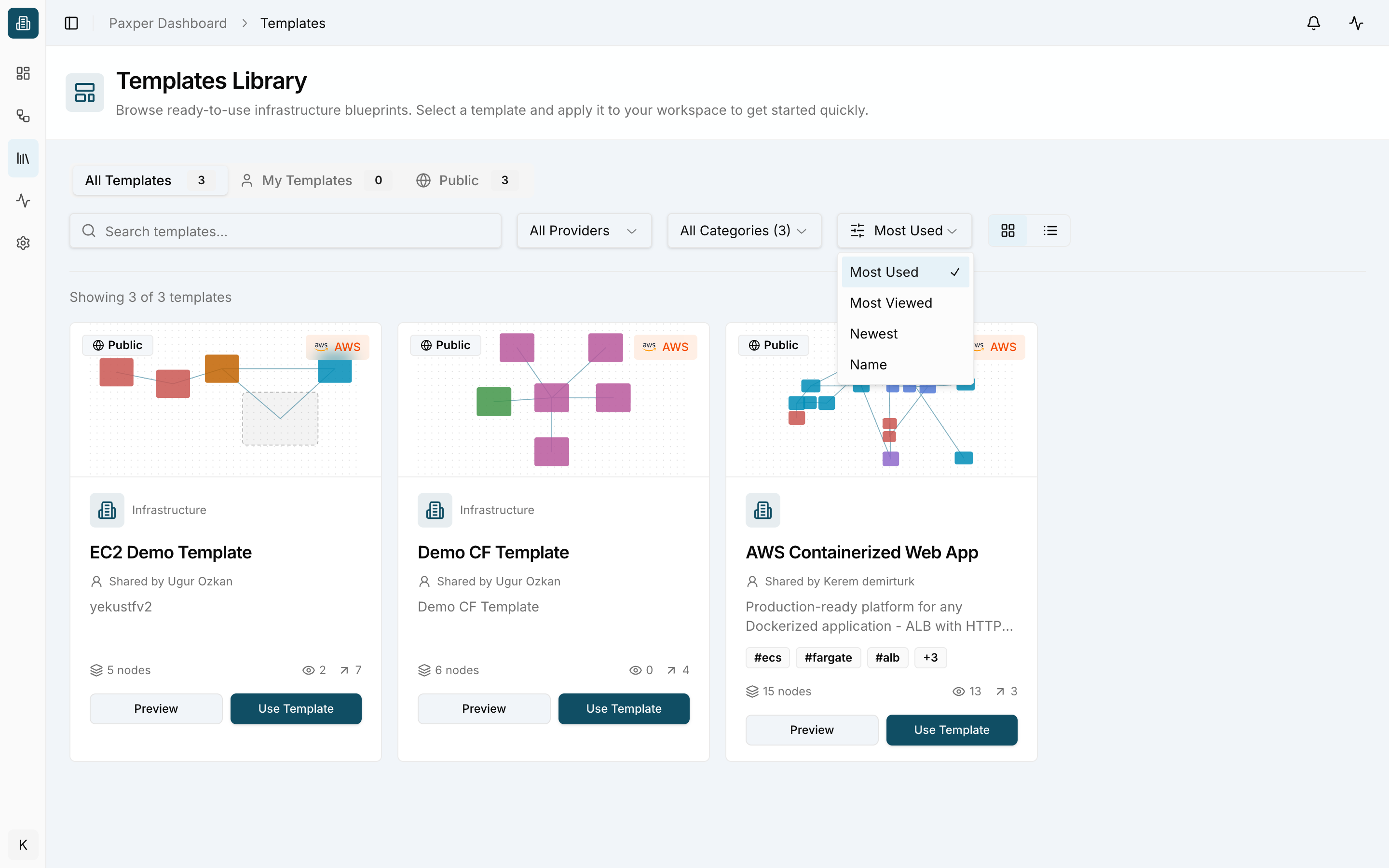
Open Templates in the sidebar. Each card shows a preview of the diagram, the cloud provider, the category, who shared it, the number of nodes, and how many times it has been viewed and used.
- All Templates / My Templates / Public – switch between every template, the ones you created, and public templates.
- Search templates – search by name.
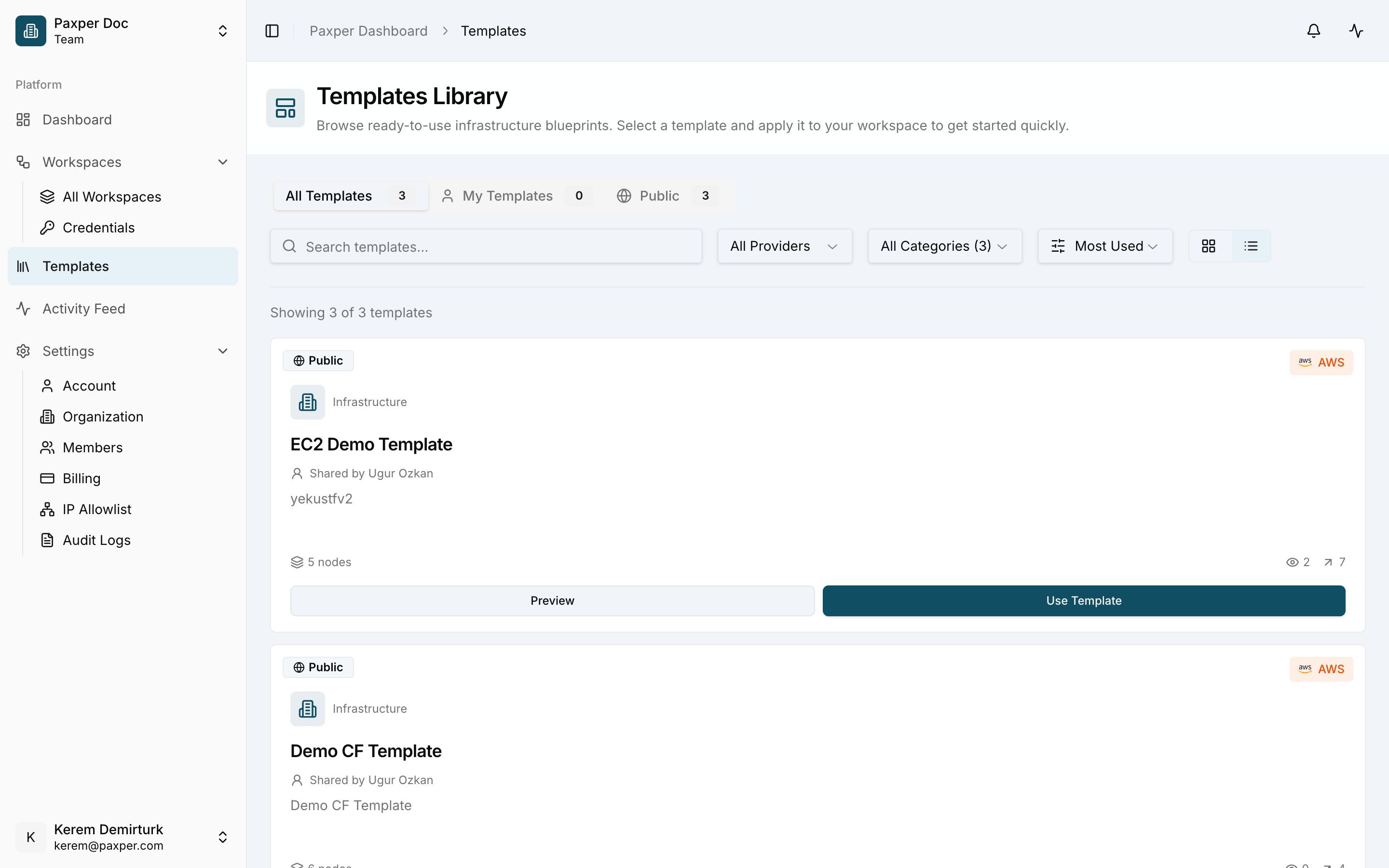
Switch to the list view with the icon next to the grid icon.
Filter and sort
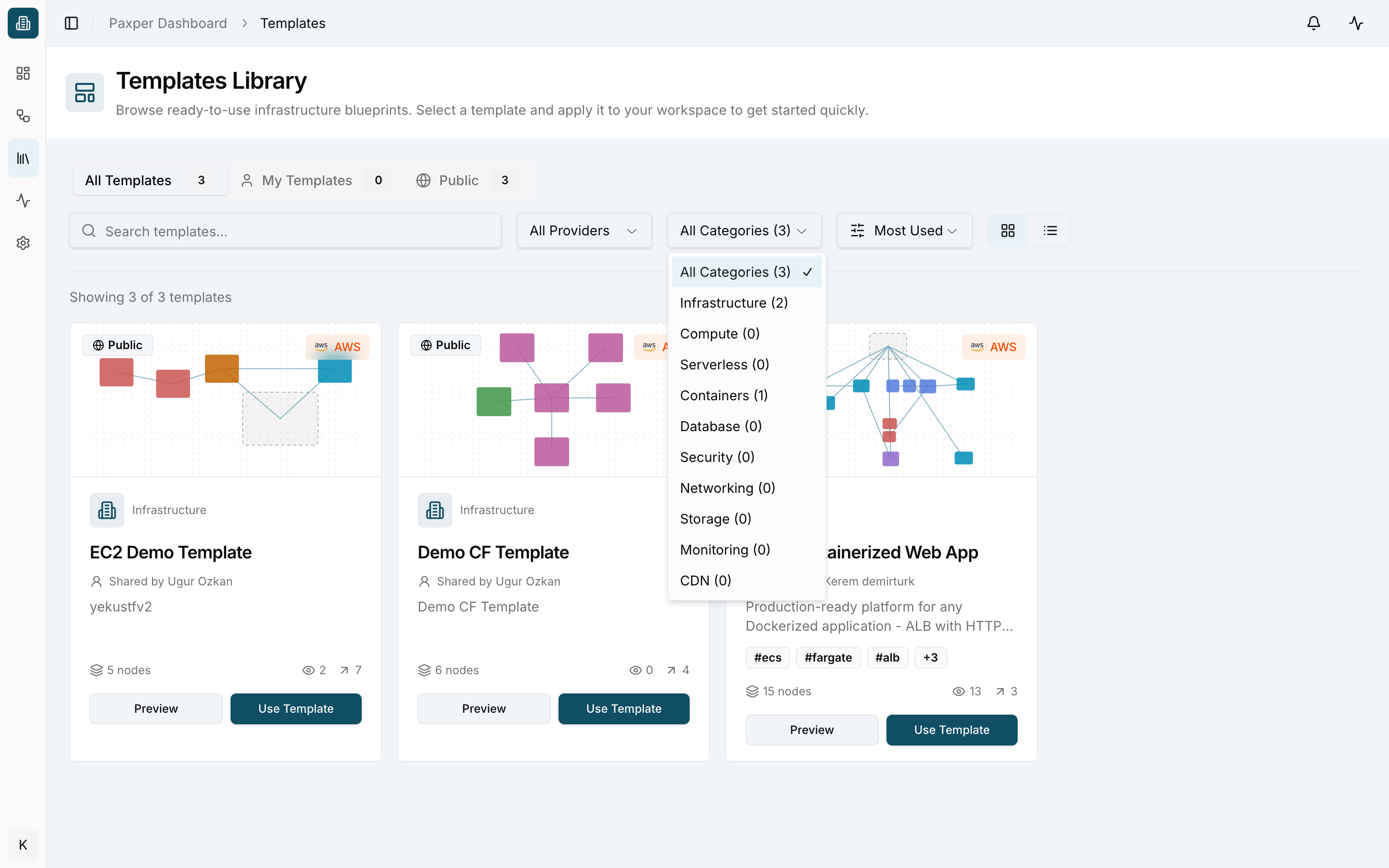
Narrow the list by category (Infrastructure, Compute, Serverless, Containers, Database, Security, Networking, Storage, Monitoring, CDN)…
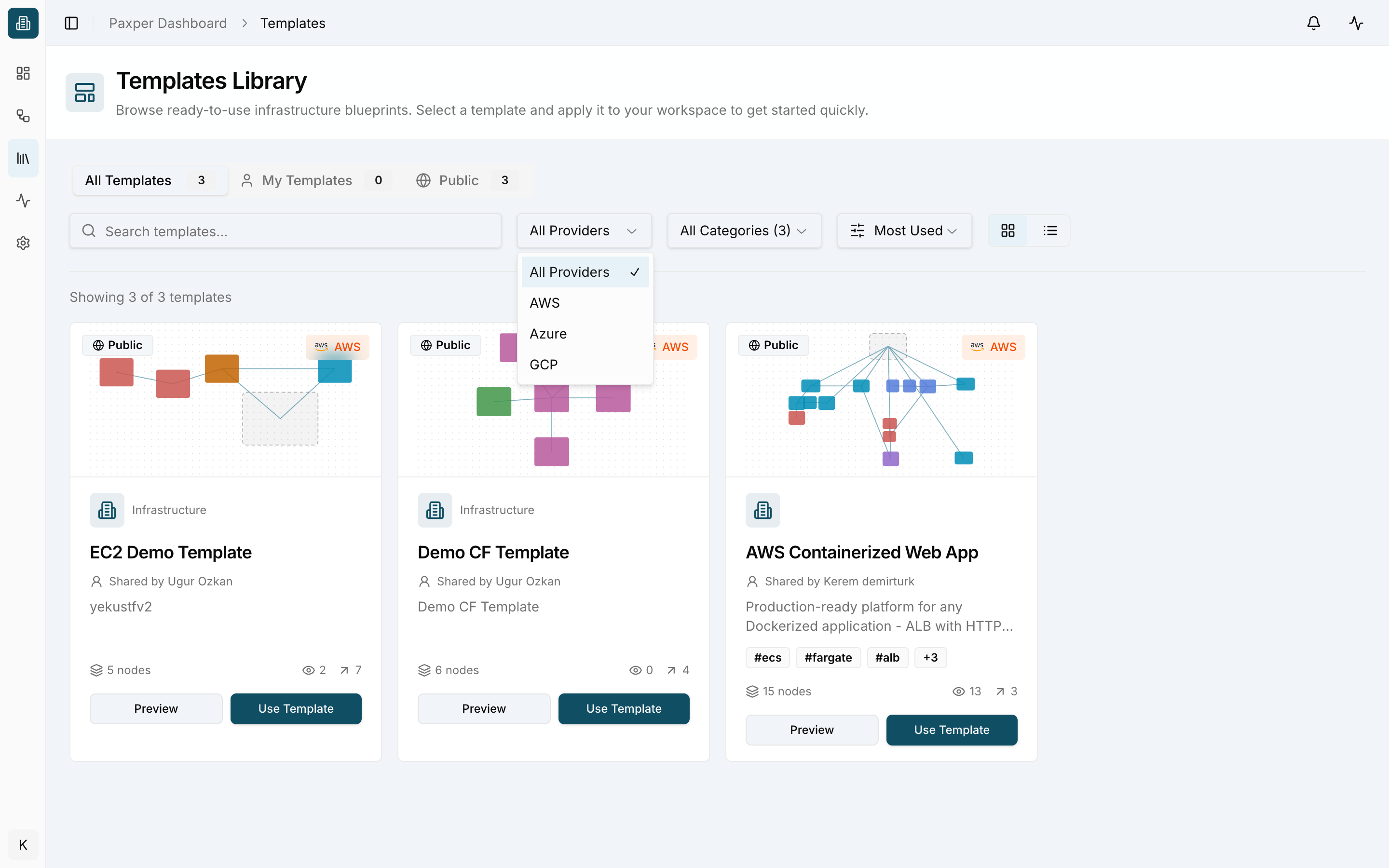
…by provider…
…and sort by Most Used, Most Viewed, Newest or Name.
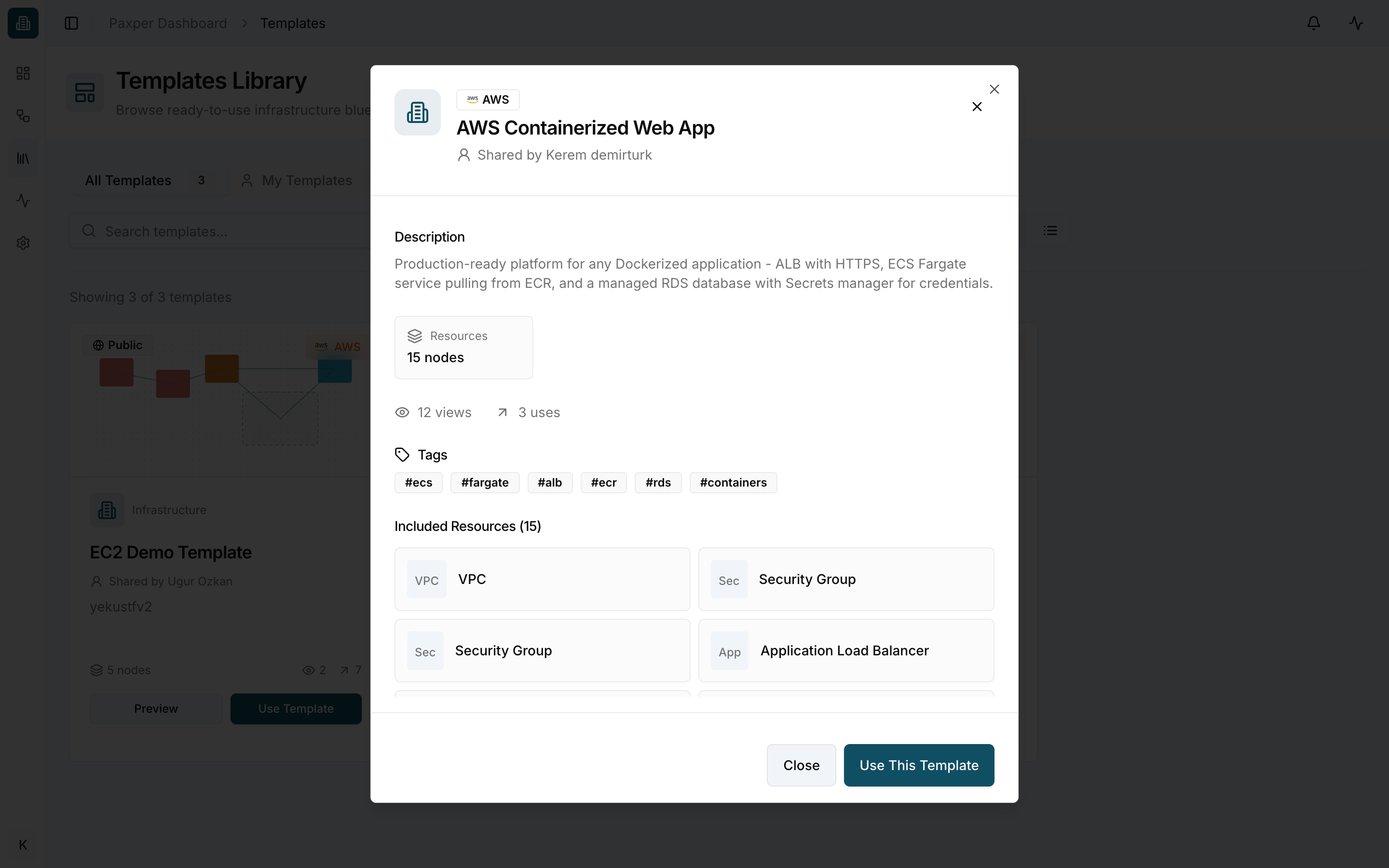
Preview a template
Click Preview on a card to see its description, number of resources, tags and the full list of included resources before using it.
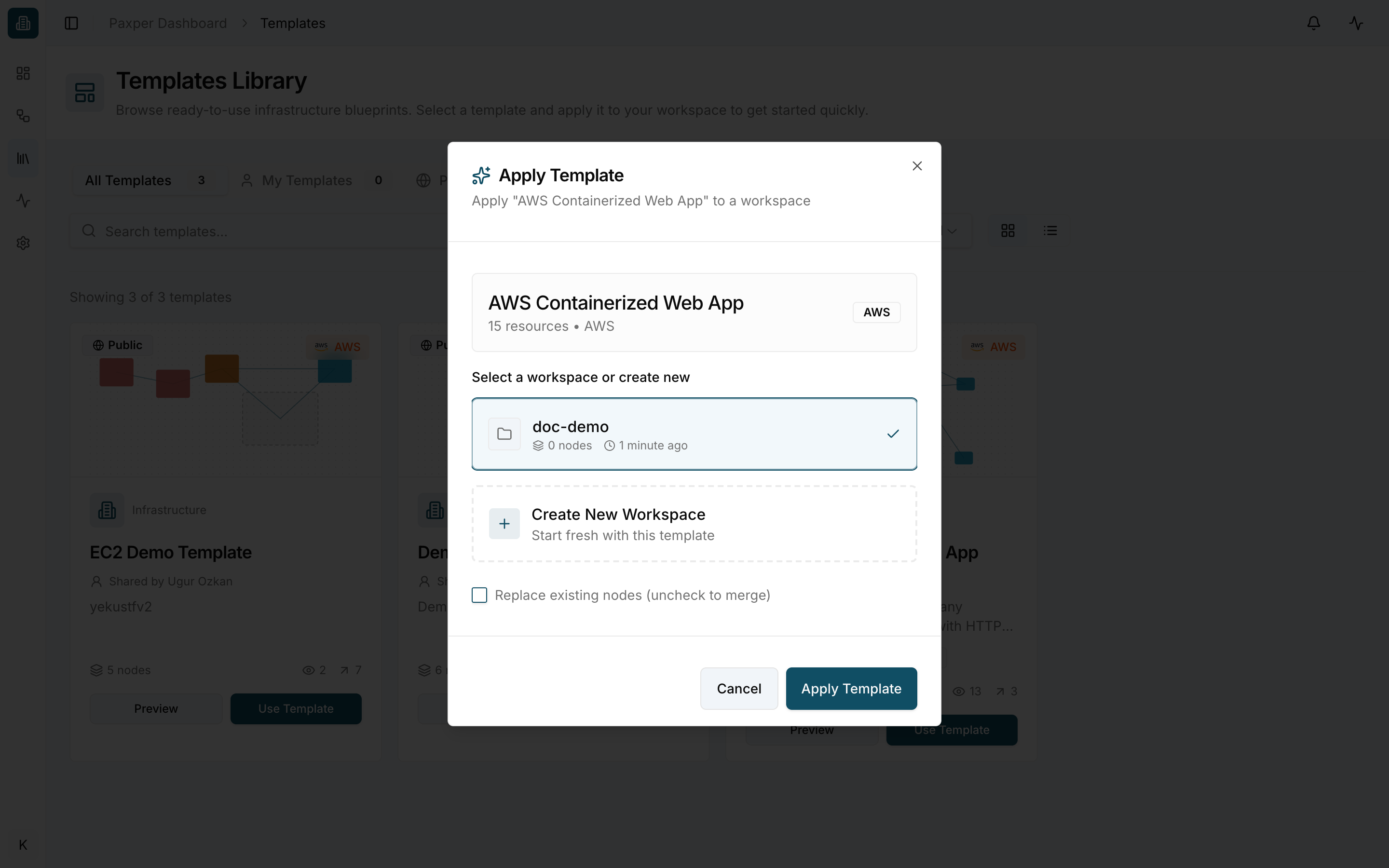
Apply a template to a workspace
- Click Use Template on the card (or Use This Template in the preview).
- In the Apply Template dialog, select the workspace you want to apply it to, or choose Create New Workspace to start a new workspace from this template.
- Click Apply Template.
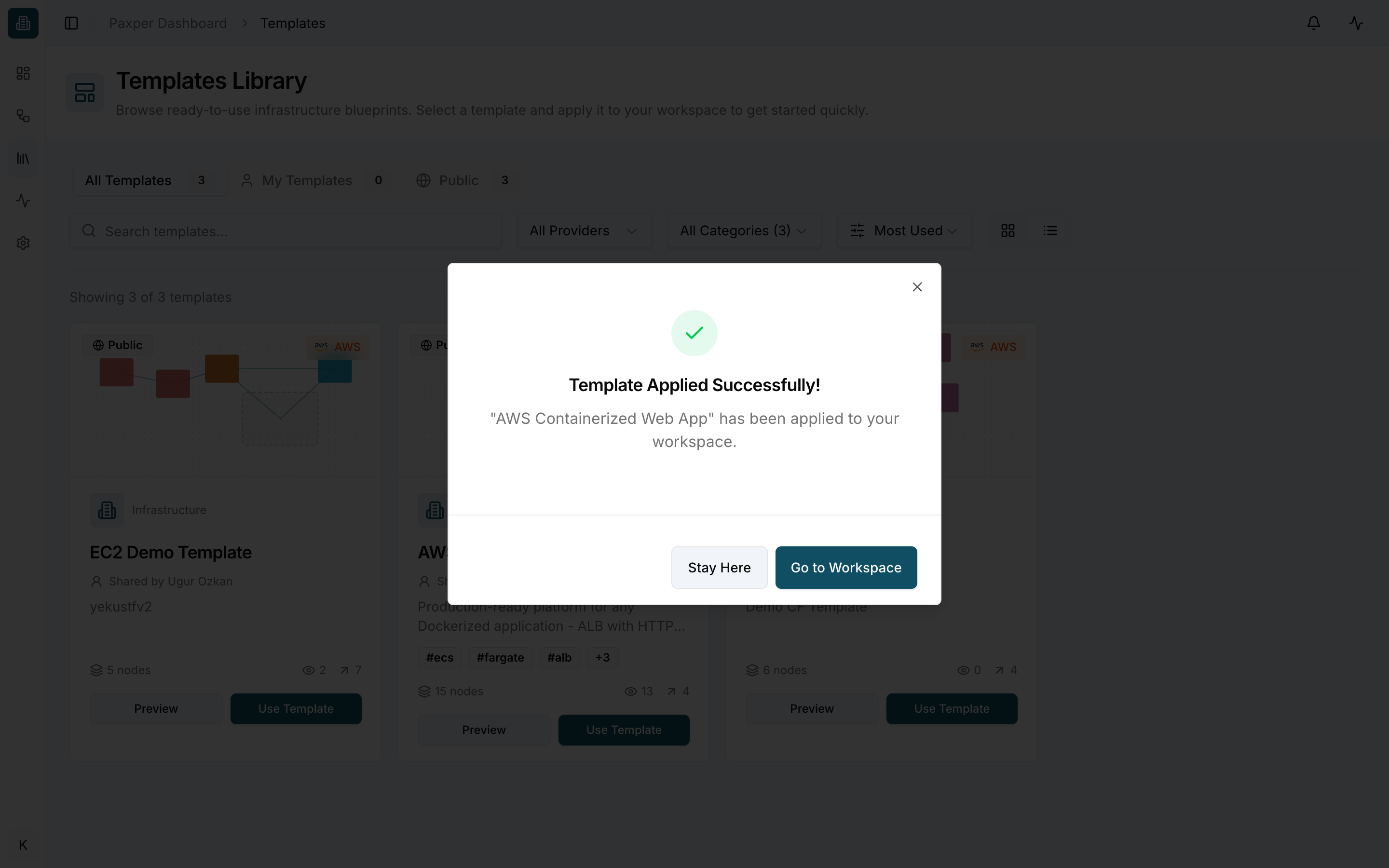
When the template has been applied, choose Go to Workspace to open it, or Stay Here to keep browsing.
Applying a template only adds the resources to your workspace design. Nothing is created in your cloud account until you run a plan and an apply.
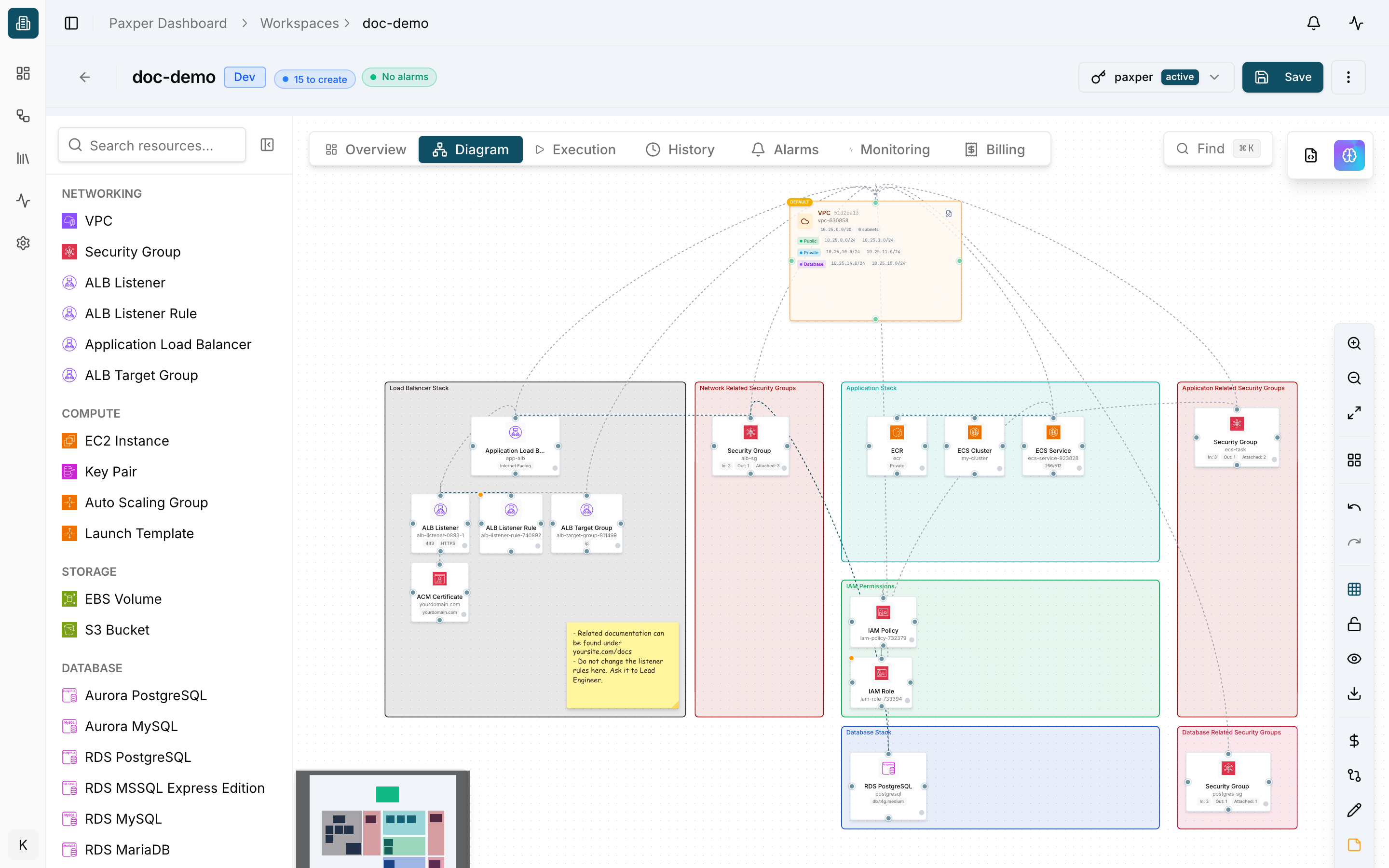
The template’s resources, groups and notes now appear on the workspace canvas.
You can turn your own workspace into a template with ⋮ → Save as template in the workspace header.