The Workspace Menu
Click ⋮ (More actions) in the top-right corner of a workspace to open the workspace menu. It is grouped into three sections:
- Workspace – Workspace info, Workspace settings, Save as template, Promote to environment.
- Monitor – Cost estimation, Drift detection, Global tags.
- Diagram – Export diagram, Sync environment.
For Workspace settings, see Workspace Settings.
Promote to environment
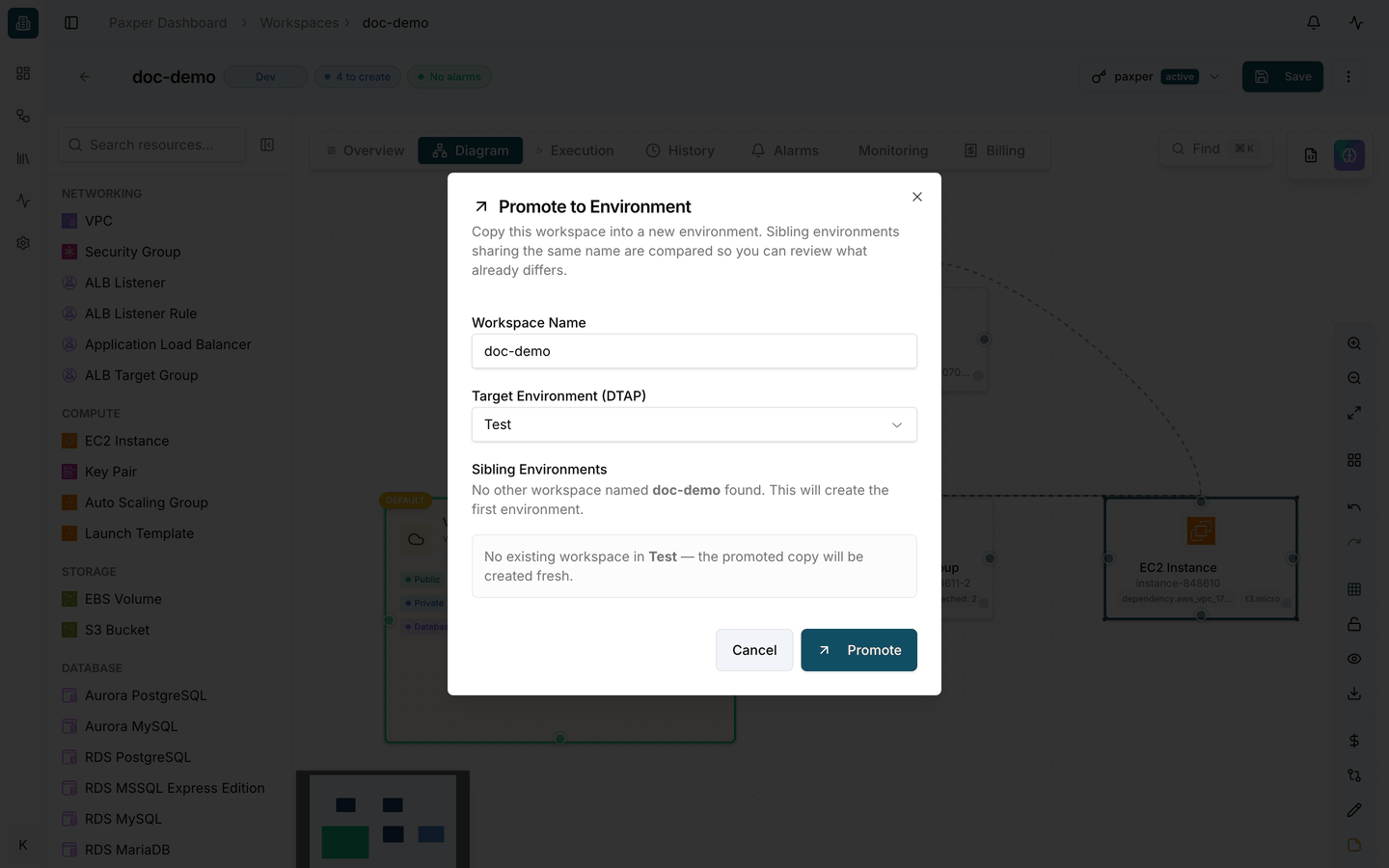
Copy this workspace into another environment, for example from Dev to Test.
- Choose Promote to environment.
- Check the Workspace Name.
- Choose the Target Environment (DTAP).
- Under Sibling Environments, Paxper compares workspaces with the same name in other environments so you can see what already differs. If there is no workspace in the target environment yet, the promoted copy is created fresh.
- Click Promote.
Export diagram
Choose Export diagram to download the workspace diagram as a .json file, for example doc-demo-diagram-2026-10-12.json. The download starts immediately, without a window, and Paxper confirms it with Diagram exported successfully.
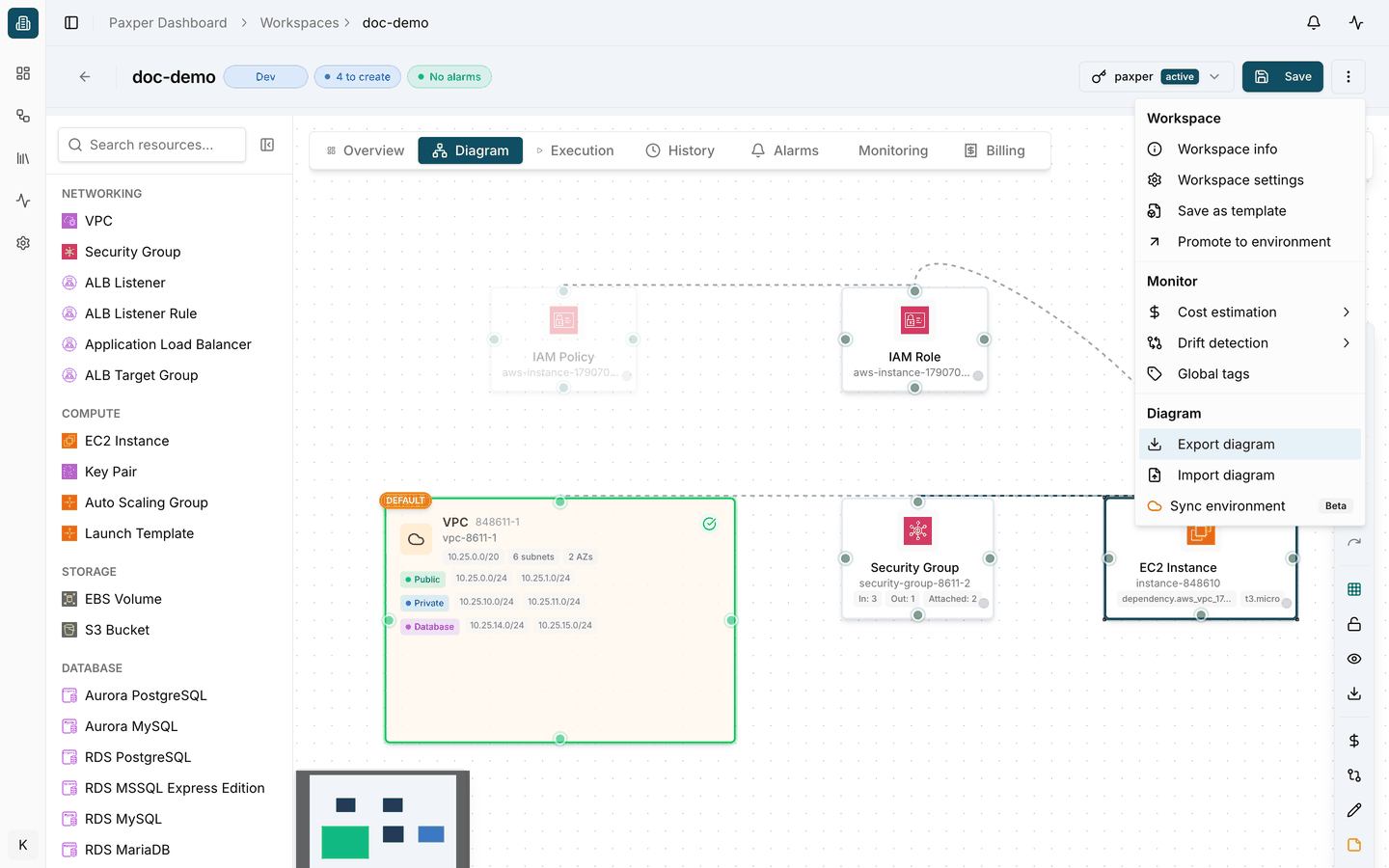
Keep the exported file as a backup of your diagram.
Global tags
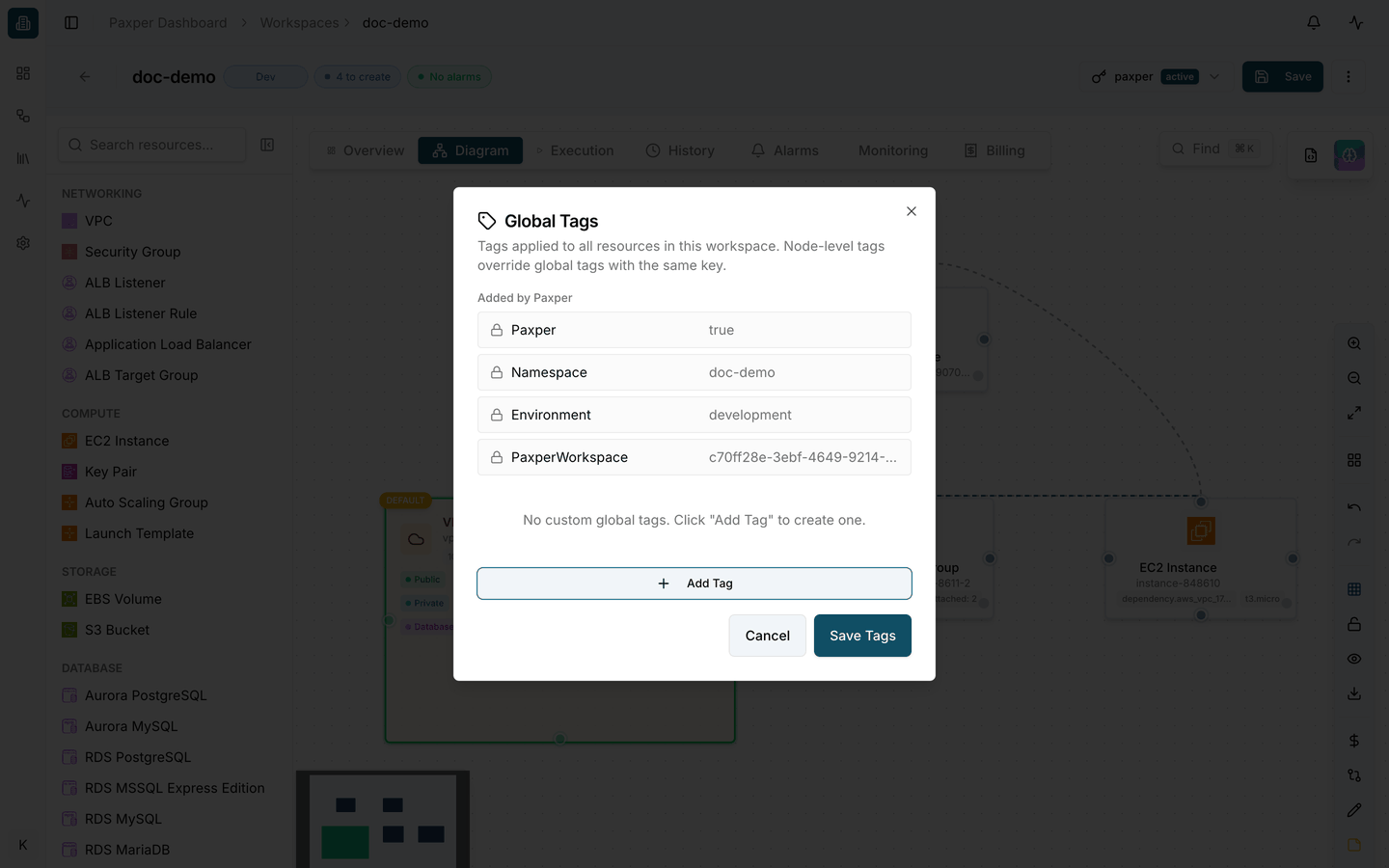
Global tags are applied to every resource in the workspace.
- Added by Paxper – tags that Paxper always adds, such as
Paxper,Namespace,EnvironmentandPaxperWorkspace. They are locked and cannot be changed. - Click Add Tag to add your own tags, then click Save Tags.
A tag set on a single resource overrides a global tag with the same key.
Drift detection (Beta)
Drift detection is in beta. Results may be incomplete, and the feature may change.
Drift happens when the resources in your cloud account no longer match your workspace, for example because someone changed them in the cloud console. Drift detection compares your live infrastructure with the exact configuration, OpenTofu version and provider lock used by the last successful apply.
- Click Check Now to run a check. The panel shows when the last check ran, or Not checked yet.
- Use Auto-check to run checks automatically, or leave it Off.
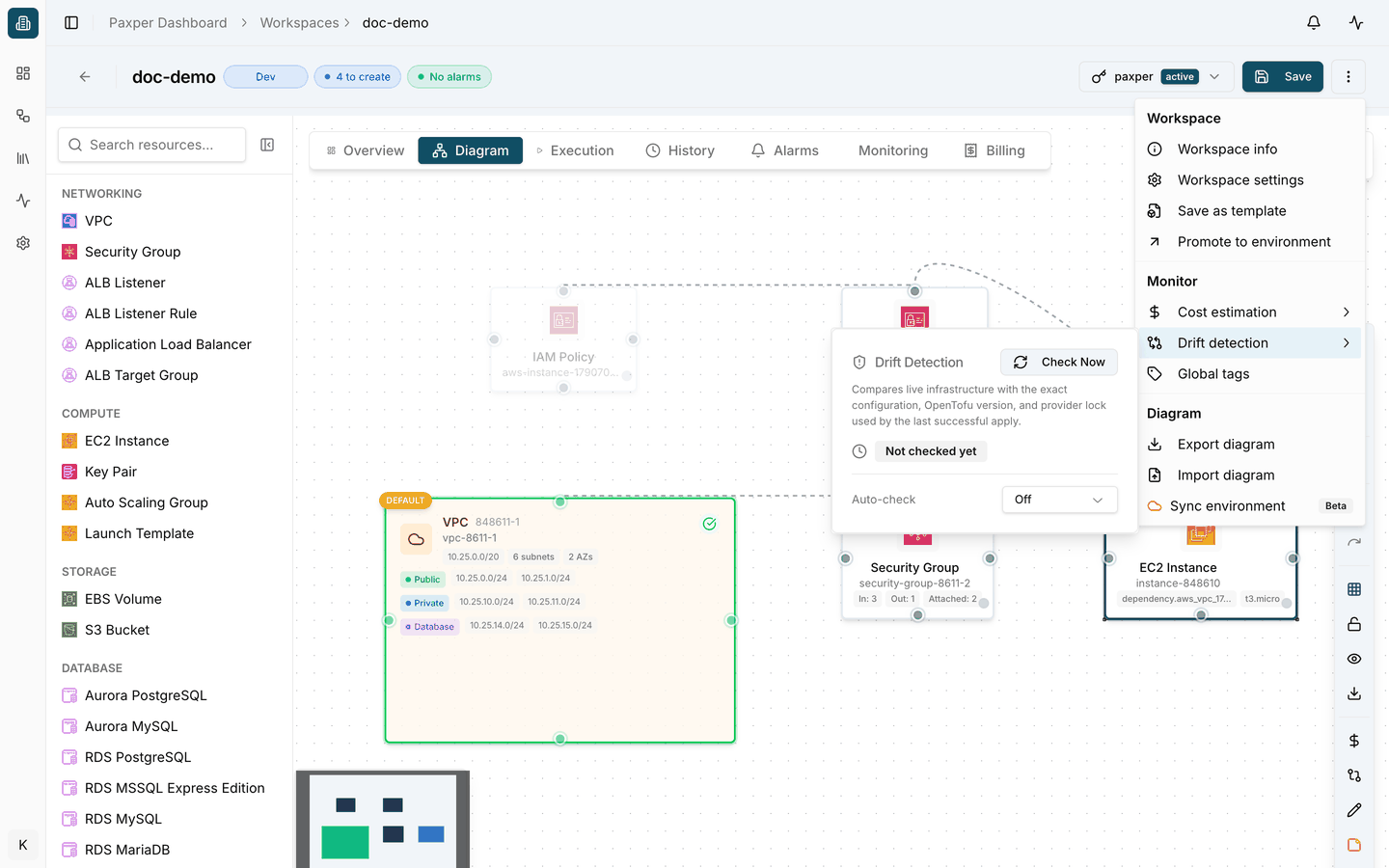
You can also run a drift check from the Drift Detection card on the workspace Overview tab.