State Management
Paxper keeps a record of every resource it has deployed for you. This record is called the state. It connects each resource on your canvas to the real resource in your cloud account, so Paxper knows what already exists, what needs to change and what to remove when you destroy.
Where your state is stored
Each workspace has its own S3 bucket for state, in your own AWS account (the account of the workspace’s credential), in the workspace’s region.
- The bucket name follows the pattern
px-<environment>-state-<number>, for examplepx-dev-state-12345678. - The bucket is fixed for the life of the workspace and never changes.
- Each resource on your canvas has its own state file in the bucket, so one resource’s state can’t affect another’s.
- State files are encrypted, and access to the bucket is logged to a second bucket named
<state bucket>-log.
Because the state lives in your account, you stay in control of it: it is covered by your own AWS access policies and audit trail, and Paxper reaches it only through the workspace’s credential.
Don’t delete, rename or edit the state bucket or its files. Without its state, Paxper can no longer tell which resources it created. It may try to create them again or be unable to destroy them.
State locking
Only one operation can change a workspace at a time. Plans, applies, destroys, retries and rollbacks all take the workspace’s state lock when they start and release it when they finish.
- If you start a job while another one is running, the new job is queued and starts by itself as soon as the workspace is free.
- While a job is waiting for approval, new plans, applies and destroys are blocked until someone approves or declines it.
- The Workspace Status card on the Overview tab shows whether the workspace is Unlocked or Locked, and which job holds the lock.
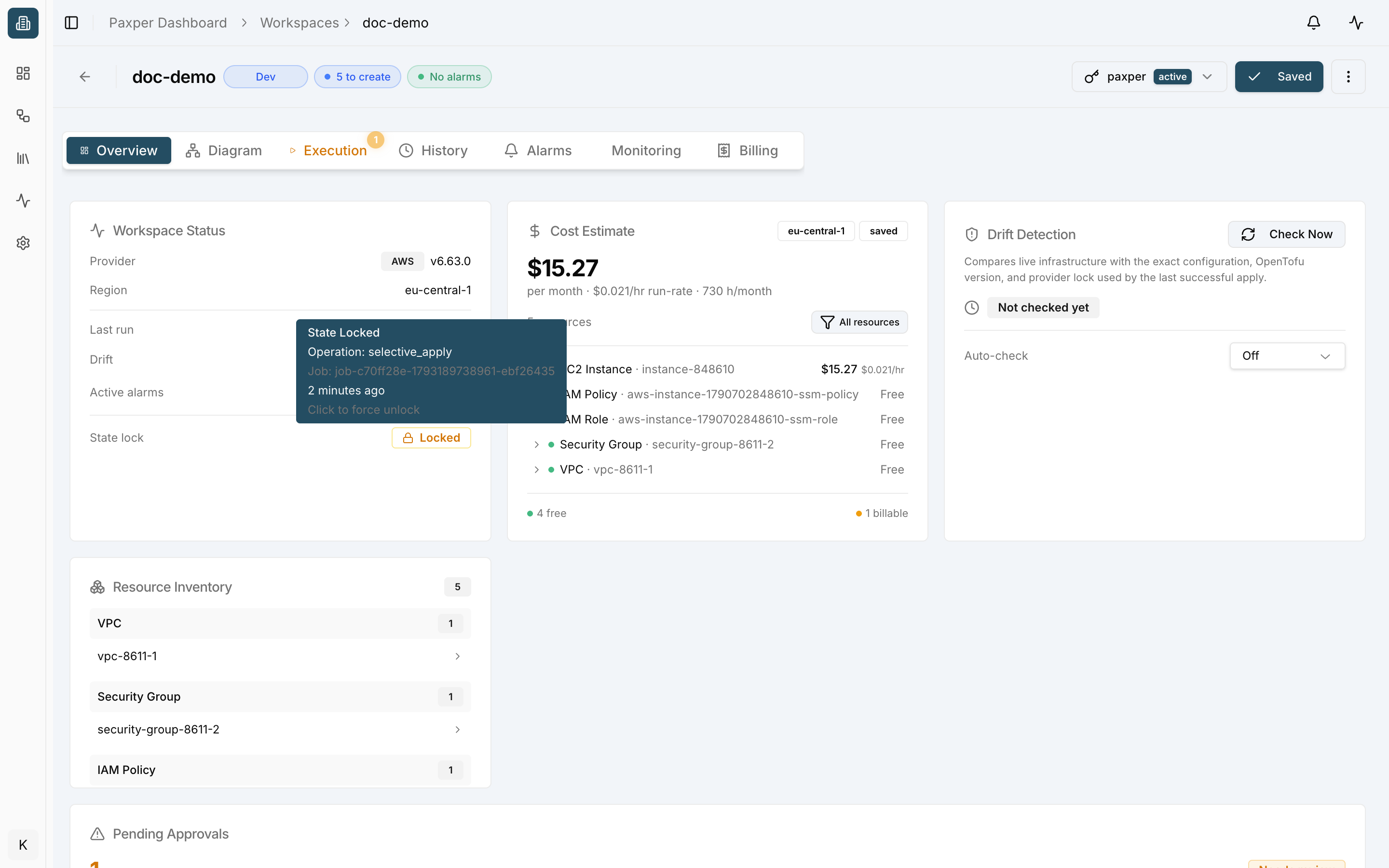
Locks are released automatically when a job finishes, fails, is cancelled or declined, or when its approval times out. A lock that is left behind expires on its own: a lock lasts at most 30 minutes, and Paxper clears expired locks every few minutes. Anyone with permission to manage infrastructure can also Force Unlock a workspace from the lock badge. Each force unlock is recorded in the audit log.
Force unlock only when you are sure no operation is running. Unlocking during a running apply or destroy may corrupt the state.
Paxper manages locking itself, so there is no DynamoDB table or lock file to look after in your account.
Keeping state and cloud in sync
The state describes your infrastructure as Paxper last deployed it. It can fall out of step with reality in a few ways:
- Someone changes resources outside Paxper, for example in the AWS console. This is drift. Use Drift detection (Beta) to compare your live infrastructure with your last successful apply. See The Workspace Menu.
- You change the diagram. Your canvas can contain changes that aren’t deployed yet. Run a plan to see what would change, then apply.
- You restore an earlier version of the diagram. History Restore changes only the canvas, never the state or your cloud. Paxper refuses a restore that would drop deployed resources from the diagram, so they can’t be left running unmanaged. See History Restore or Rollback?
Versions
The OpenTofu and AWS provider versions a workspace uses are set in Workspace settings → Platform. Changing them affects every future plan and apply. Run a plan after changing versions and check that nothing unexpected changes. See Workspace Settings.