Settings
Open Settings in the sidebar to manage your account, organization, billing and integrations.
Account
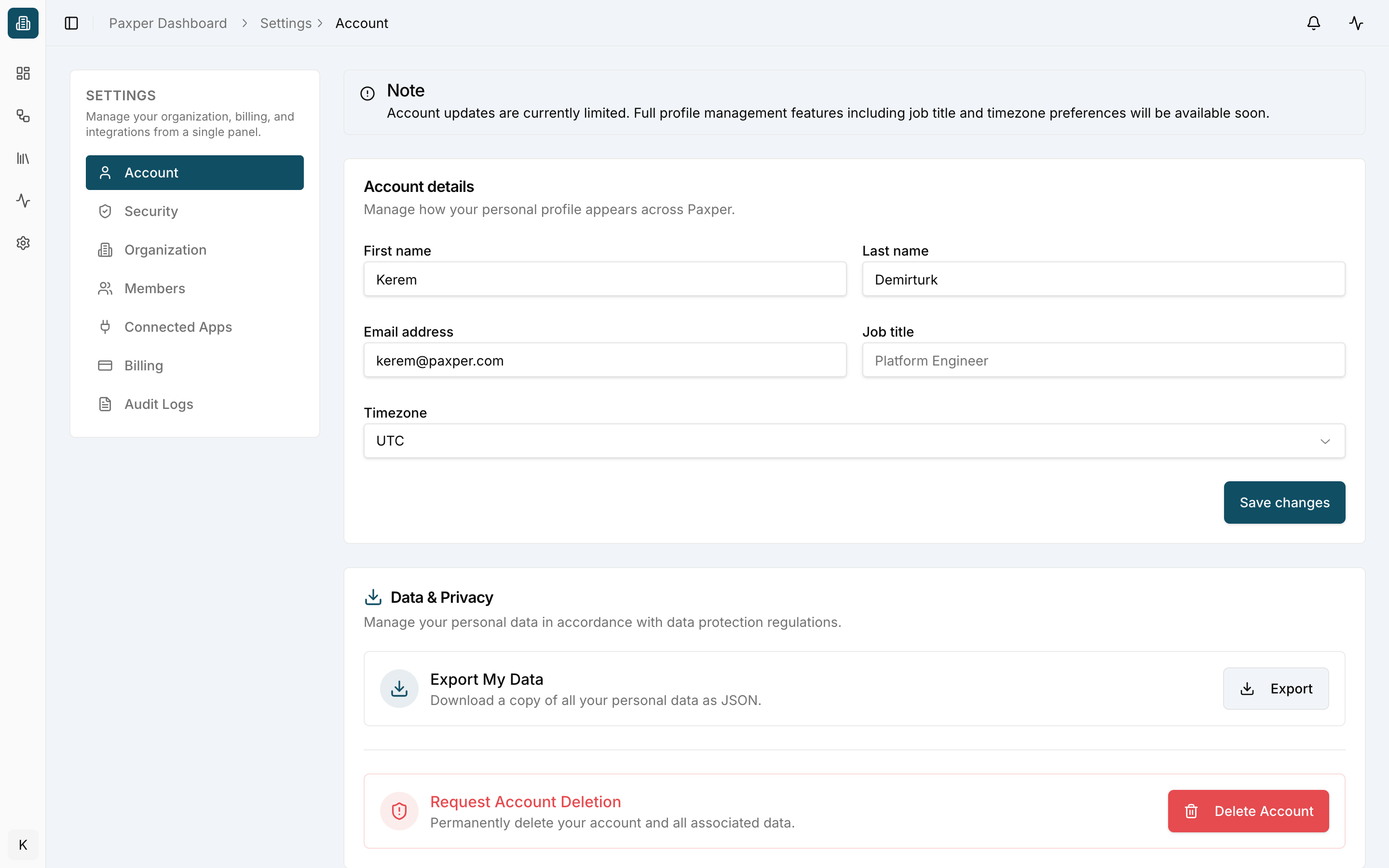
Update your personal details: first and last name, email address, job title and timezone. Click Save changes to keep them.
Under Data & Privacy you can Export a copy of your personal data as JSON, or Request Account Deletion.
Security
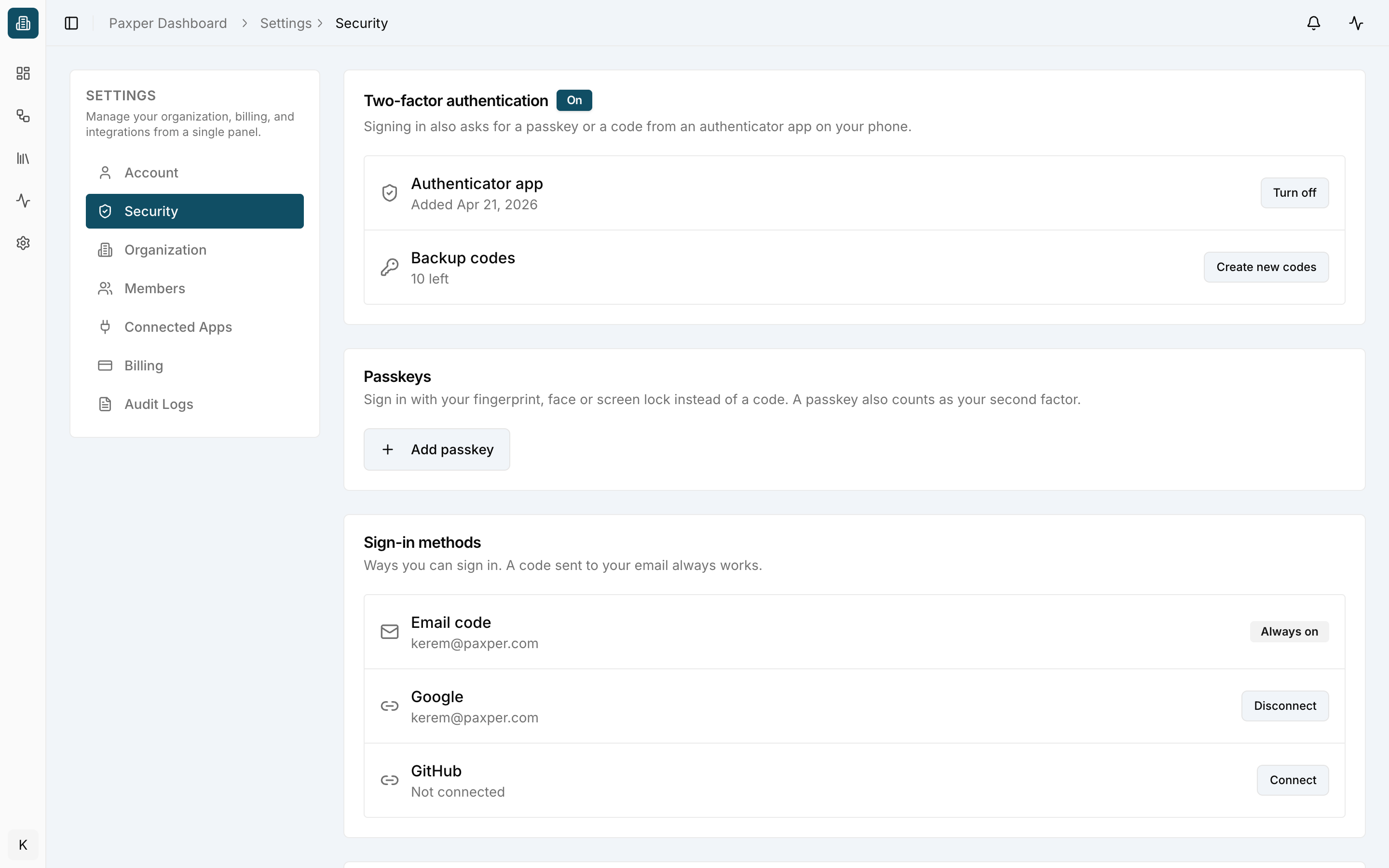
- Two-factor authentication – sign-in also asks for a passkey or a code from an authenticator app. Manage your Authenticator app and generate new Backup codes.
- Passkeys – sign in with your fingerprint, face or screen lock instead of a code. Click Add passkey.
- Sign-in methods – email code (always on), Google and GitHub. Connect or disconnect each method.
Organization
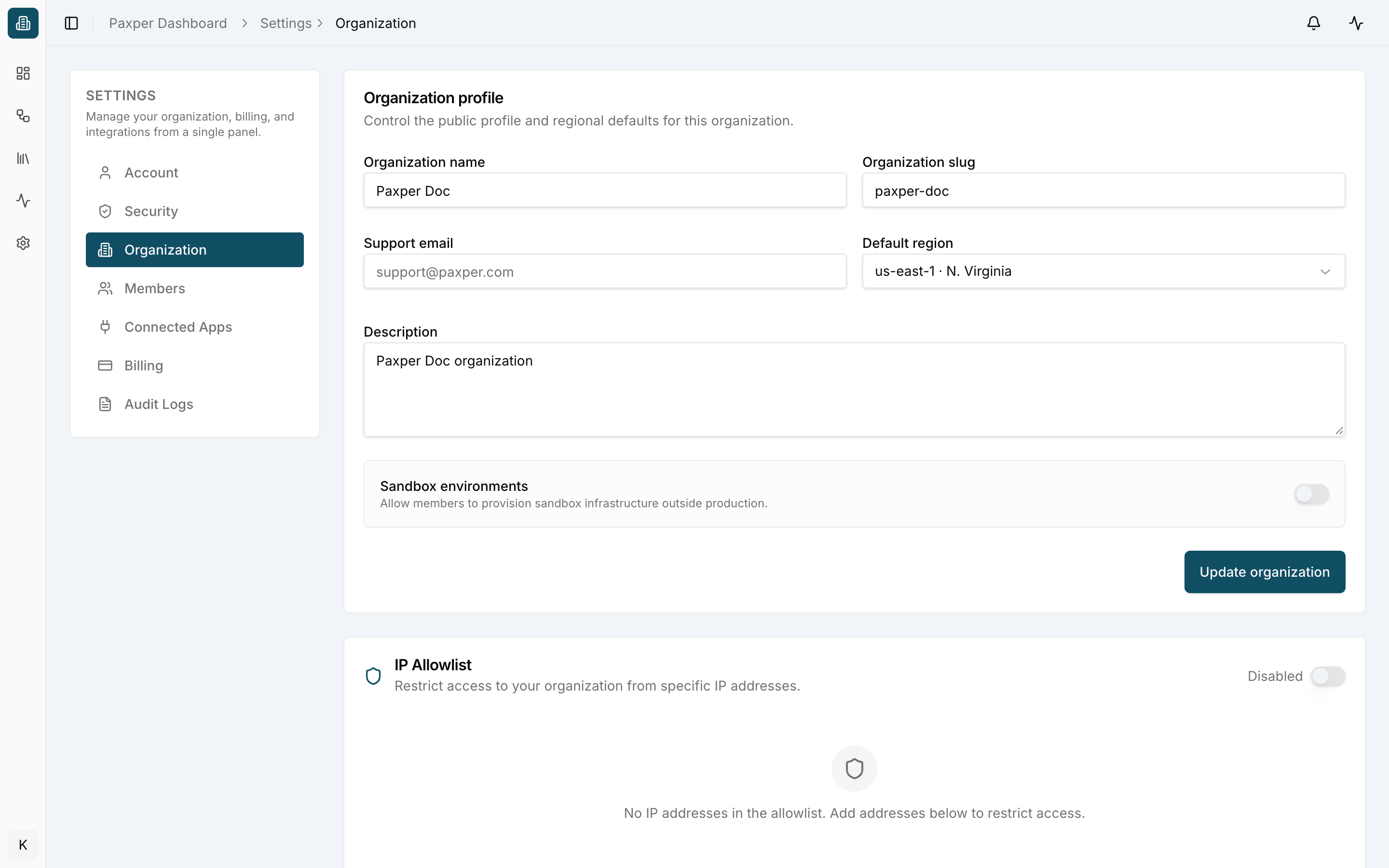
Edit your Organization profile: name, slug, support email, default region and description. Turn on Sandbox environments to allow members to provision sandbox infrastructure outside production. Click Update organization to save.
IP Allowlist restricts access to your organization to specific IP addresses. Turn it on and add the addresses that are allowed.
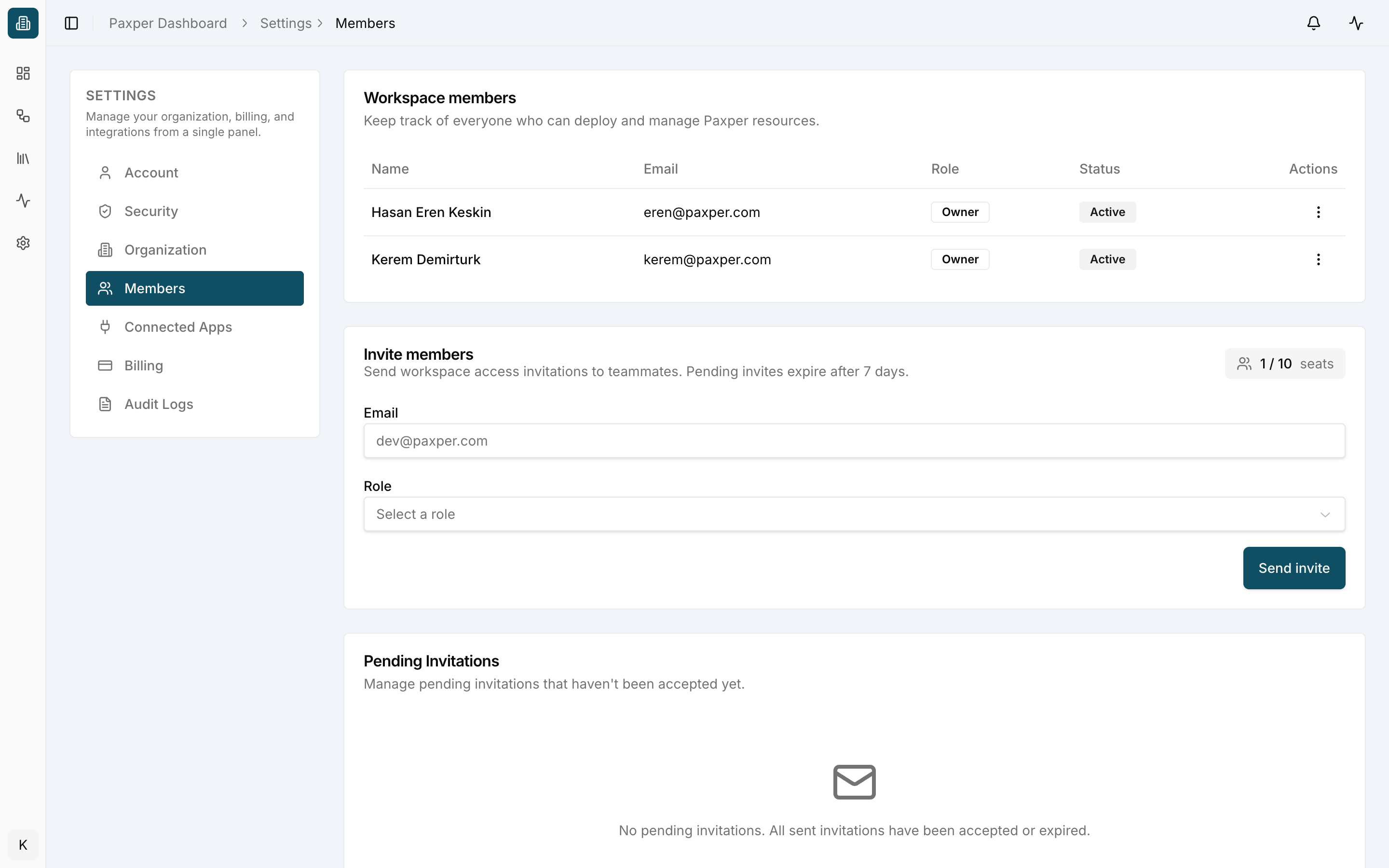
Members
- Workspace members – everyone in your organization with their role and status. Use ⋮ to manage a member.
- Invite members – enter an email address, select a role and click Send invite. The seat counter shows how many seats are in use. Invitations expire after 7 days.
- Pending Invitations – invitations that haven’t been accepted yet.
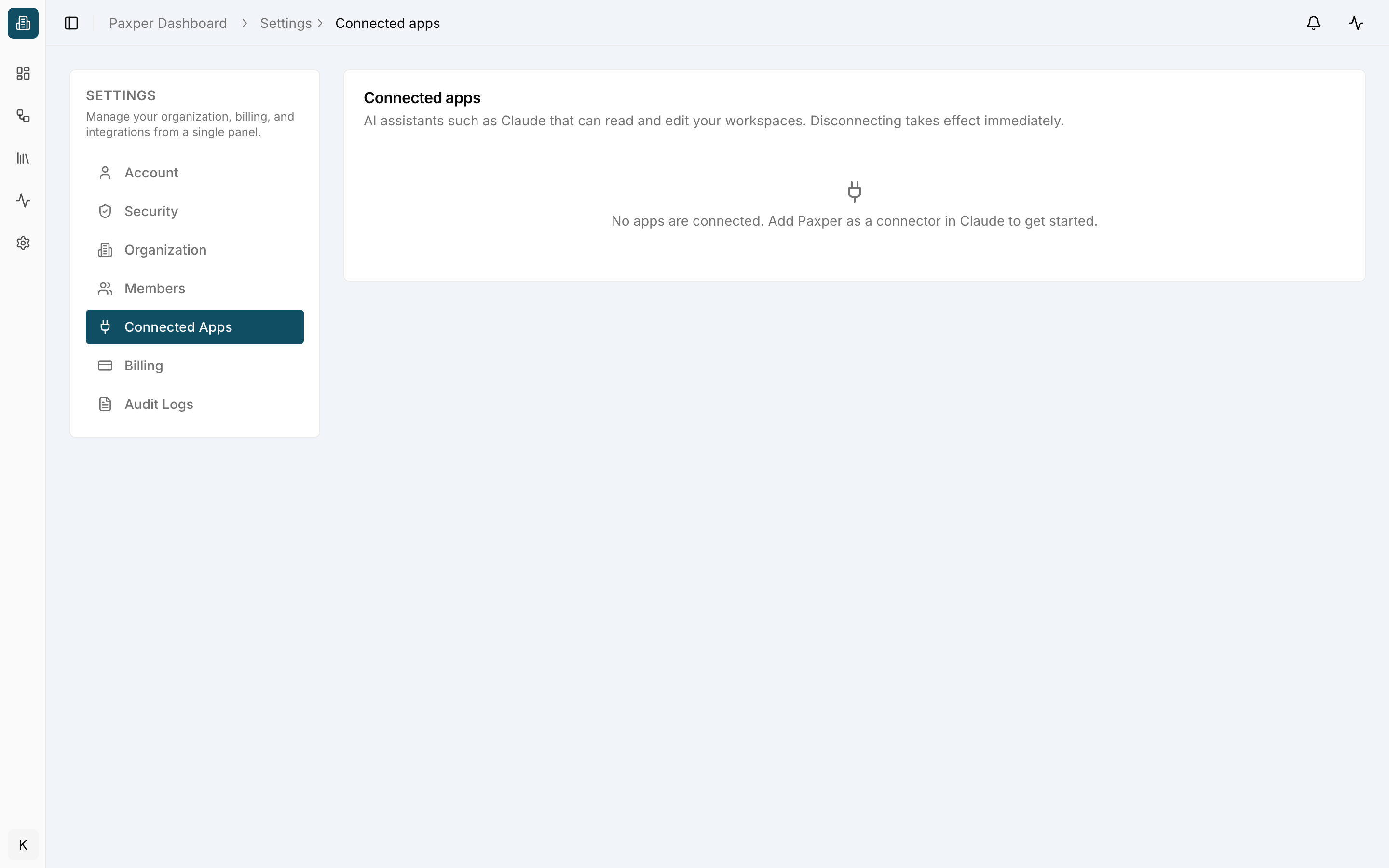
Connected Apps
AI assistants such as Claude can connect to Paxper to read and edit your workspaces. Connected apps are listed here, and you can disconnect them at any time. Disconnecting takes effect immediately.
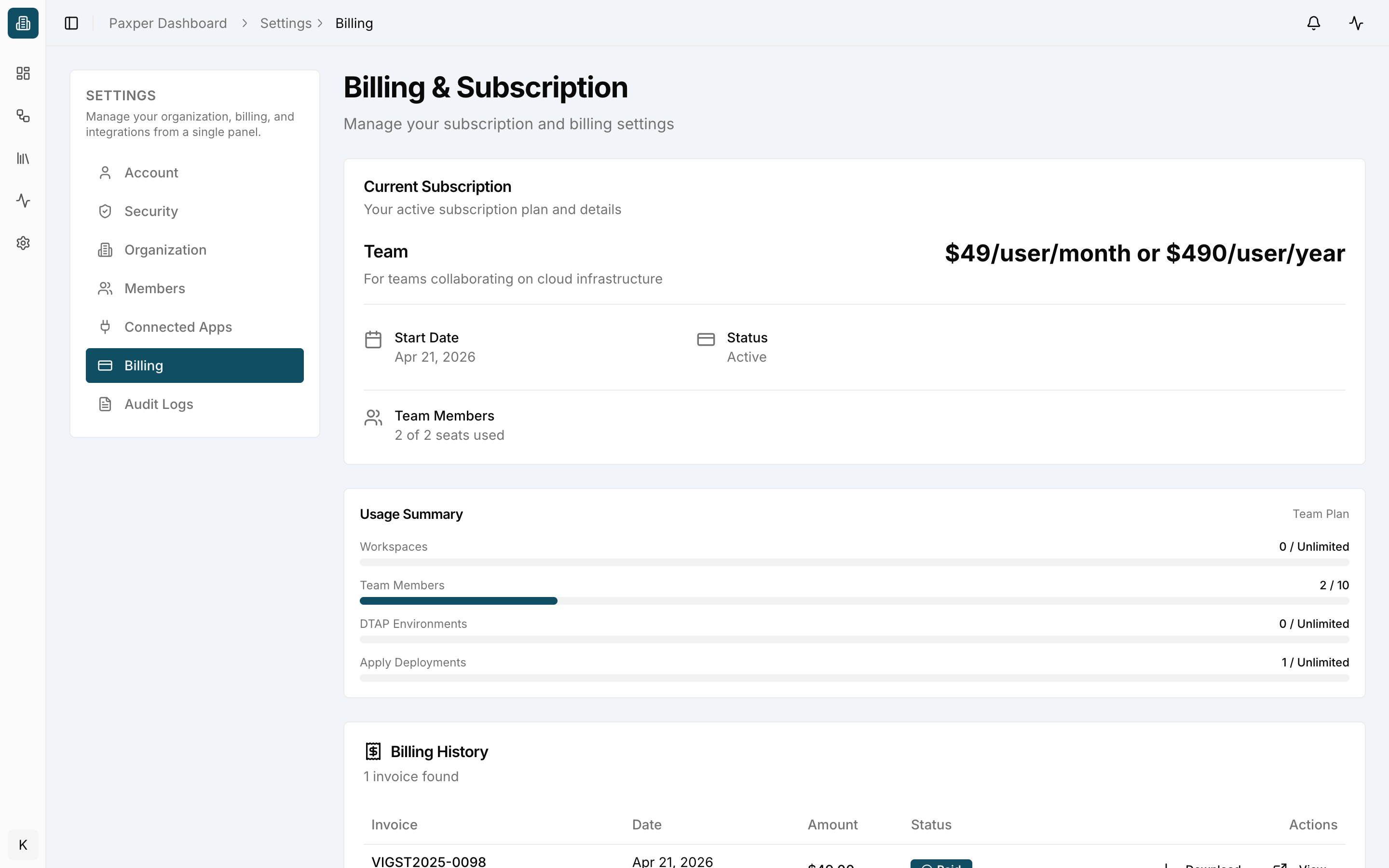
Billing
- Current Subscription – your plan, price, start date, status and seats used.
- Usage Summary – workspaces, team members, DTAP environments and apply deployments against your plan limits.
- Billing History – your invoices, which you can view and download.
Audit Logs
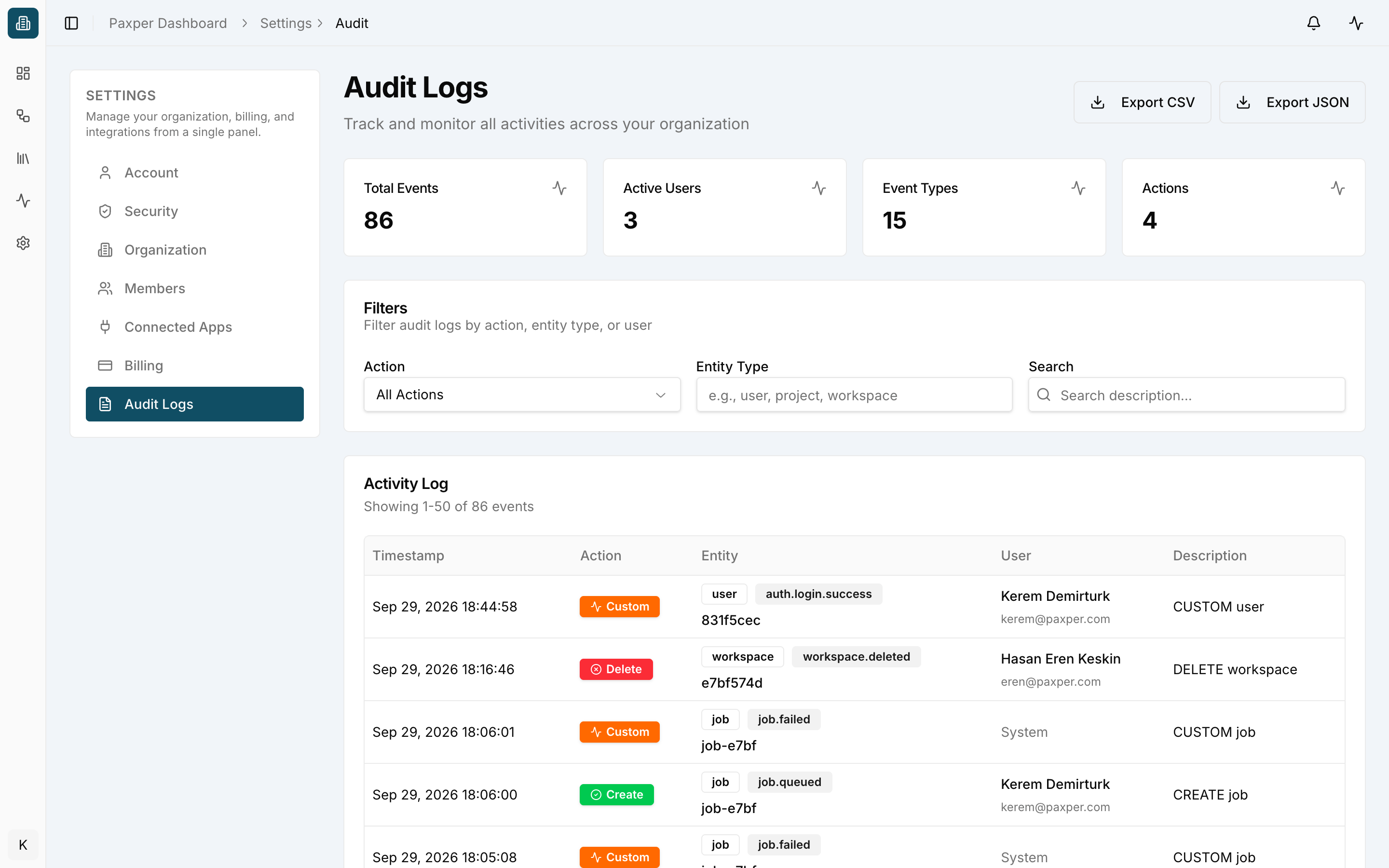
A complete log of actions in your organization. The cards at the top show total events, active users, event types and actions. Filter by Action, Entity Type or search the description. Each entry shows the timestamp, action, entity, user and description. Use Export CSV or Export JSON to download the log.