Approvals
Approvals make sure a person reviews a change before Paxper applies or destroys anything in your cloud account.
Auto-approve and Approval Policy
Two workspace settings control approvals. Open them from the workspace menu (⋮) → Workspace settings.
| Setting | Where | What it does |
|---|---|---|
| Auto-approve | General | When it is off, every apply and destroy pauses after its plan and waits until someone clicks Approve. When it is on, Paxper applies the plan automatically. |
| Approval Policy | Approval Policy | Defines who must approve, how many approvals are needed, and for which actions. Use it when only specific people should be allowed to approve changes. |
Auto-approve decides whether a job waits for approval. The Approval Policy decides who may approve it.
Set up an Approval Policy
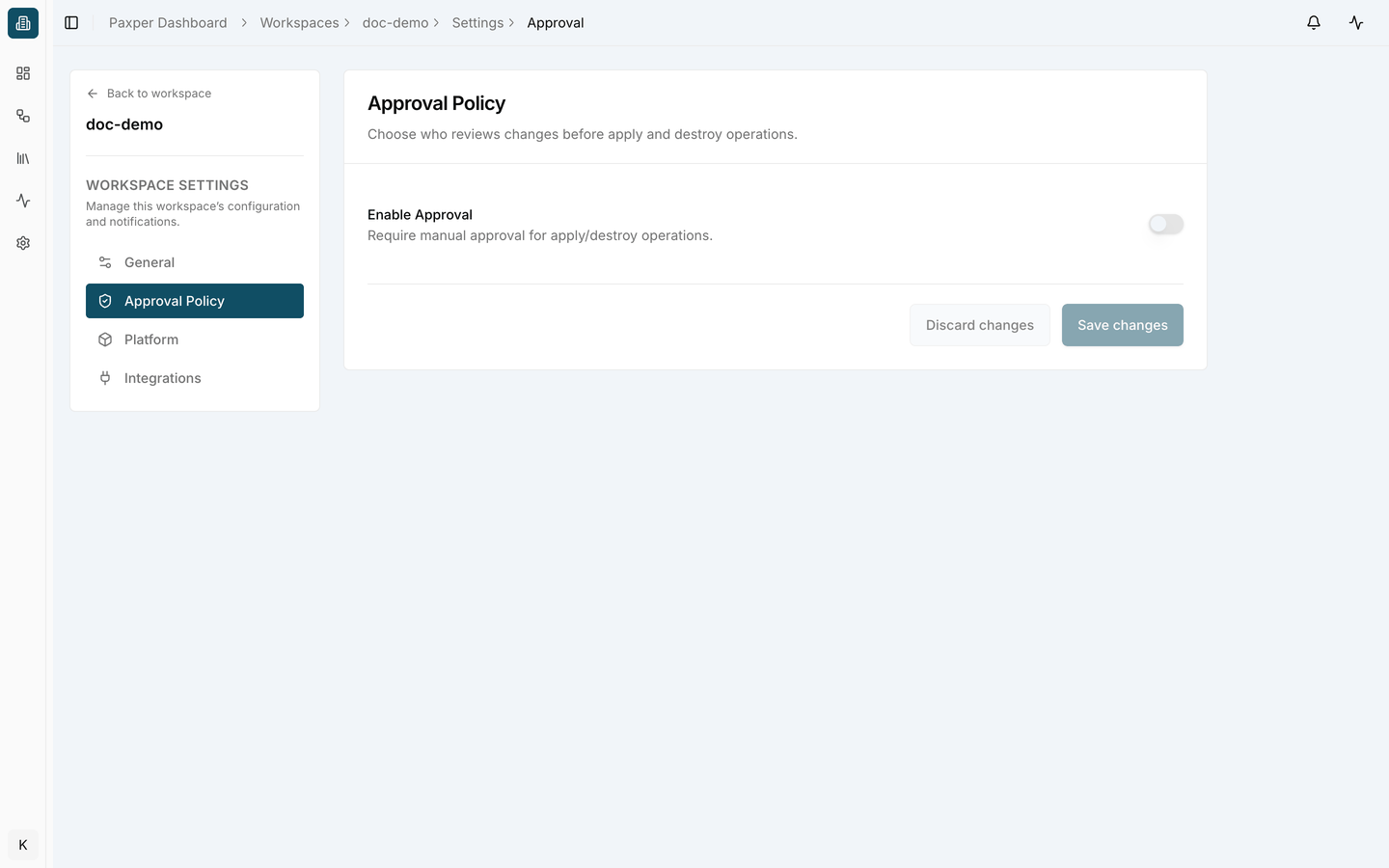
- Open Workspace settings → Approval Policy.
- Turn on Enable Approval (require manual approval for apply/destroy operations).
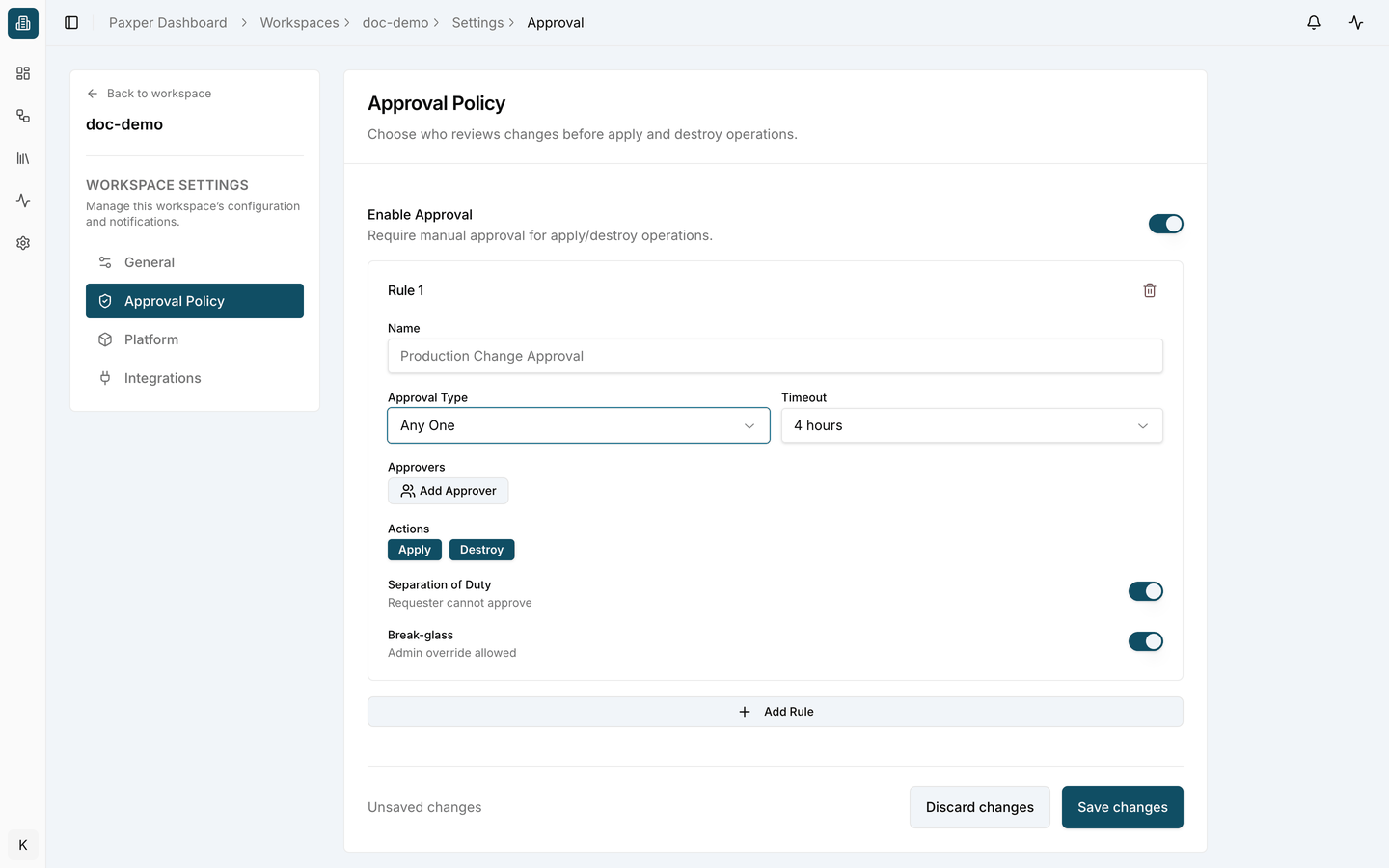
- Click Add Rule and fill it in:
- Name – for example Production Change Approval.
- Approval Type – Any One (one approver is enough), All (every approver must approve) or Quorum (a minimum number of approvers).
- Timeout – how long the job waits for approval, for example 4 hours.
- Approvers – click Add Approver to choose the people who can approve.
- Actions – the operations the rule applies to: Apply, Destroy or both.
- Separation of Duty – the person who started the job cannot approve it.
- Break-glass – an admin can override the rule in an emergency.
- Add more rules with Add Rule if you need them, then click Save changes. Click Discard changes to throw away your edits.
Approve or decline a job
When a job needs approval, the Execution tab shows the banner A job is waiting for your approval. The job card has the status awaiting_approval and the label Approval pending.
- Click Console to review the plan before you decide. The console also shows Approve & Apply and Decline at the bottom.
- Click Approve & Apply (or Approve and Destroy for a destroy) to continue the job.
- Click Decline to stop it. Nothing is changed in your cloud account.
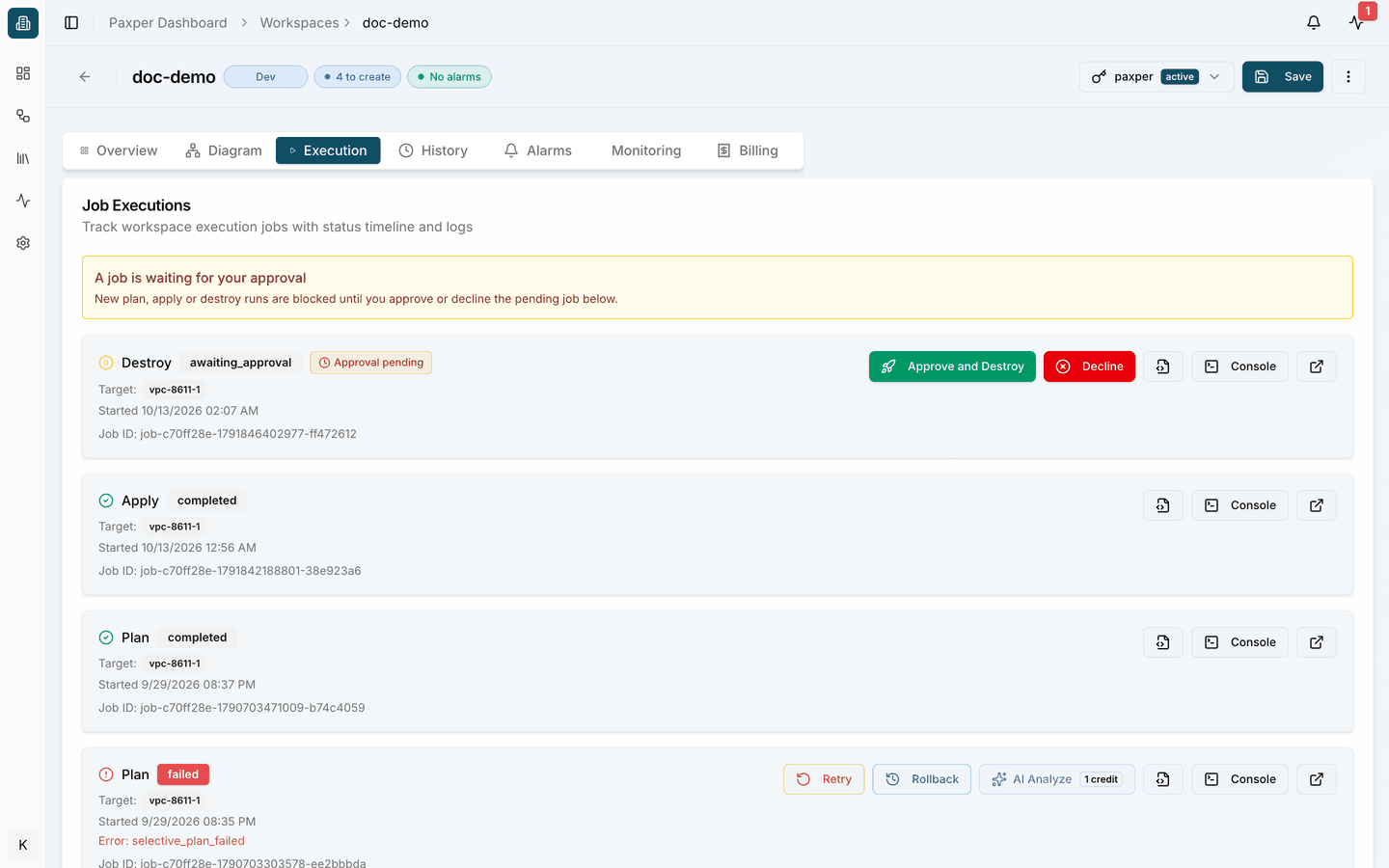
While a job is waiting for approval, new plan, apply and destroy runs in the workspace are blocked. Approve or decline the pending job first.
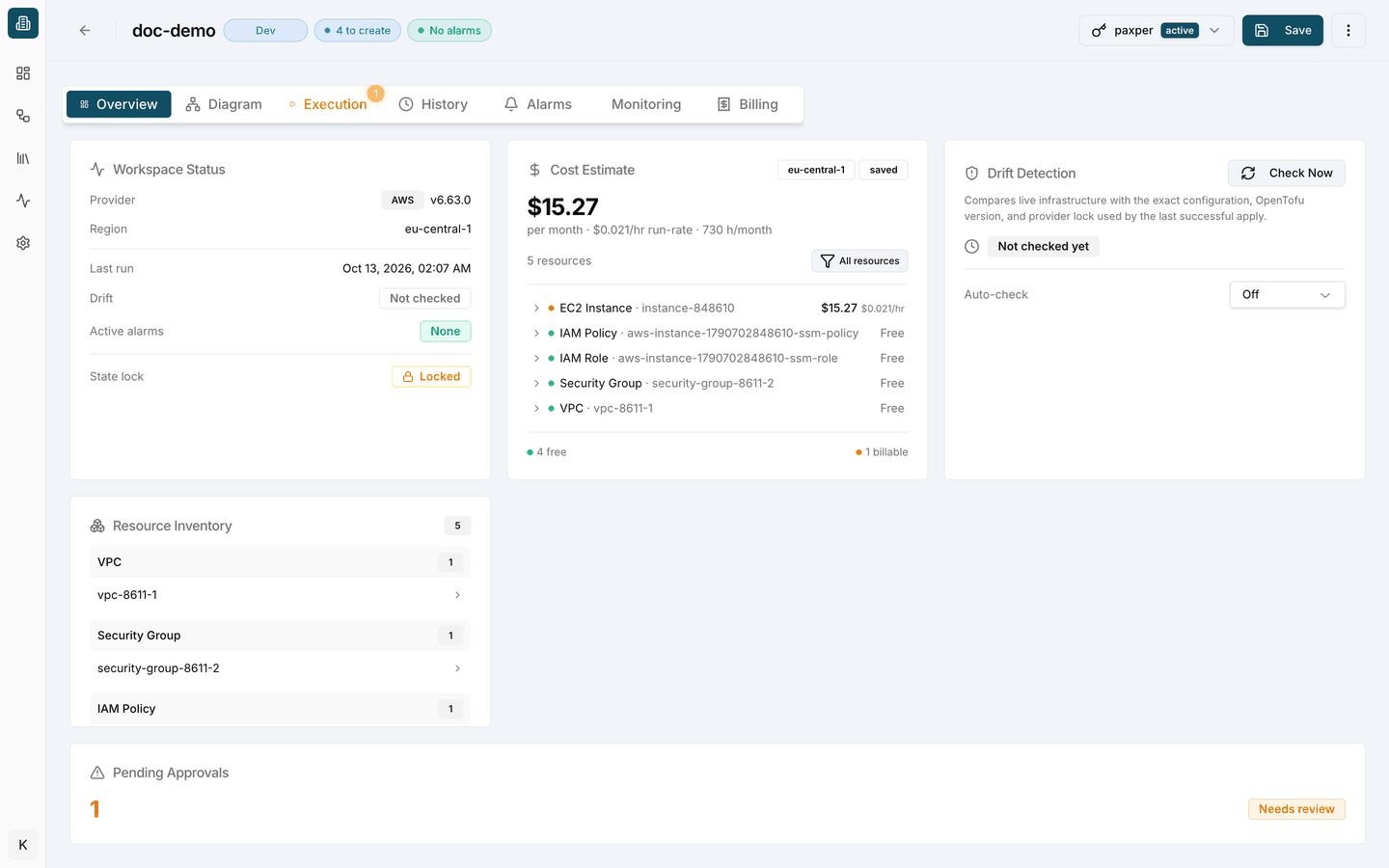
See pending approvals at a glance
The workspace Overview tab has a Pending Approvals card that shows how many jobs are waiting and marks them Needs review. The Execution tab also shows a badge with the number of waiting jobs.