Credentials
Credentials connect Paxper to your cloud accounts. You add a credential once and can use it across your workspaces.
View your credentials
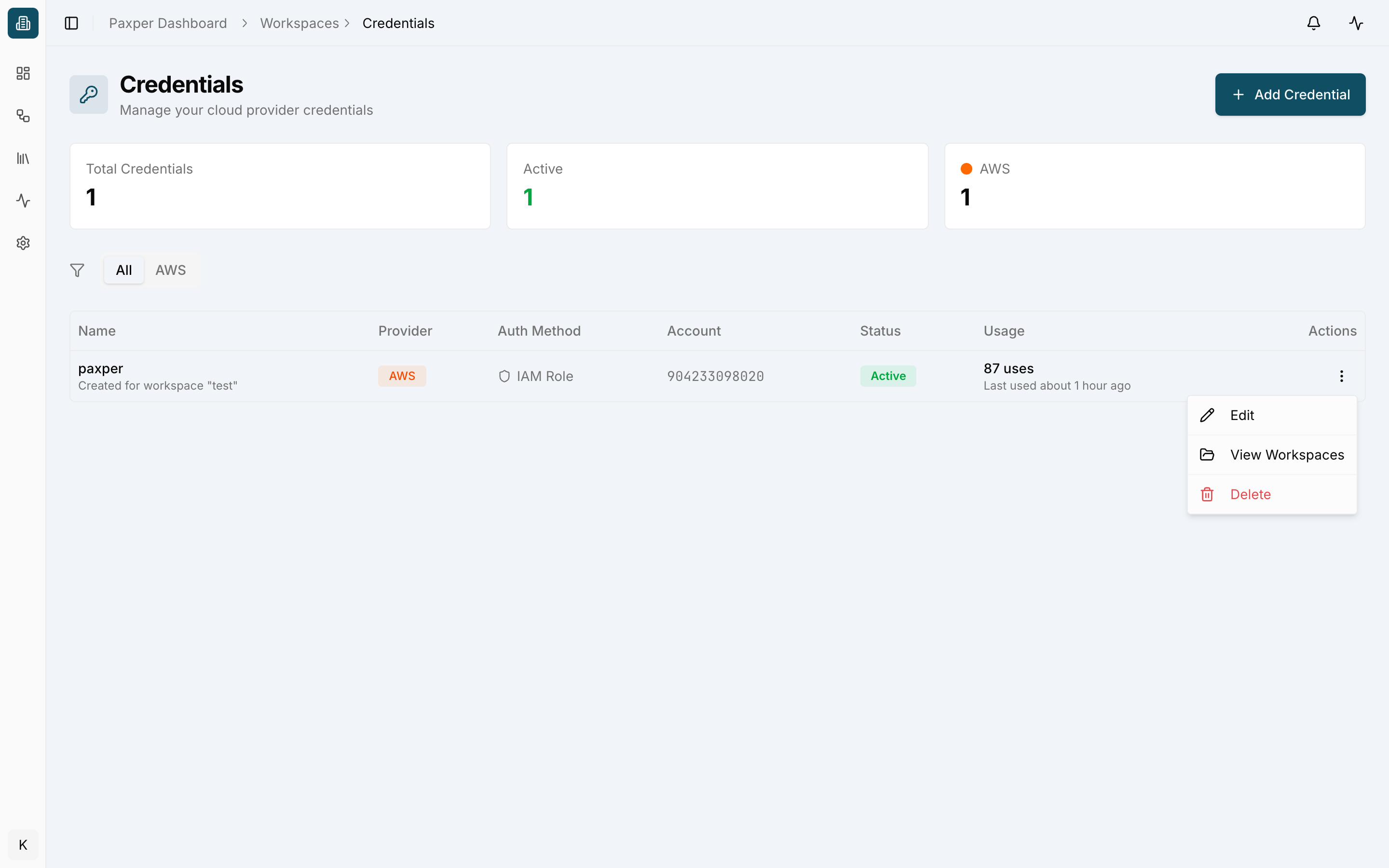
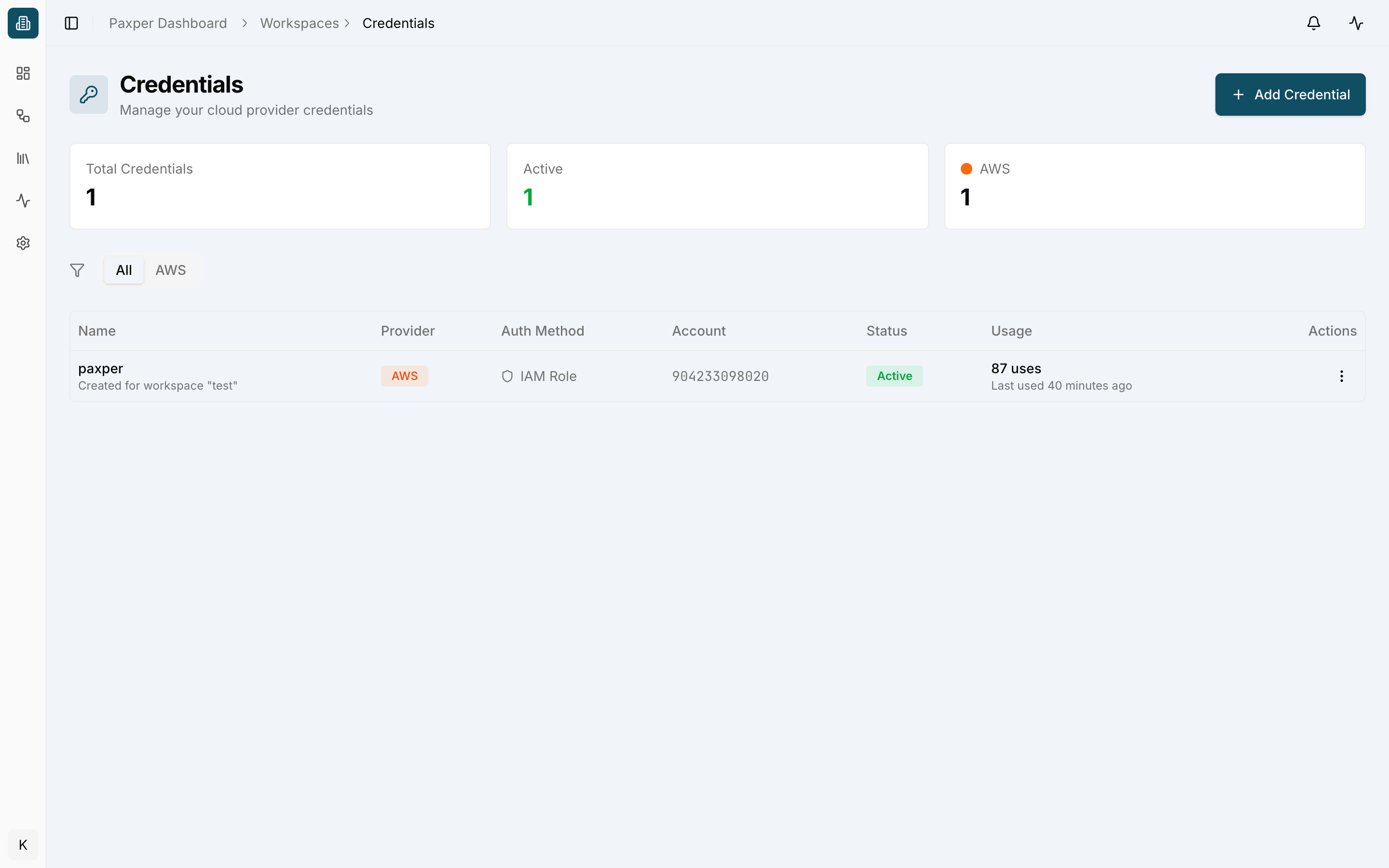
Go to Workspaces → Credentials. At the top you see the total number of credentials, how many are active, and how many there are per provider. The table shows each credential’s name, provider, authentication method, account ID, status and usage (number of uses and when it was last used).
Add an AWS credential
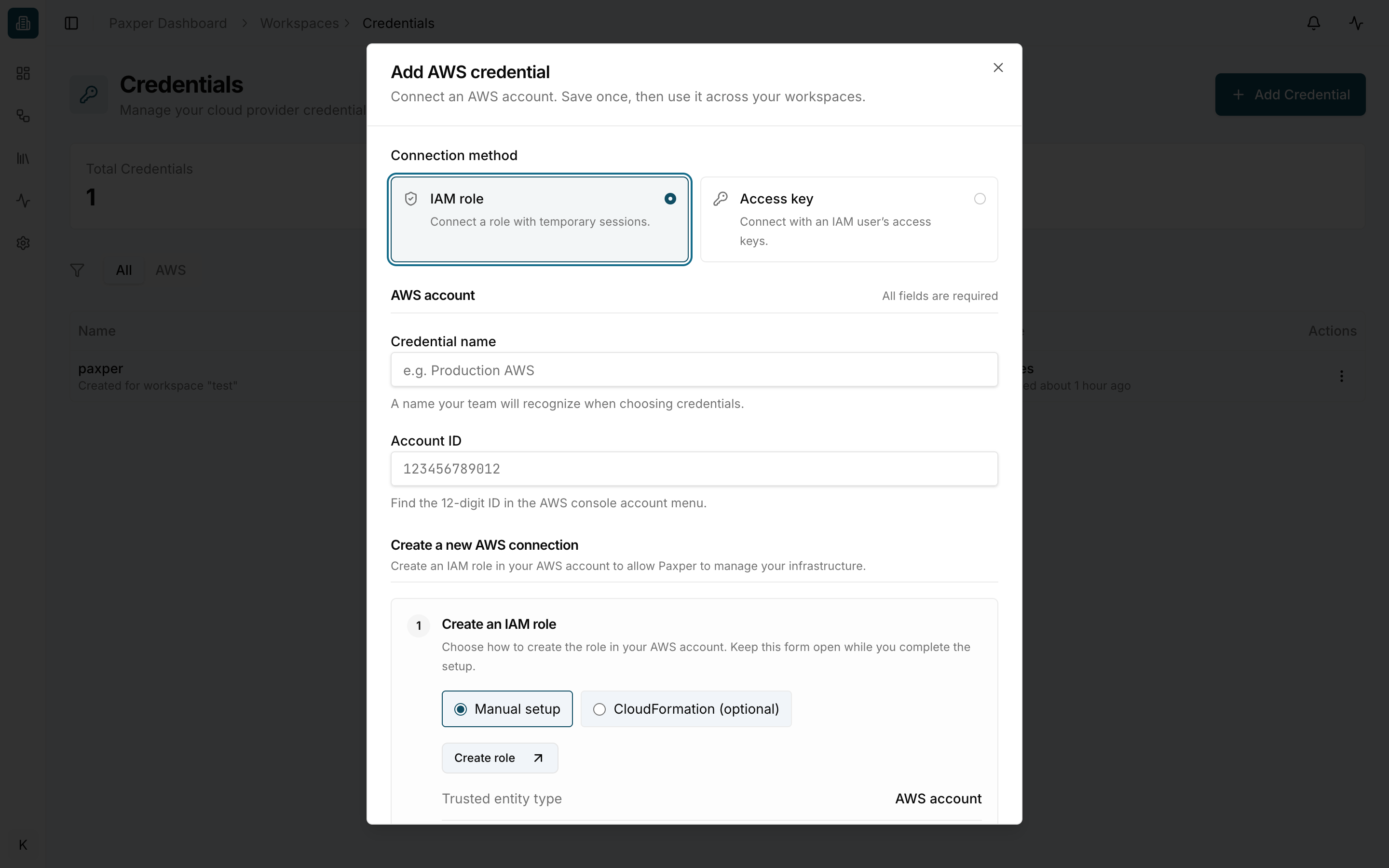
Click Add Credential and choose a connection method:
- IAM role (recommended) – Paxper assumes a role in your AWS account with temporary sessions.
- Access key – connect with an IAM user’s access keys.
Then fill in:
- Credential name – a name your team will recognize, for example Production AWS.
- Account ID – your 12-digit AWS account ID (shown in the AWS console account menu).
For an IAM role, create the role in your AWS account. Choose Manual setup and click Create role to open AWS, or use CloudFormation (optional). Keep the form open while you create the role, then save.
You can also add a credential while creating a workspace, in the Cloud Connection step (Create New).
Manage a credential
Click ⋮ in the Actions column to Edit the credential, View Workspaces that use it, or Delete it.