Designing on the Canvas
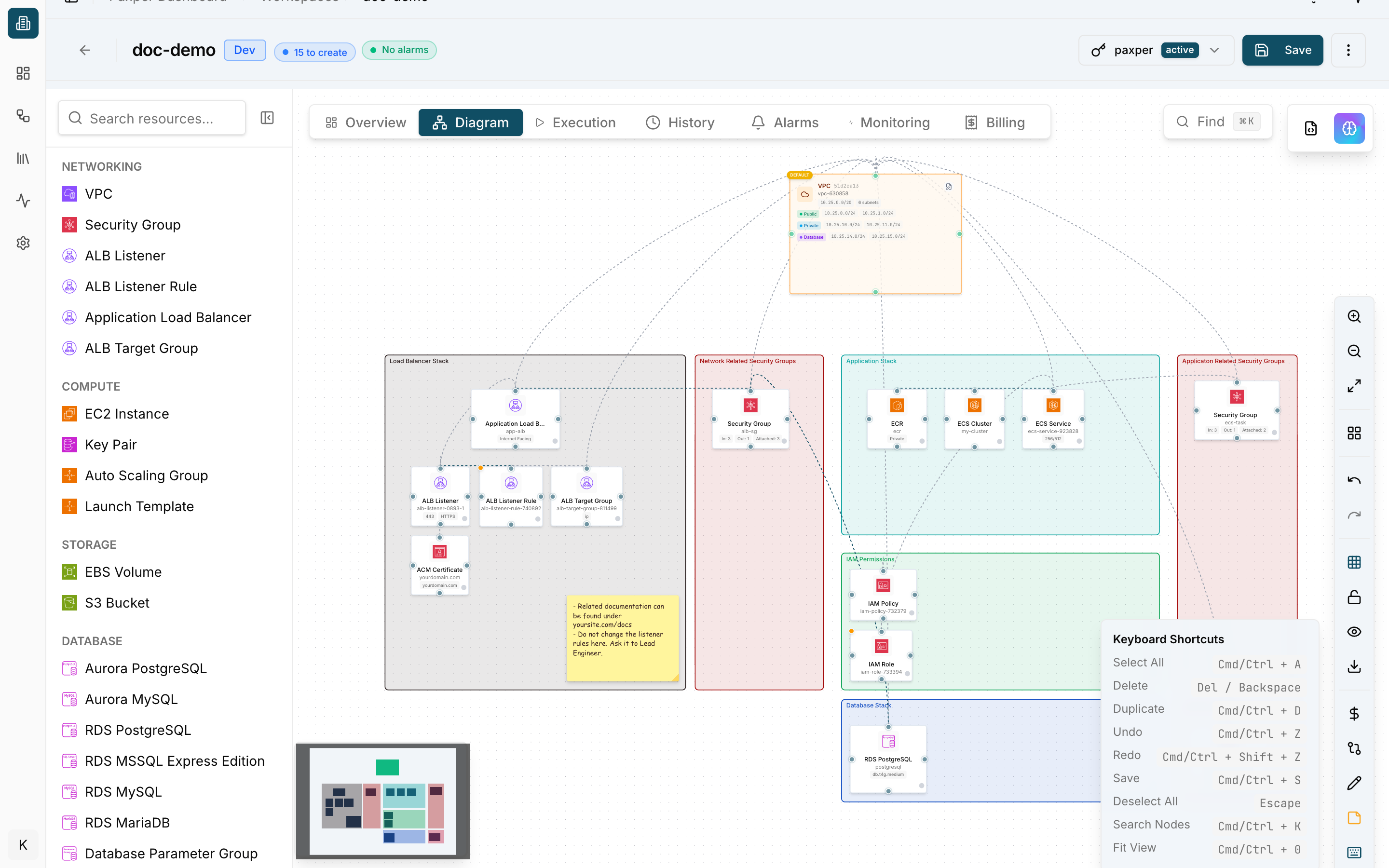
The Diagram tab of a workspace is a visual canvas where you design your infrastructure.
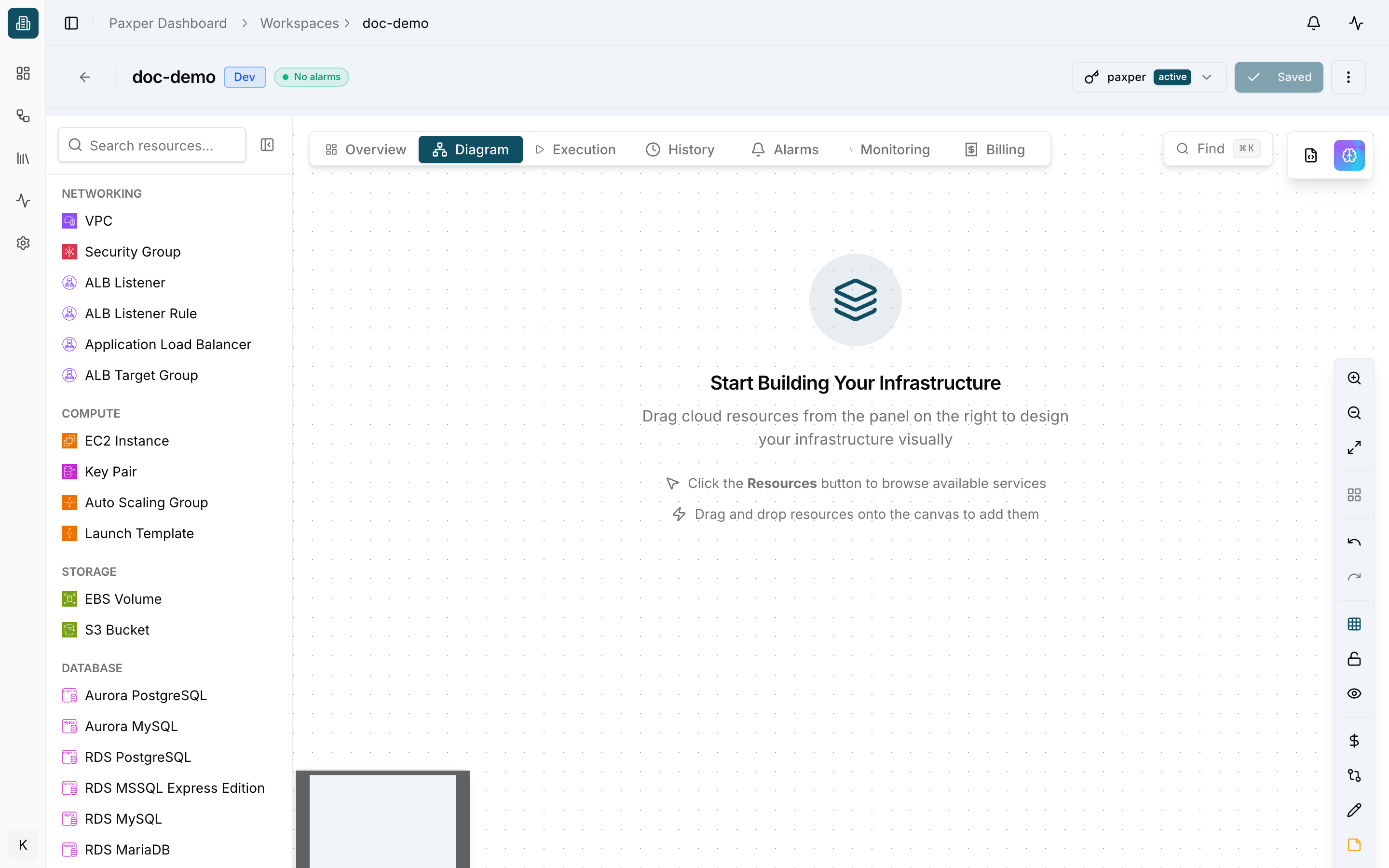
The screen has four parts:
- Resource panel (left) – all resources you can add, grouped by category (Networking, Compute, Storage, Database, Security, Containers, CDN…). Use Search resources to find one quickly.
- Canvas (center) – your diagram.
- Canvas toolbar (right) – zoom in/out, fit view, auto-layout, undo/redo, minimap, lock canvas, show/hide connections, export diagram, show costs, show plan diff, draw mode, sticky notes and keyboard shortcuts.
- Workspace header (top) – workspace name, environment badge, pending changes (for example 5 to create), alarm status, the active credential, Save and the ⋮ menu.
Add a resource
Click a resource in the left panel (or drag it onto the canvas). Paxper adds it to the canvas together with the resources it depends on. For example, adding an EC2 Instance also adds a VPC, a Security Group, an IAM Role and an IAM Policy, already connected to each other.
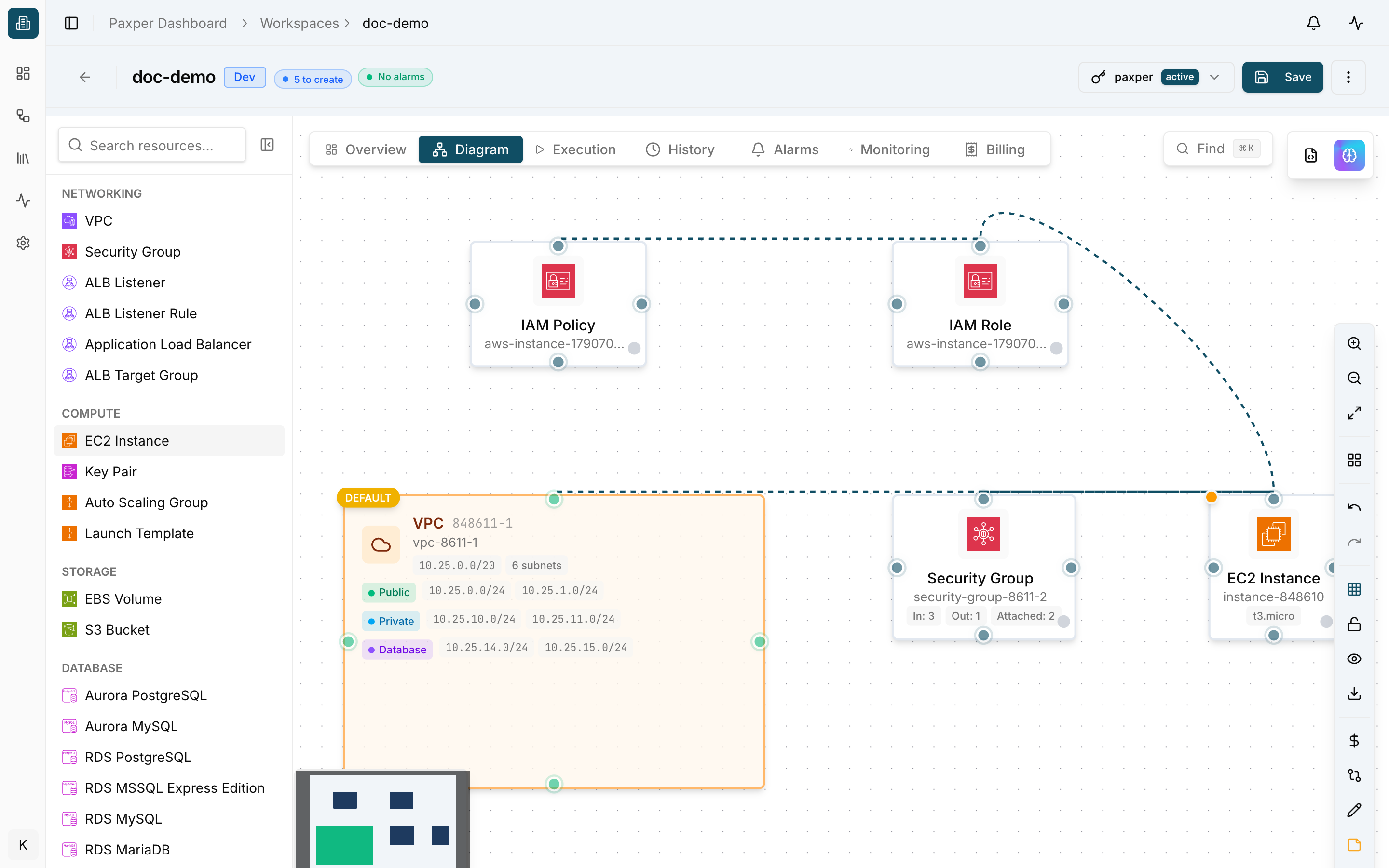
Use Fit view in the toolbar to see the whole diagram.
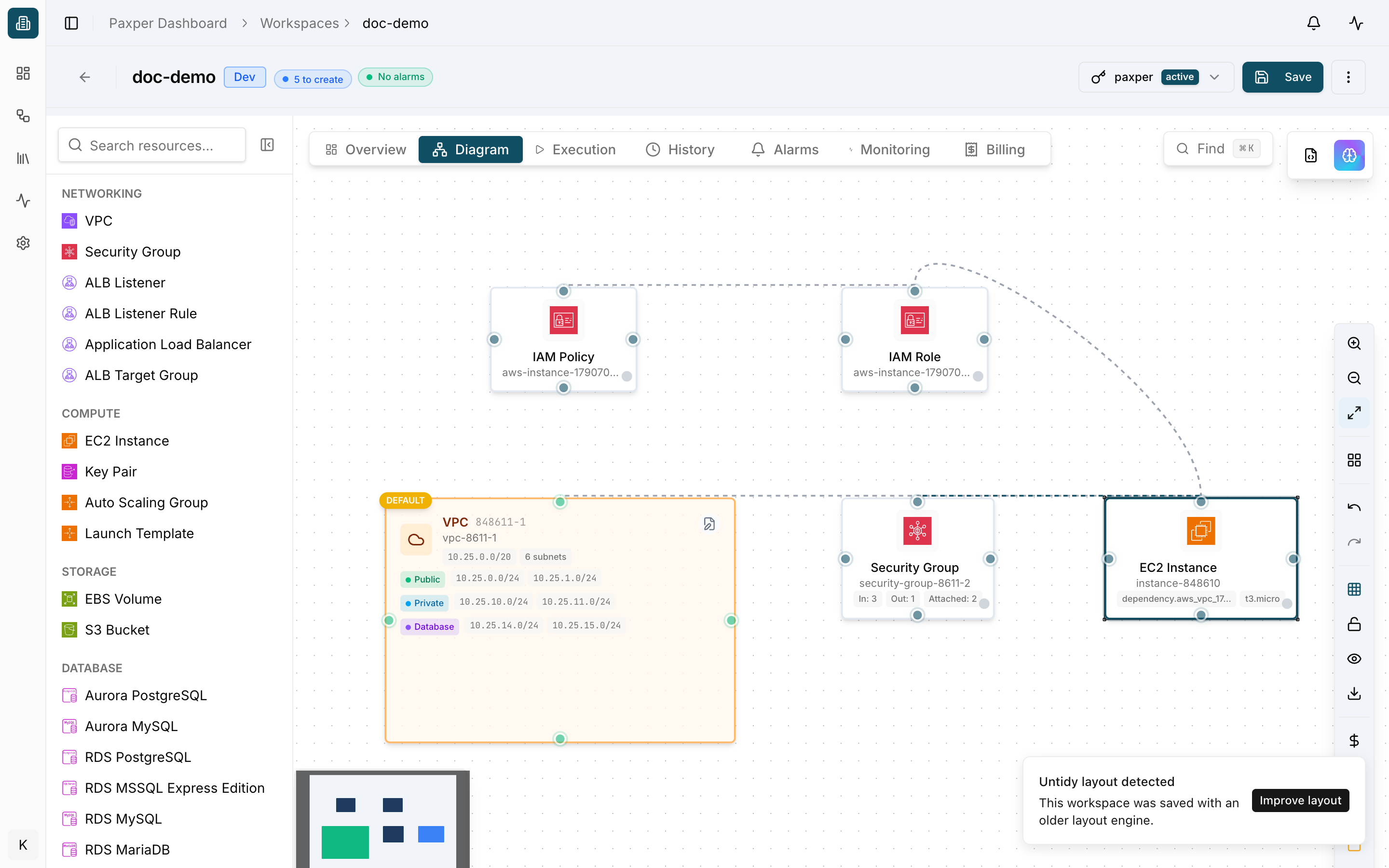
Your changes are saved automatically every few seconds. You can also click Save in the header or press Cmd/Ctrl + S.
Work with a resource
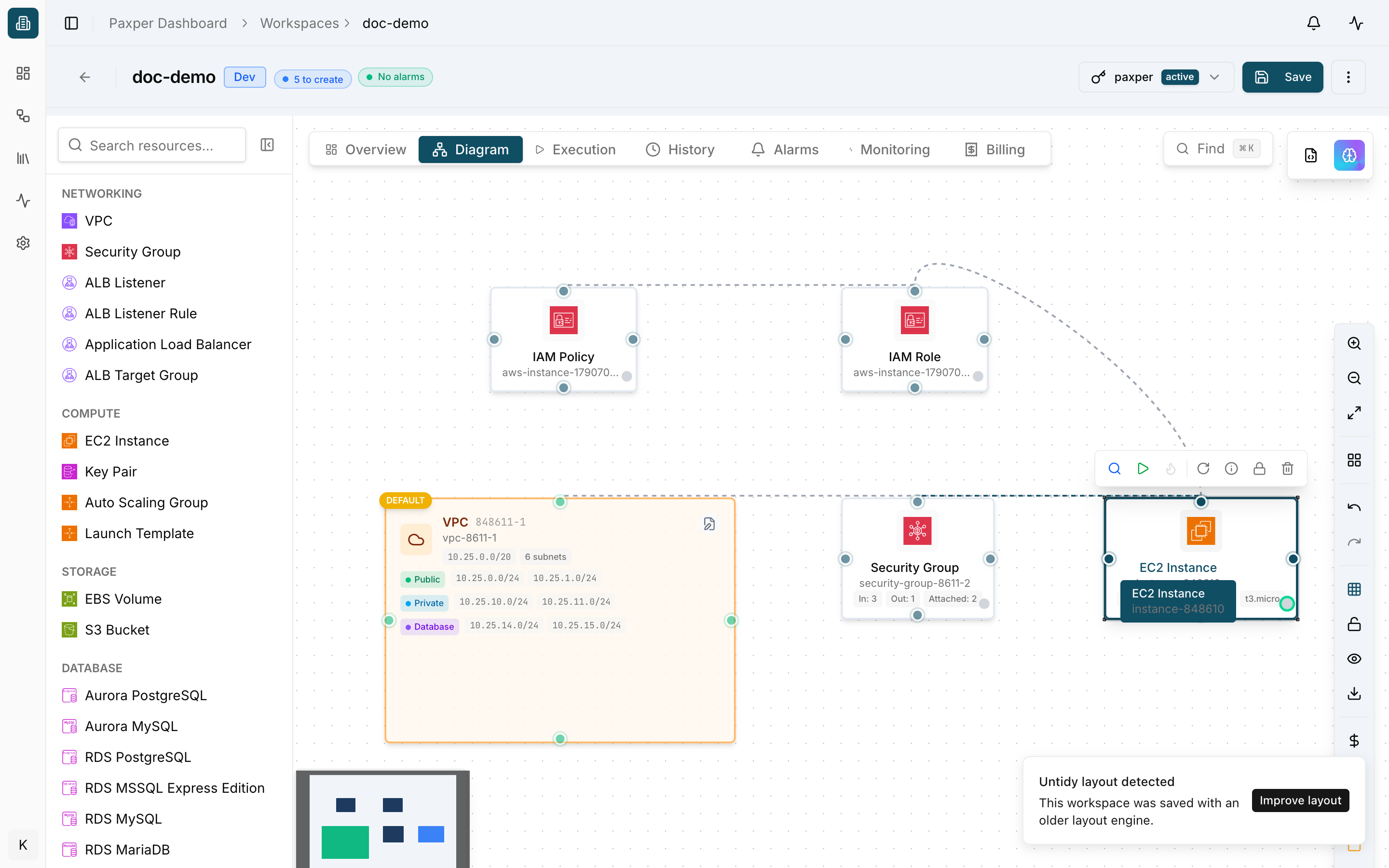
Hover over a resource to show its toolbar:
| Icon | Action |
|---|---|
| 🔍 | Plan resource – preview the changes for this resource |
| ▶ | Apply resource – create or update this resource in your cloud |
| 🔥 | Destroy resource – remove it from your cloud |
| ⟳ | Rotate node |
| ⓘ | Node info |
| 🔒 | Lock node |
| 🗑 | Delete node – remove it from the diagram |
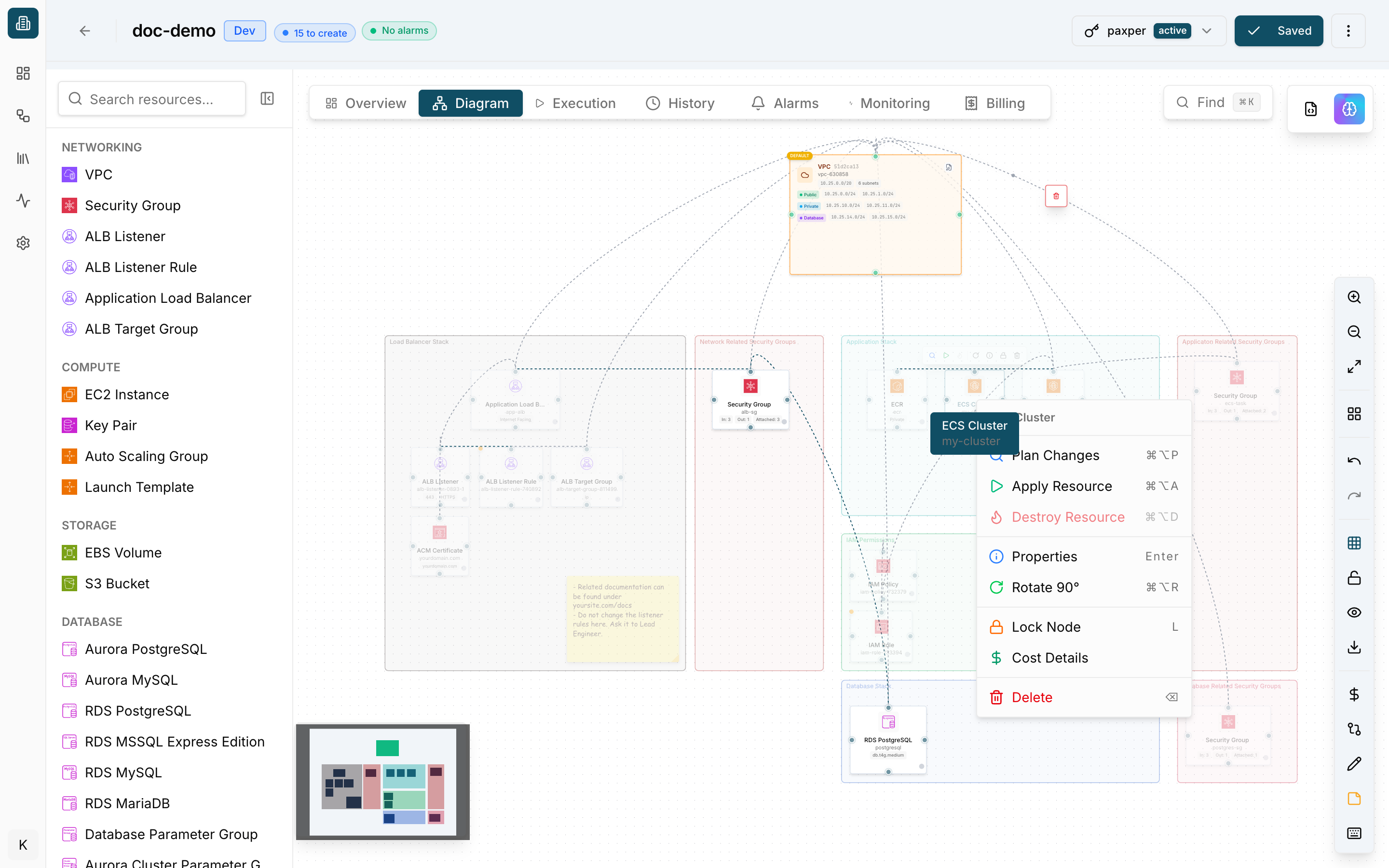
Right-click a resource for the same actions plus Properties, Cost Details and their keyboard shortcuts.
Double-click a resource to open its Properties panel. See Configuring Resources.
Delete resources
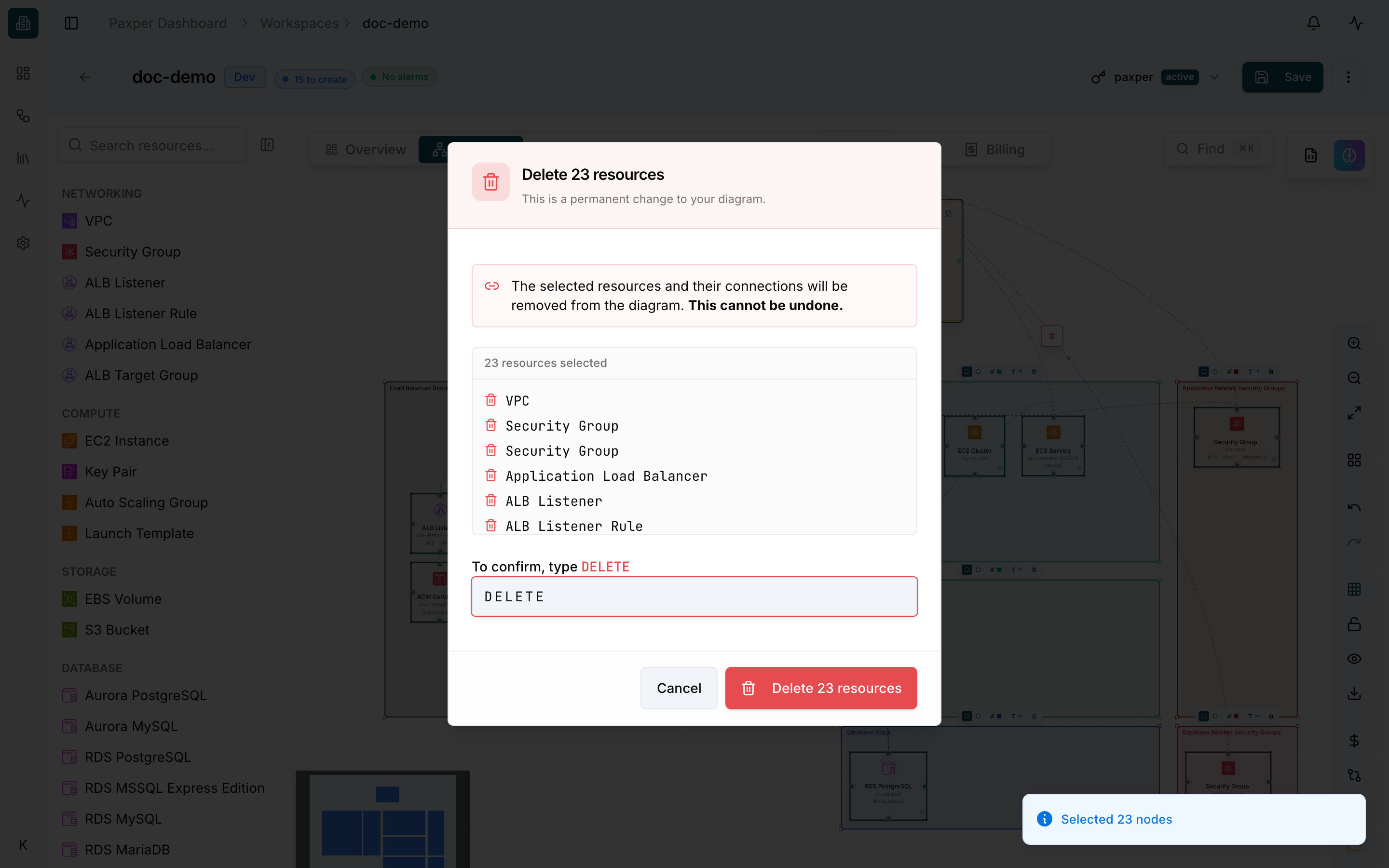
Select one or more resources (Cmd/Ctrl + A selects everything) and press Delete. Deleting from the diagram is permanent, so Paxper asks you to type DELETE to confirm.
Find a resource
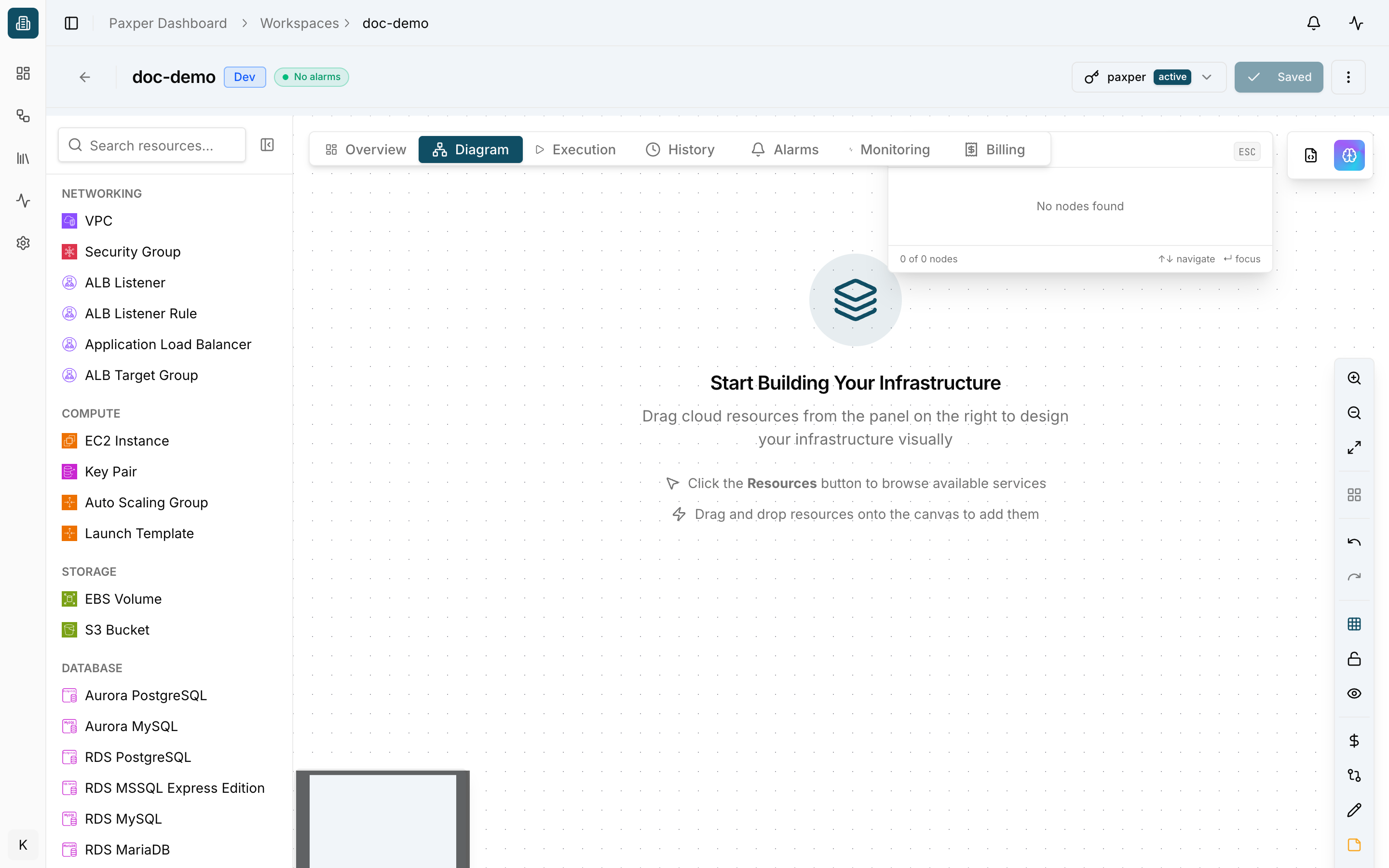
Click Find or press Cmd/Ctrl + K to search for a resource on the canvas.
Keyboard shortcuts
Click the keyboard icon at the bottom of the toolbar to see all shortcuts, such as Select All (Cmd/Ctrl + A), Duplicate (Cmd/Ctrl + D), Undo (Cmd/Ctrl + Z), Redo (Cmd/Ctrl + Shift + Z), Save (Cmd/Ctrl + S) and Fit View (Cmd/Ctrl + 0).
The workspace menu
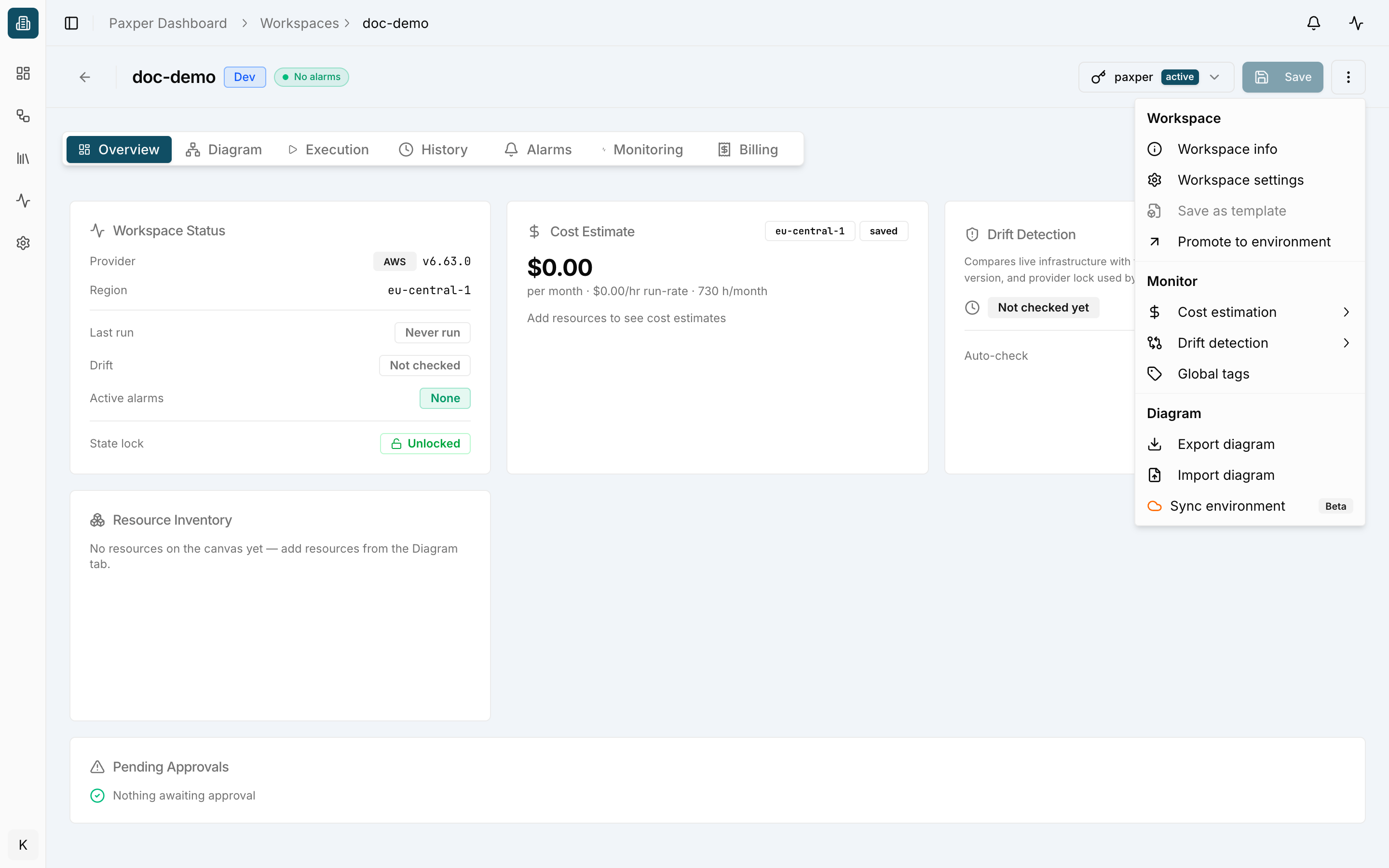
The ⋮ button in the header gives you workspace-level actions:
- Workspace – Workspace info, Workspace settings, Save as template, Promote to environment
- Monitor – Cost estimation, Drift detection, Global tags
- Diagram – Export diagram, Import diagram, Sync environment (Beta)
Switch credentials
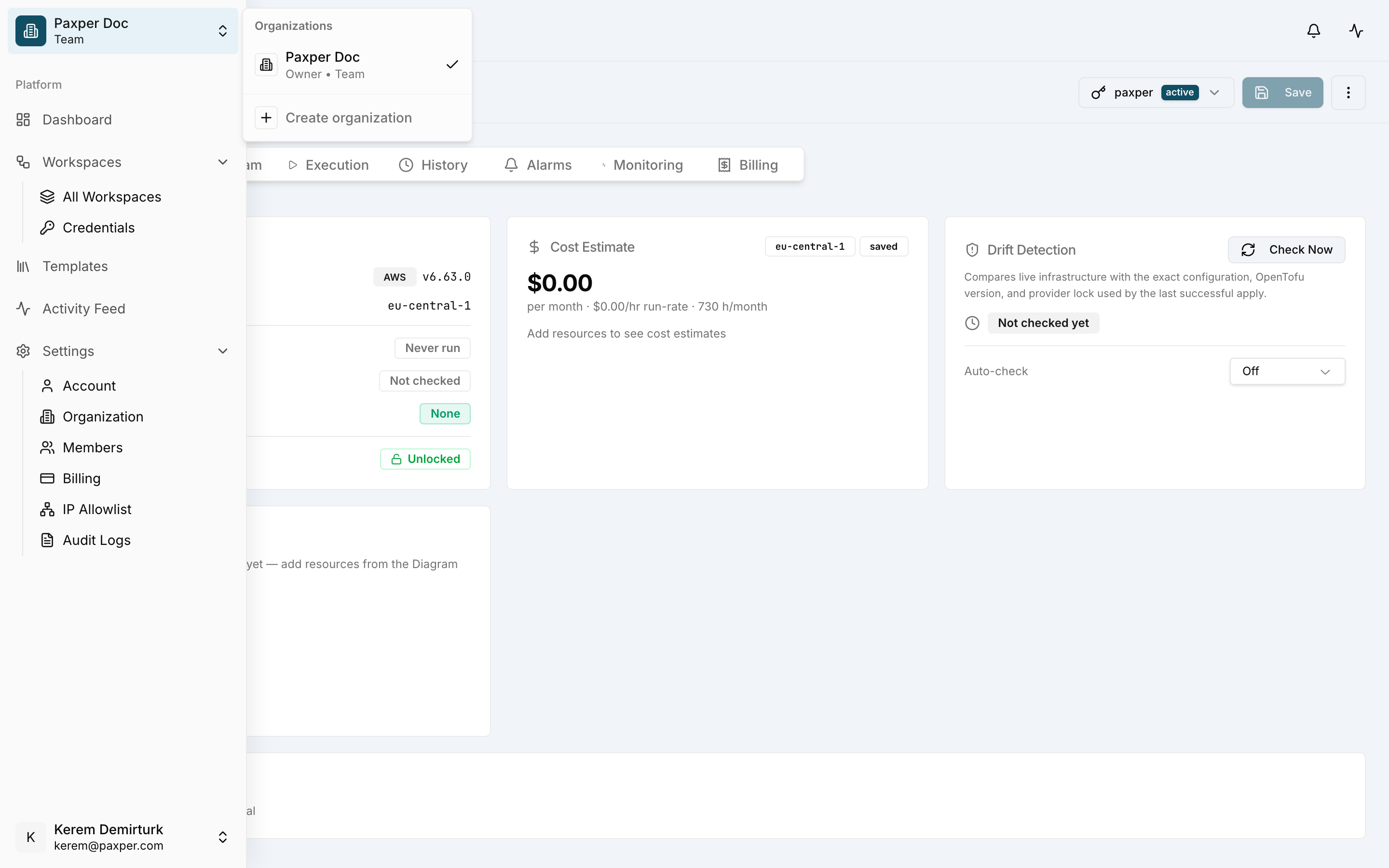
The credential selector in the header shows which cloud credential the workspace uses. Click it to switch to another credential.
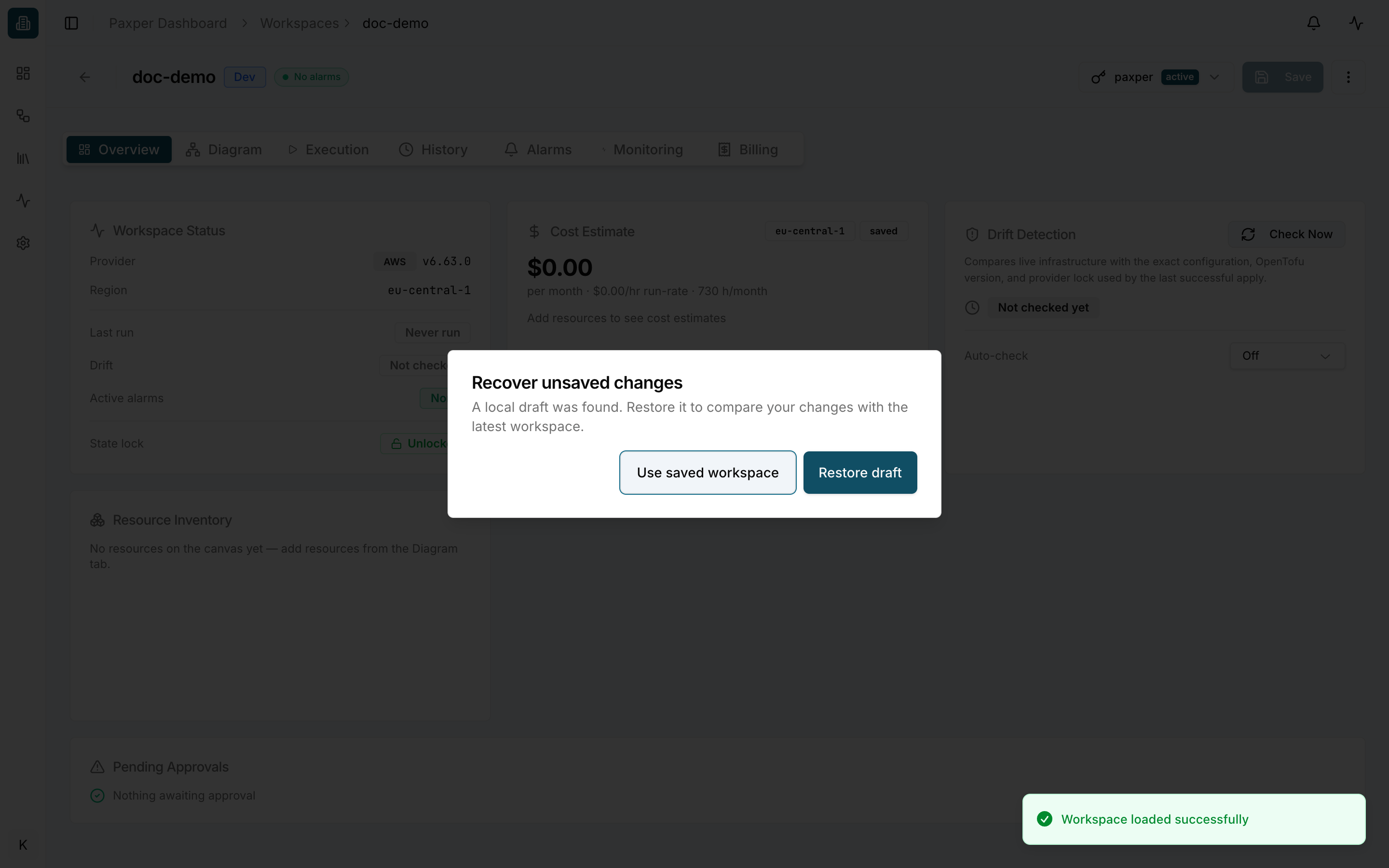
Recover unsaved changes
If Paxper finds a local draft that wasn’t saved (for example after closing the browser), it asks whether to Restore draft or Use saved workspace.
Paxy – AI Assistant
Click the purple brain icon at the top right of the canvas to open Paxy, the AI assistant, which can help you design and change your infrastructure. Paxy uses AI credits.